Overview
There may be times when confidential information regarding ticket submissions is needed. Onflo provides ticket team members the ability to disclose confidential information. This information may be needed to escalate a ticket, and should be used cautiously.
Guidance On Use
Discretion and discernment should be used when accessing confidential ticket information. This feature is designed to be used in instances only where serious or imminent threat is perceived. Obtaining this information only when necessary protects the customer’s privacy but also upholds the trust they place in your organization. Always remember that your responsibility goes beyond solving the ticket—it extends to safeguarding the customer’s information at every step. Please consult our Privacy Policy for additional information and criteria regarding information sharing and disclosure.
Confidential Ticket Information
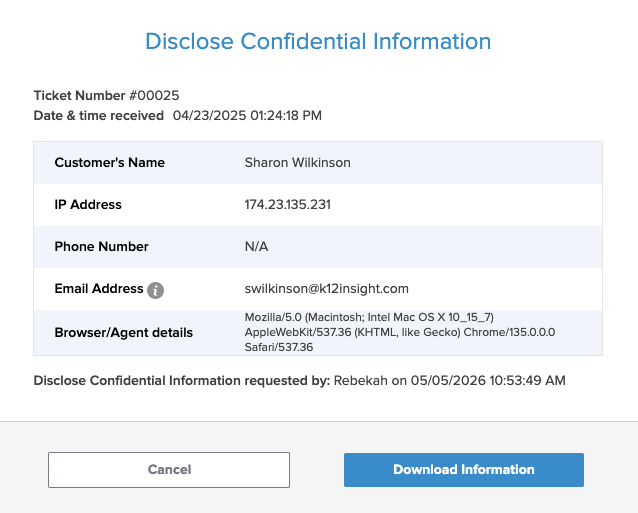
This tool will disclose the following information for a ticket:
- Ticket Number
- Date and Time ticket received
- IP Address
- Browser/Agent details
Additional Information (based on submission):
- Customers Name
- Phone Number
Accessing Confidential Information
- Open the ticket in Onflo
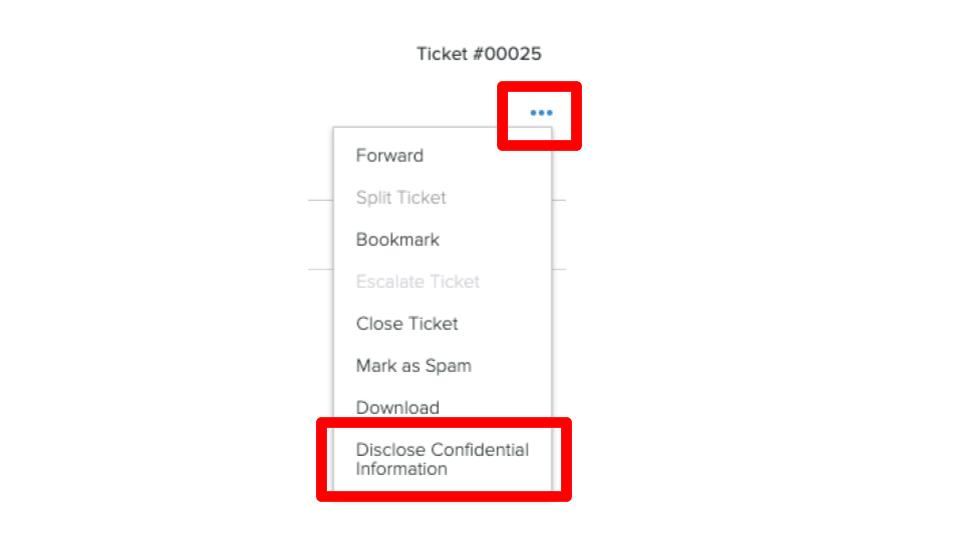
- Click on the three horizontal dots in the upper right corner of your ticket
- Click Disclose Confidential Information
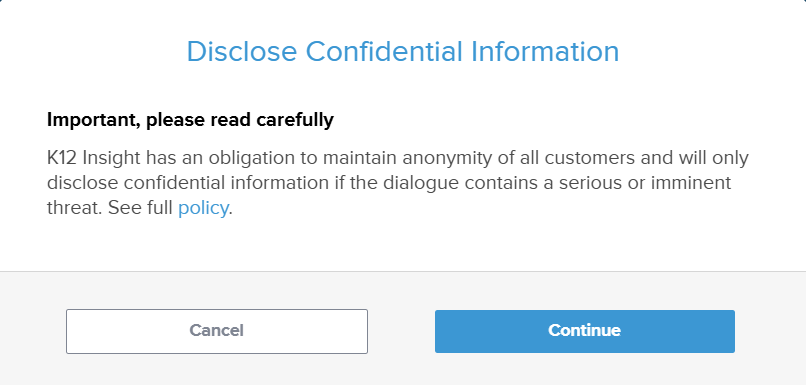
- Confirm your action to move forward with disclosing confidential information by clicking Continue
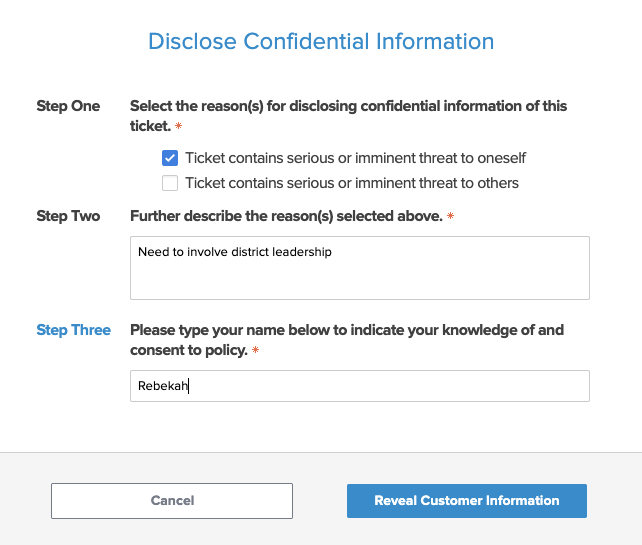
- Complete steps 1-3 to log your access to the information including the reasons for accessing the information and your name
- The information will be revealed. If you would like to download the information you can click Download information