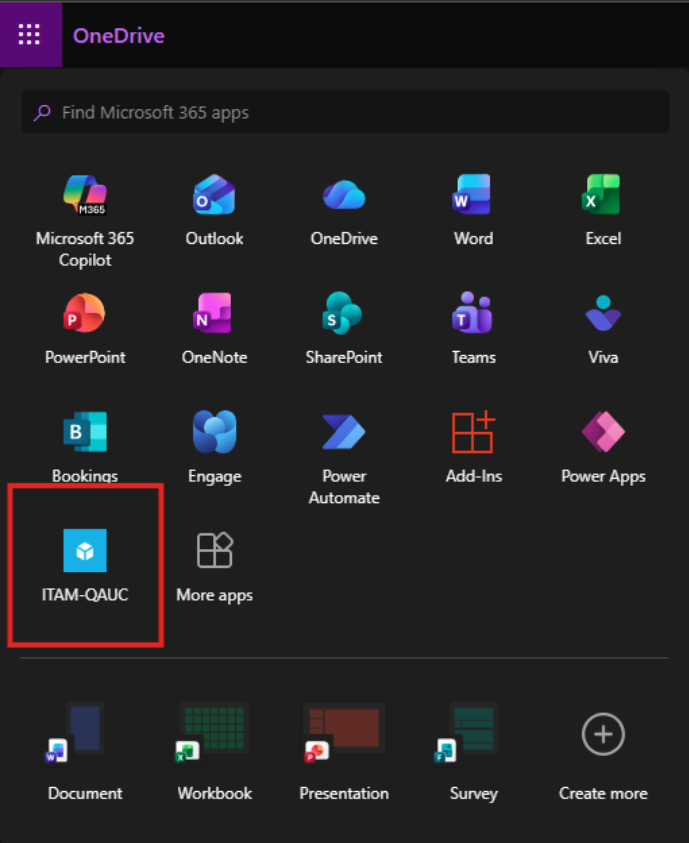
Overview
Enable Single Sign-On with any SAML 2.0-compliant identity provider. This integration allows your staff and students to securely authenticate to Onflo using existing organizational credentials, reducing password fatigue and improving security posture.
Features
- SAML 2.0 compliant authentication
- Attribute mapping for user profile synchronization
Prerequisites
Make sure you have the following before connecting this integration:
- Administrator access to your SAML identity provider
- IdP metadata URL or XML file
- X.509 signing certificate from your IdP
- Onflo SP metadata configured in your IdP
Step 1: Click Connect on the SAML application in the Custom Integrations section of the Integration Marketplace.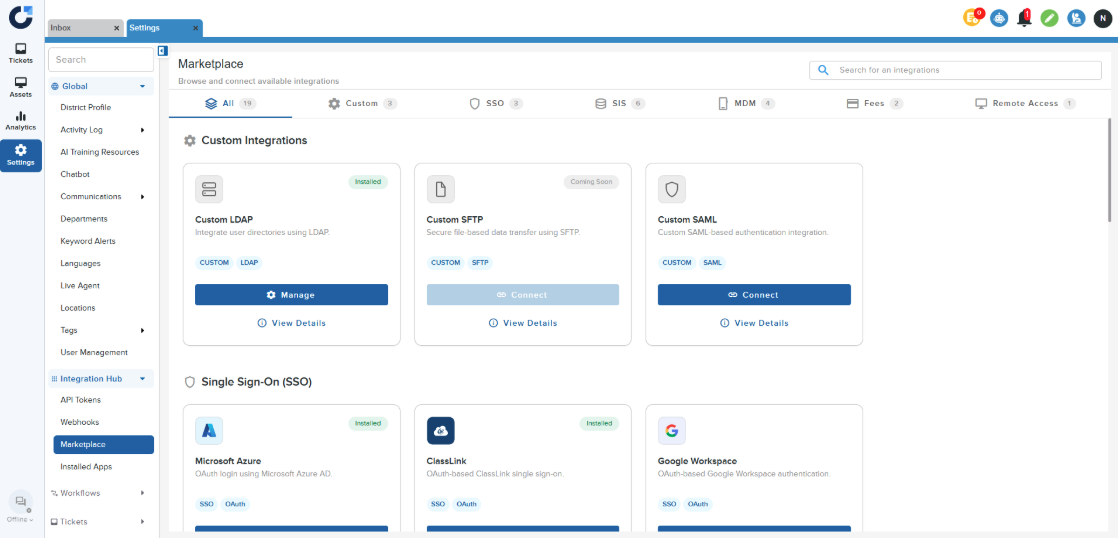
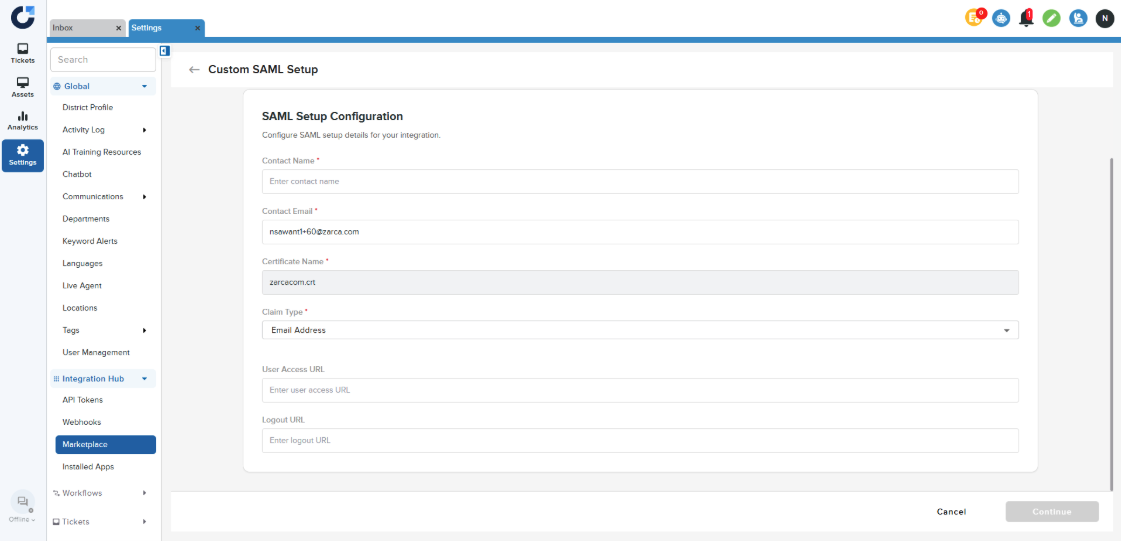
Step 2: Enter the SAML Setup Configuration details and select the Claim Type. Click Continue.
Step 3: Enter the Service Provider Details when you are creating a new SAML application for Onflo in your Identity Provider.
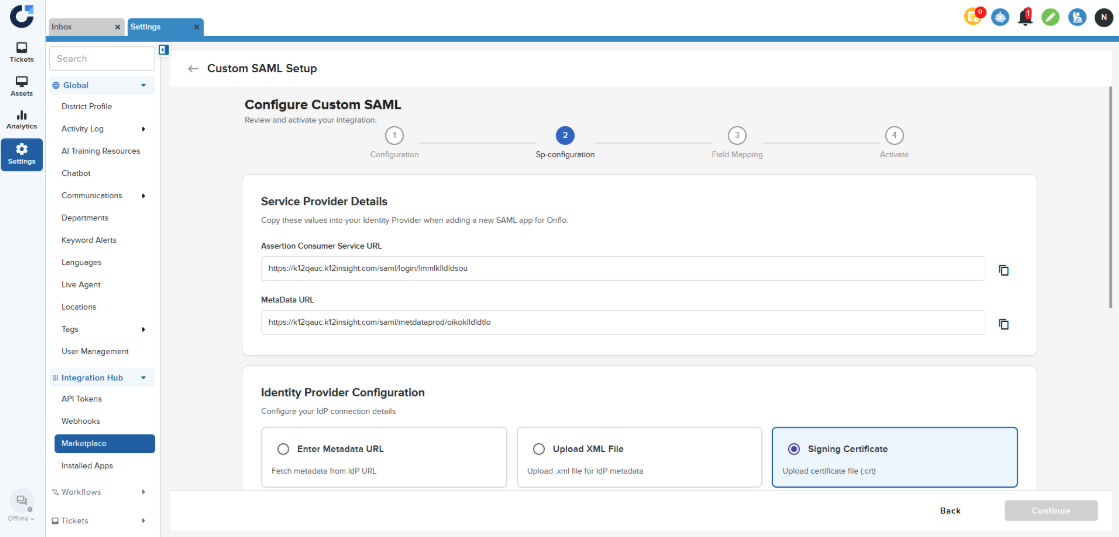
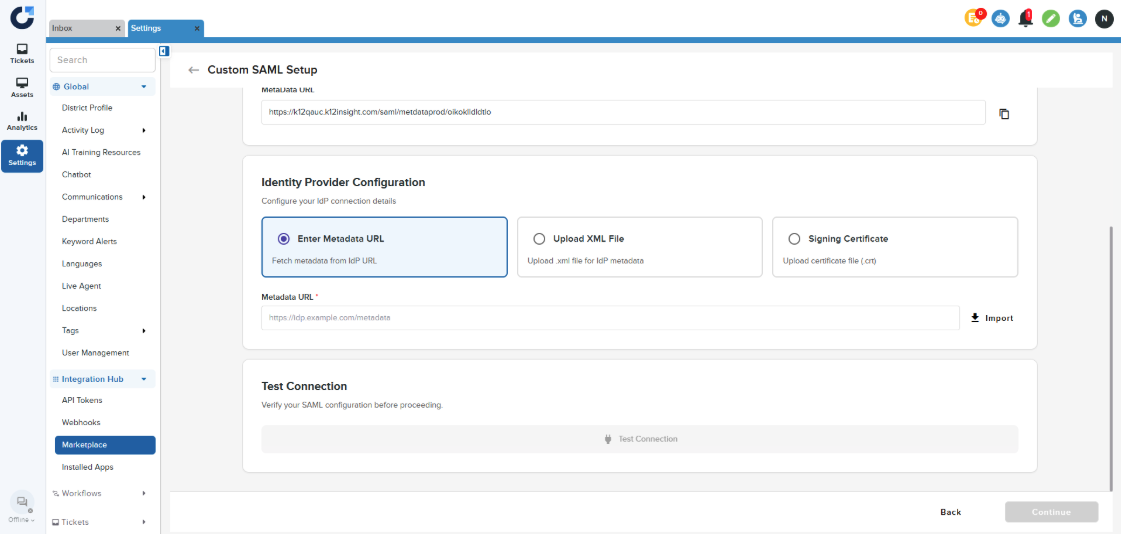
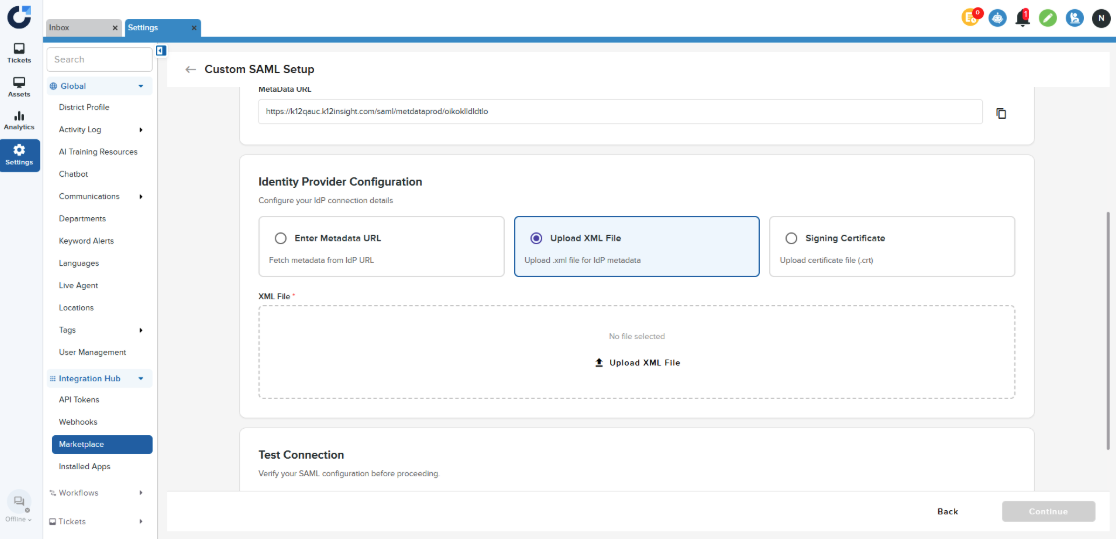
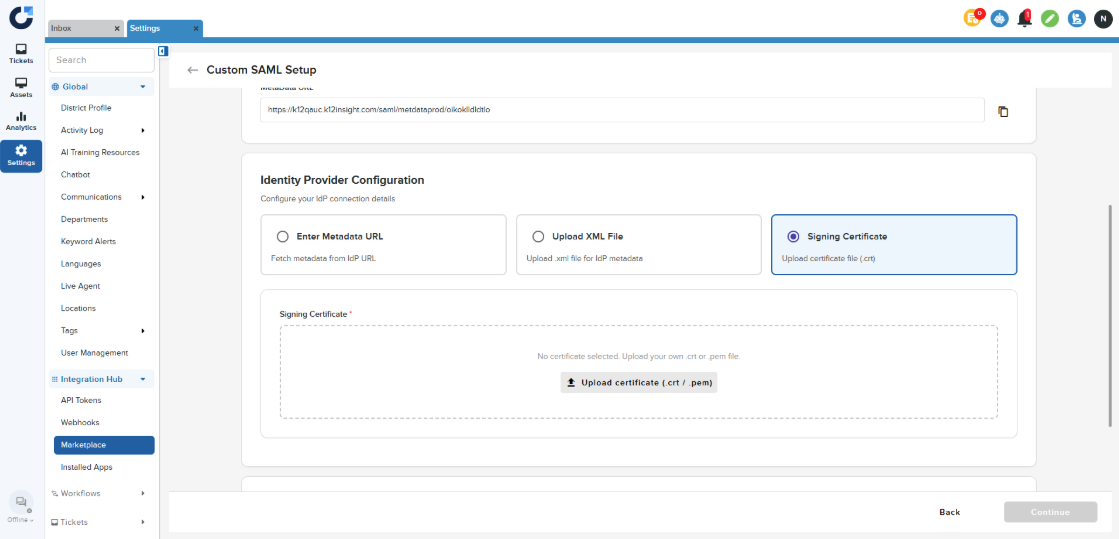
Step 4: Enter the details provided by your Identity Provider. There are three ways to perform this step:
- Enter Metadata URL
- Upload XML file
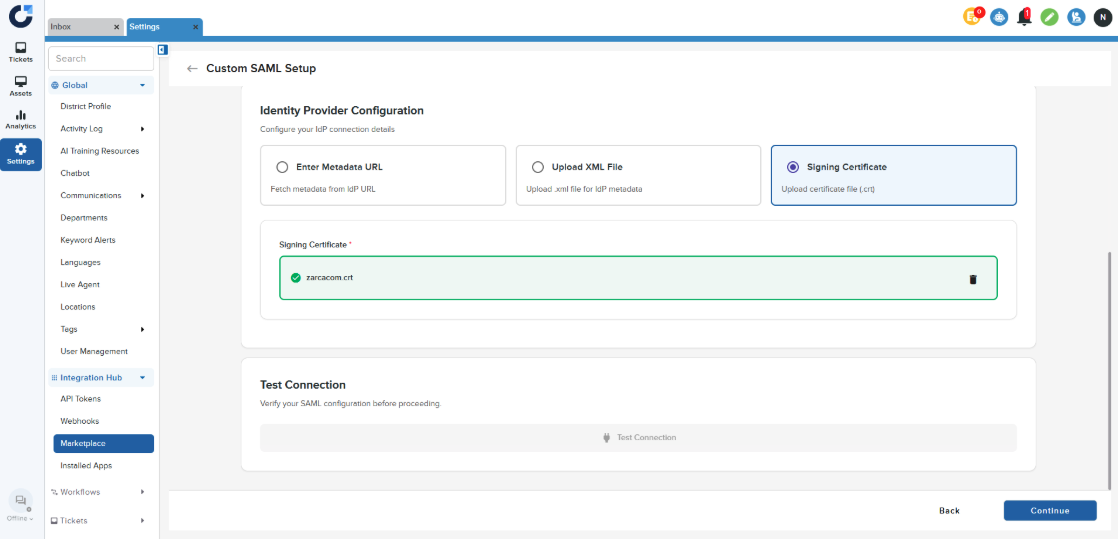
- Upload certificate
Step 5: Once you have entered the configuration click Continue.
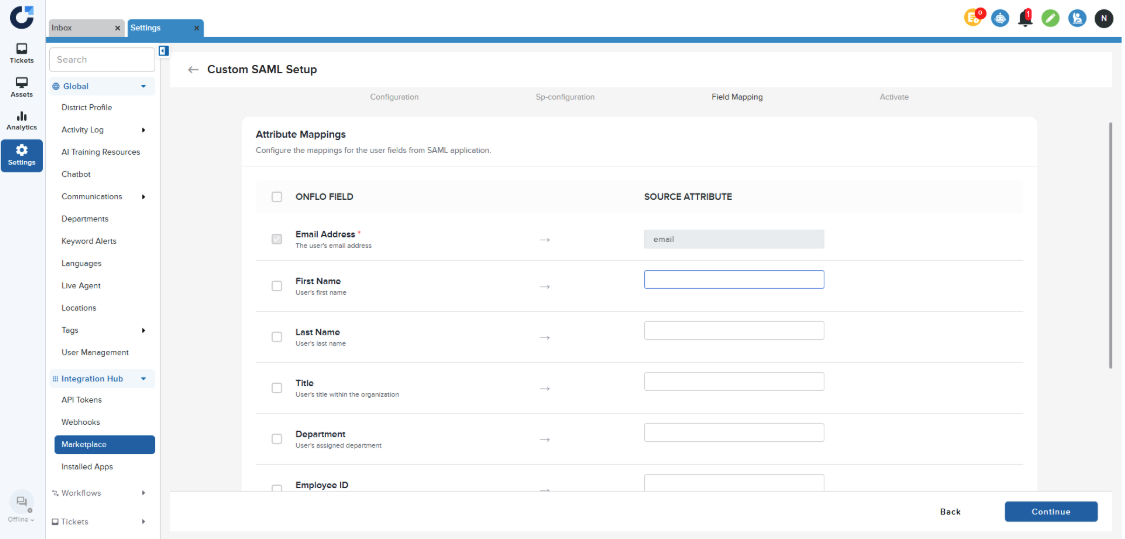
Step 6: Map the User fields from Onflo to the fields from the SAML application.
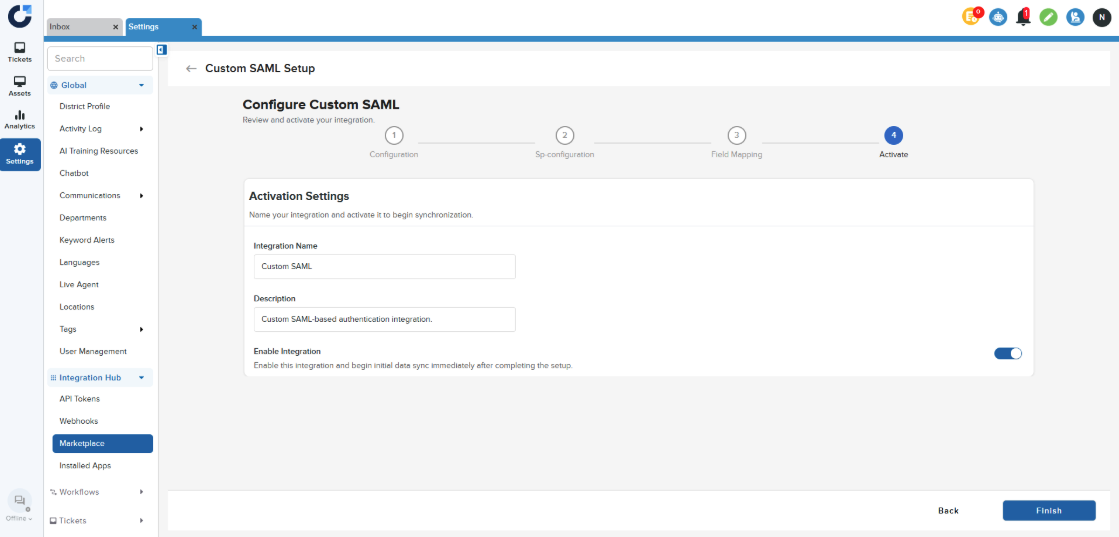
Step 7: Enable the Integration and activate by clicking Finish.
Step 8: Once the Integration is installed it will be displayed in the Installed apps section of the Integration Hub.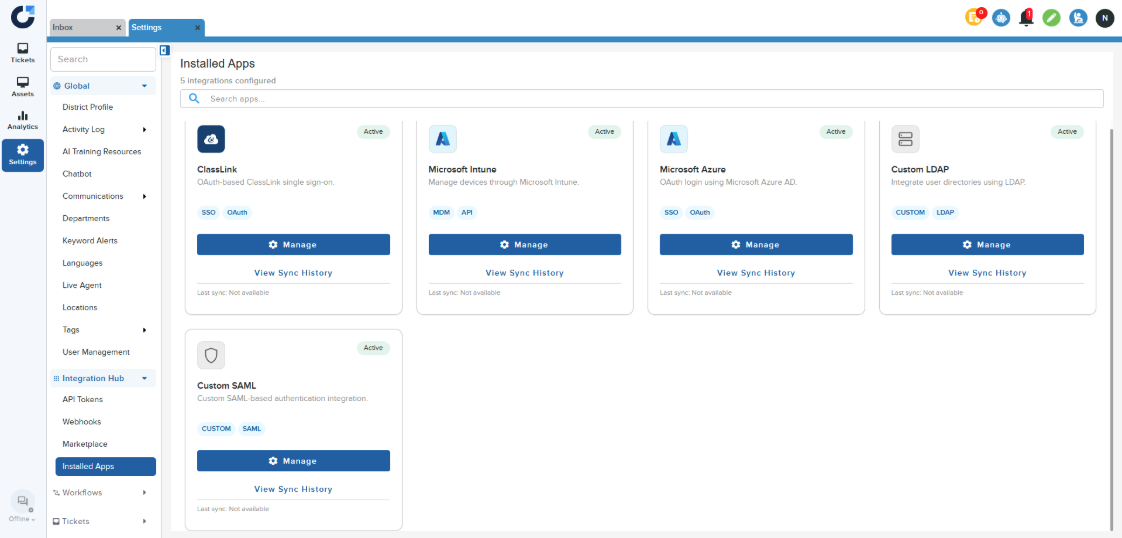
Step 9: Now users can login into Onflo via their Identity provider.