
How to View Customer History

More results...

Generic selectors
Exact matches only
Search in title
Search in content
Post Type Selectors

Access all conversations from a customer

Sometimes customers might refer to previous requests, questions, or interactions they’ve had with your district when they submit a ticket, and in some cases, being able to see that history can better help you understand and serve their needs. 

Use the Customer History feature to quickly see some key information from the customer you are serving. 

Here’s how - 

  1. Jump into the ticket.


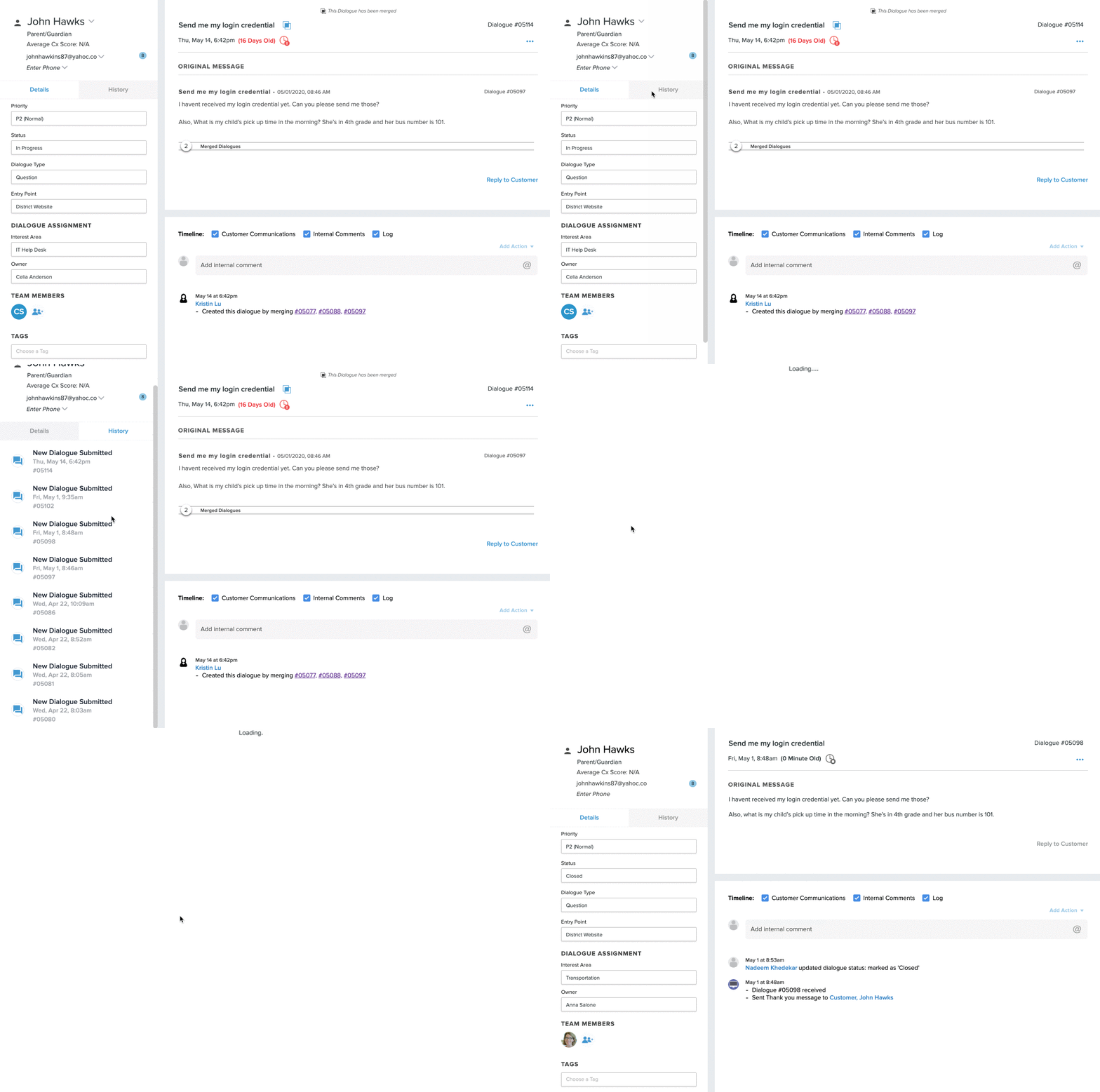
  2. On the left-hand navigation, you’ll see the customer information. 
    1. Name: The name of the customer
    2. Customer Type: Who they are in the district (Parent, Employee, Student, Community Member)
    3. Average Cx Score: What their average feedback score is
    4. Email on file: Their email address. Notice the number next to their email. That represents the number of tickets they’ve submitted. 
    5. Phone number on file: Their phone number. 
  3. To see a list of all the tickets they’ve submitted, click on History to toggle to the ticket list view.


  4. Click on any of the ticket to automatically be taken to it.
Related Post

Setting Up a Custom SAML for SSO

Overview Enable Single Sign-On with any SAML 2.0-compliant identity provider. This integration allows your staff and students to securely authenticate to Onflo using existing organizational credentials, reducing password fatigue and improving security posture. Features SAML 2.0 compliant authentication Attribute mapping

Read More ➜

Setting Up a Custom LDAP

Overview Connect to any LDAP-compatible directory service including Microsoft Active Directory, OpenLDAP, or other enterprise directories for user authentication and provisioning. Features LDAP authentication for secure user login Automated directory sync for user provisioning and updates Group membership mapping to

Read More ➜

Setting Up Microsoft Azure for SSO

About this integration Integrate Microsoft Azure Active Directory (Entra ID) to provide secure Single Sign-On and automated directory synchronization. Your district's Microsoft 365 users can access Onflo with their existing credentials while user data remains synchronized automatically. Features Single Sign-On

Read More ➜