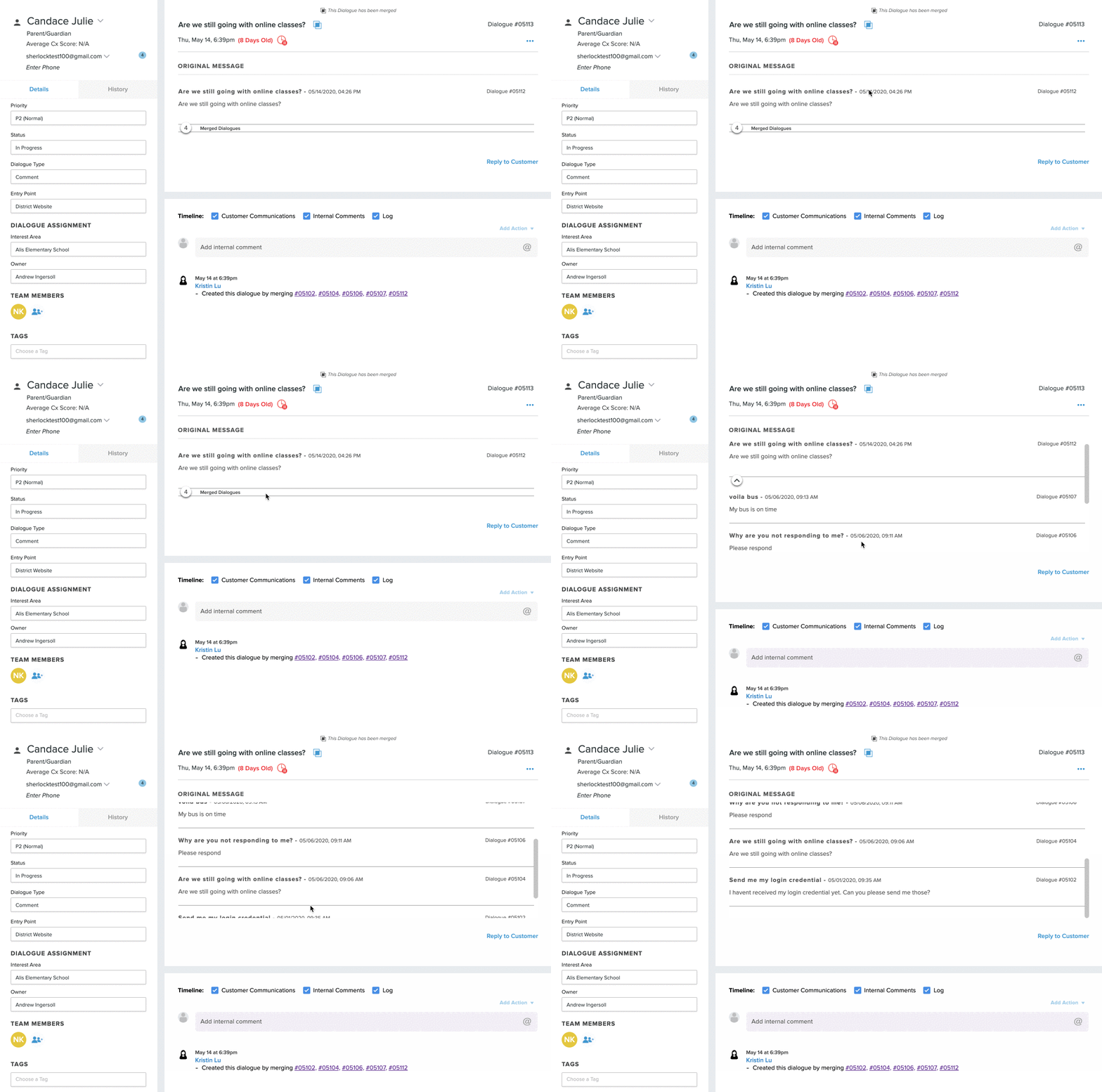
Combine multiple tickets into one ticket
When someone in your community sends in multiple tickets regarding the same issue, perhaps even across multiple Topics, rather than closing them out one at a time with the same response, combine them into one ticket and proceed from that!
Here’s how -
- In your inbox, select all the tickets you wish to combine by checking the box on the left side of the ticket in your inbox.
- You’ll see the editor tool appear automatically, but if not, then click on Open Editor at the top right-hand corner.

- On the Editor, click on the Merge tab at the top, and then fill out the relevant information.
- Topic: Select the Topic that the combined tickets will be under.
- Owner: Select the owner for the combined tickets.
- Team Members: Add or remove the team members that will have visibility into the ticket.
- Check the Send Response to customer checkbox if you want to send a notification to the customer letting them know their tickets have been merged. If the ticket you are merging is from different customers, then select the customer who will receive the message. Onflo (formerly Let's Talk) will automatically populate the message below, but you can customize it as needed.
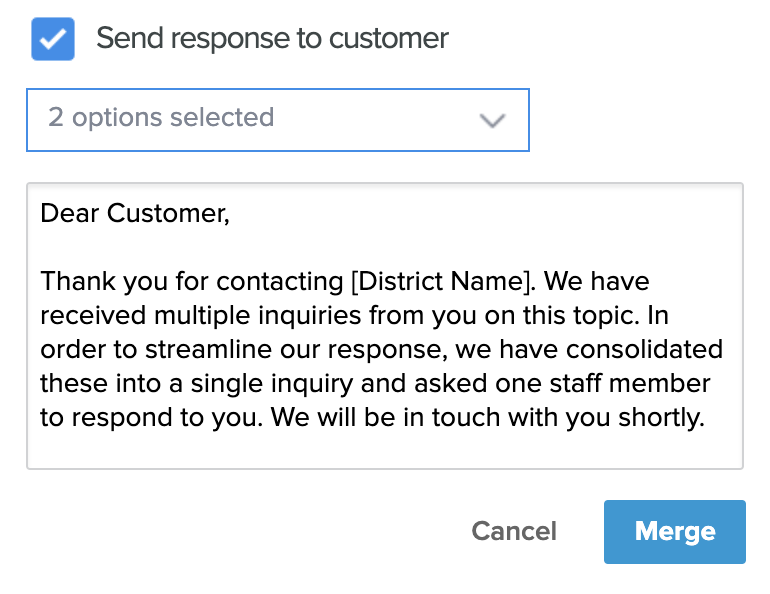
- Click the Merge button once you are done and the tickets will combine into one.
Some important facts to keep in mind when using this feature:
- There is no limit when merging tickets.
- If you merge tickets from different customers, then the customer on the merged ticket will be the customer from the most recently received ticket selected.
- Tickets that result from a merge cannot be merged a second time.
- Tickets that are closed can be merged.
- All merged tickets can still be accessed within the new ticket, both under the original message and the timeline.
- Tickets cannot have different statuses. Tickets must both be closed or in progress, in order to merge together.
- Within the Dashboard, the new ticket that was formed by merging other tickets will be shown.
- Tickets with a hidden customer cannot be merged.