
Ensuring that Tickets are closed in a timely manner helps to keep records accurate and ensure that all Customer feedback is addressed.
- Tickets may be closed through the process of replying.
- Tickets for which no Reply button is displayed must still be closed. For example, if a Customer has provided a phone number and no email address, the returned phone call can be logged as an Action Taken in Internal Comments and the Ticket can be closed.
- Anonymous Tickets must be closed. A Reply button will not be displayed, and follow-up may only include internal Comments and actions (re-assignment, Tags, etc.).
Close a ticket when replying to the customer by selecting Send as Closed.
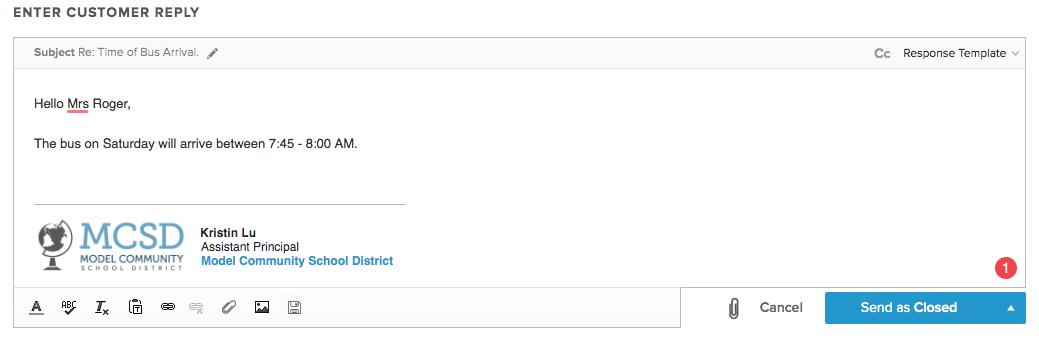
Note: By default, if an email address has been provided and no opt-out settings have been changed, closing a Ticket will send the Customer a Feedback Form. Learn more under Customer Feedback Form.
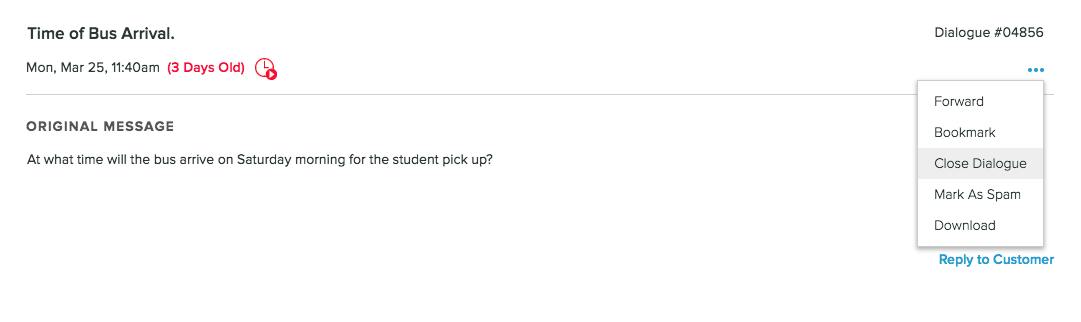
Close a ticket through the menu icon at the top right-hand corner.
Close a ticket through the status menu.
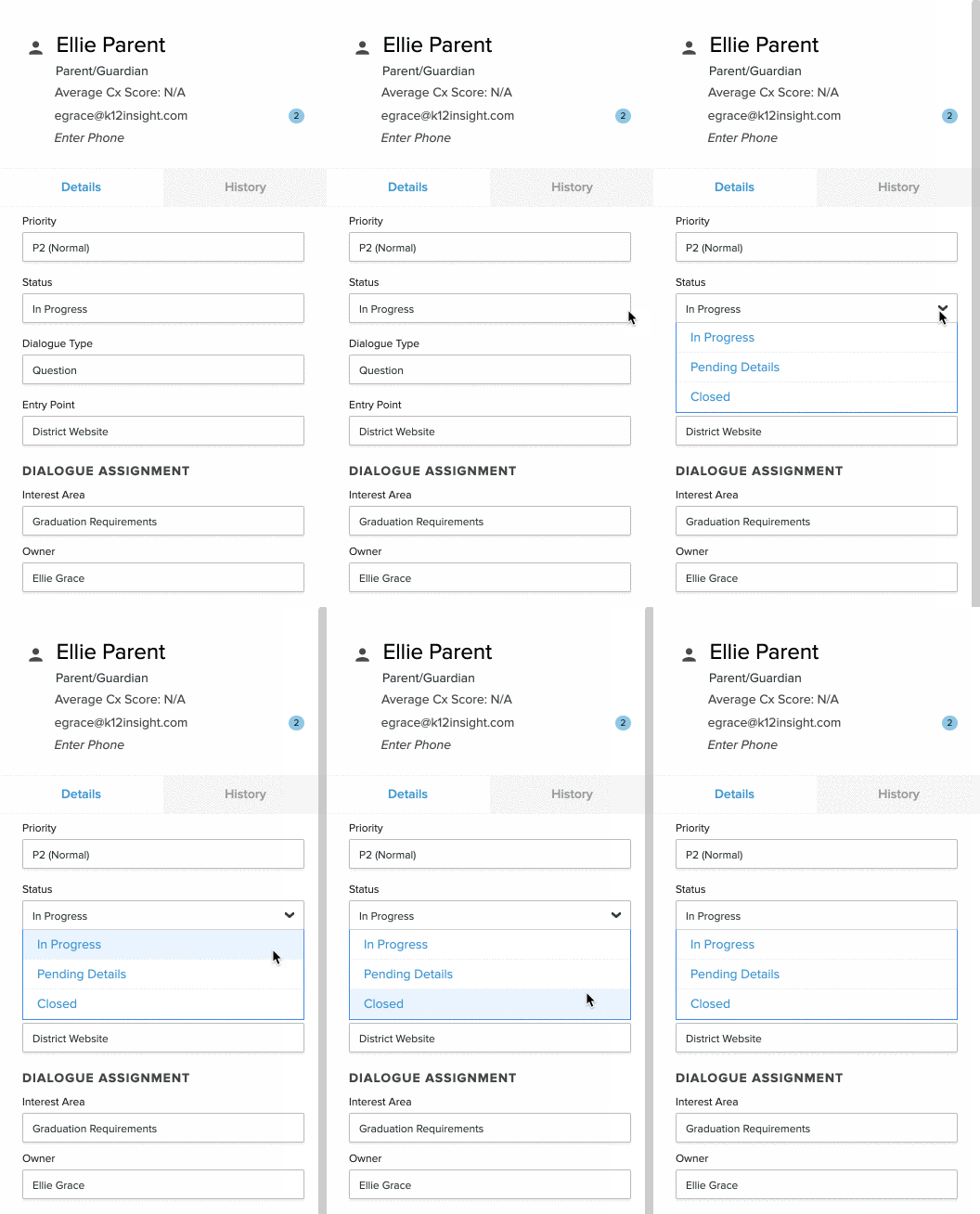
A closed Ticket will be evident from the Status field, a lock on the Reply button, disabled buttons/fields, and its appearance in the Closed Tickets folder. To re-open, switch status to In Progress.
Customer Replies
If a customer replies to a ticket that is already closed, depending on the circumstance, it could re-open the ticket.
- If the ticket has been closed less than 2 weeks ago, then the response will re-open the ticket, setting it to In Progress.
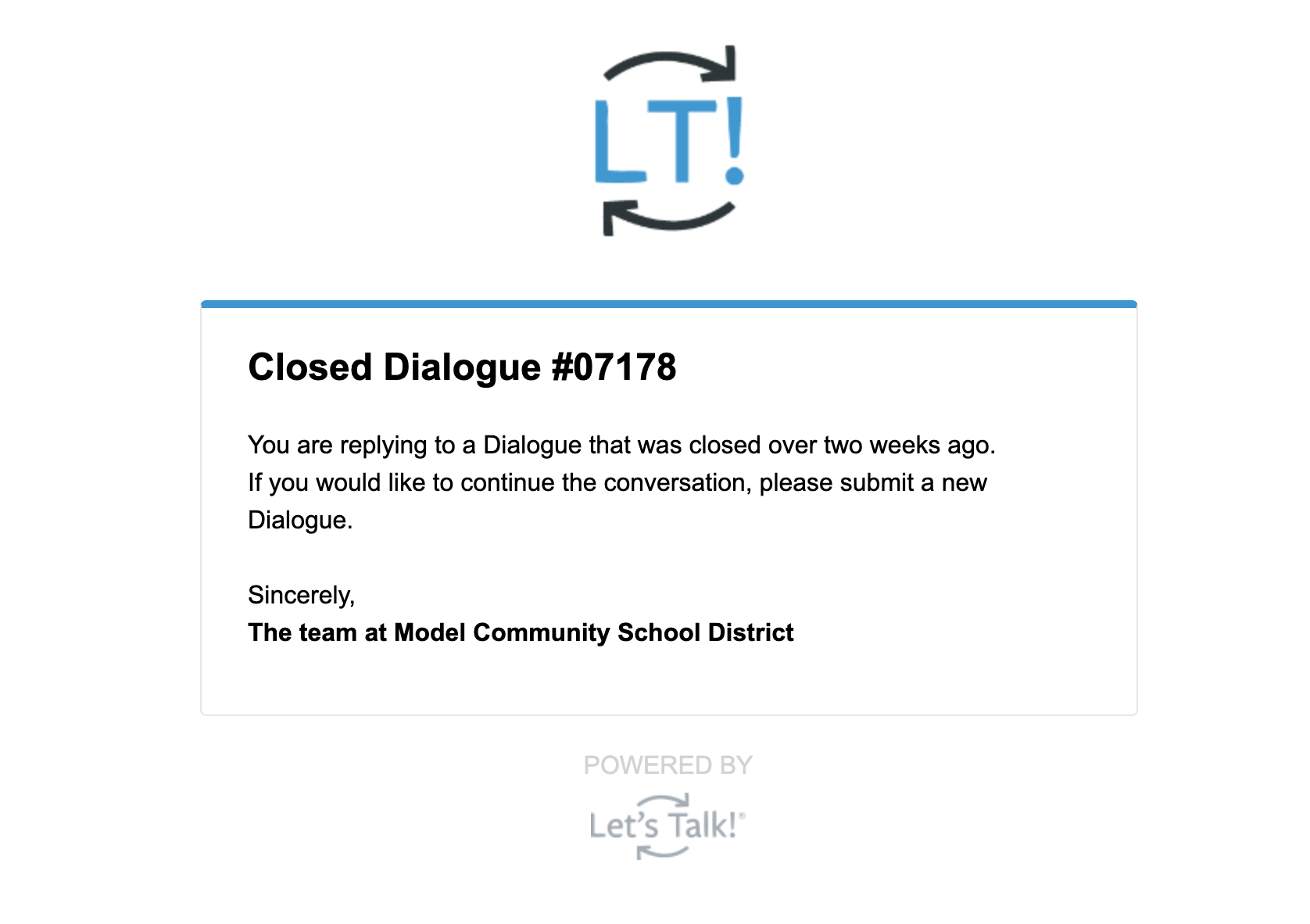
- If the ticket has been closed for more than 2 weeks, then the response will not re-open the ticket and the customer will get the following email reply asking them to submit a new ticket
- If the ticket originally came in as a text ticket, then any response to a closed ticket, regardless of when it was closed, will re-open for up to 7 days.
Any ticket re-opened after it is closed will send a new notification so you won't miss any messages from a customer.