
If you're going to be gone from the school or office for a period of time, chances are you'll be gone from Onflo (formerly Let's Talk) as well. Don't leave your customers and colleagues hanging! Plan for customers to be taken care of by someone else, or notified of when you will return.
The User: If you'll be unavailable for a period of time and are a Topic Owner of any Topics, you should definitely set up your Out of Office status. This way, customers who submit a Ticket into your Topic will either have an active user responding to their message or a clear understanding as to why they will receive a response later than expected. Within the platform, your Username will also appear with an Out of Office label, so that other users know not to assign Tickets to you while you are unavailable.
The Methods: You may choose to assign a Temporary Owner to your Topics during your absence or choose to set up an Automatic Email Response. As a best practice, we recommend choosing a Temporary Owner when you will be unavailable for a long period of time. If you'll be gone for just a few days, then an Email Response can suffice.
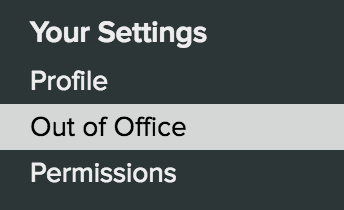
- Navigate to the Settings, then Out of Office
- Enable Out of Office by toggling the switch to show On
- Select the start and end dates of your absence
- Below you will find every Topic for which you are a Topic Owner
- Next to each Topic, select one of the following:
- Assign temporary owner
- Set to auto reply email
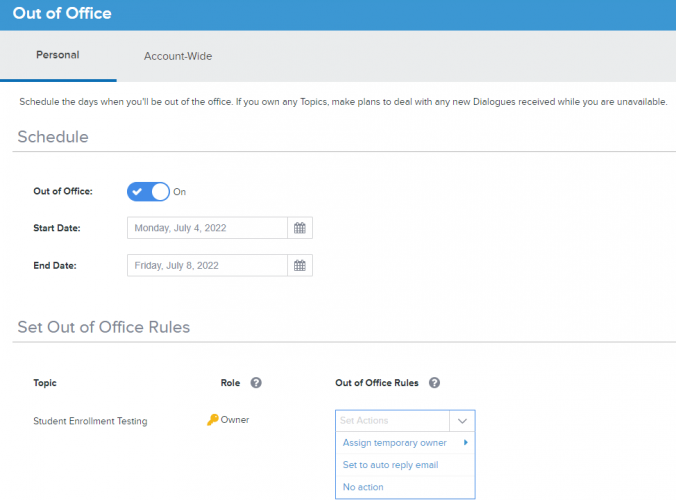
- If you choose "Assign temporary owner":
- You may switch ownership temporarily to another Topic Member of the Topic
- You may switch ownership temporarily to a user who does not belong to the Topic
- If you choose "Set to auto reply email":
- Click Edit email to customize your email with an appropriate message
- Tickets received in this Topic will not age while you are scheduled to be out of the office
- You have the option of saving the crafted message as the Default Auto-Reply Email
- Click Save once you are done
- Once you have identified a method for all Topics, click Save at the top right-hand corner to apply your Out of Office status
Organization-wide Out of Office
System Administrators can set up Out of Office for the entire district and use Auto Reply to let customers know when you’ll be back.
- Go to Settings > Out of Office > District-wide to set the Date Range and Auto-Reply for the time you will be unavailable.
- For more information, check out Set up Organization-wide Out of Office
Now head out and relax, knowing that you're covered. Enjoy!