
Loading...
Skip to content
Onflo formerly Lets talk_white
  • Home
  • Articles
    • How-to Articles
    • Getting Started
    • Integrations Marketplace
    • Best Practices
    • FAQs
  • Product Updates
  • Resources
  • Onflo Academy
    • New User Training
    • System Administrator Training
    • Beyond the Basics
  • Support
  • Home
  • Articles
    • How-to Articles
    • Getting Started
    • Integrations Marketplace
    • Best Practices
    • FAQs
  • Product Updates
  • Resources
  • Onflo Academy
    • New User Training
    • System Administrator Training
    • Beyond the Basics
  • Support
Log in

How to Delete Inactive Users

  • Category: How-to Articles
  • Tags: Account Setup, User Management

More results...

Generic selectors
Exact matches only
Search in title
Search in content
Post Type Selectors

User accounts that have a status of "Inactive" or  "Unverified" can be deleted.

Searching Unverified and Inactive Users

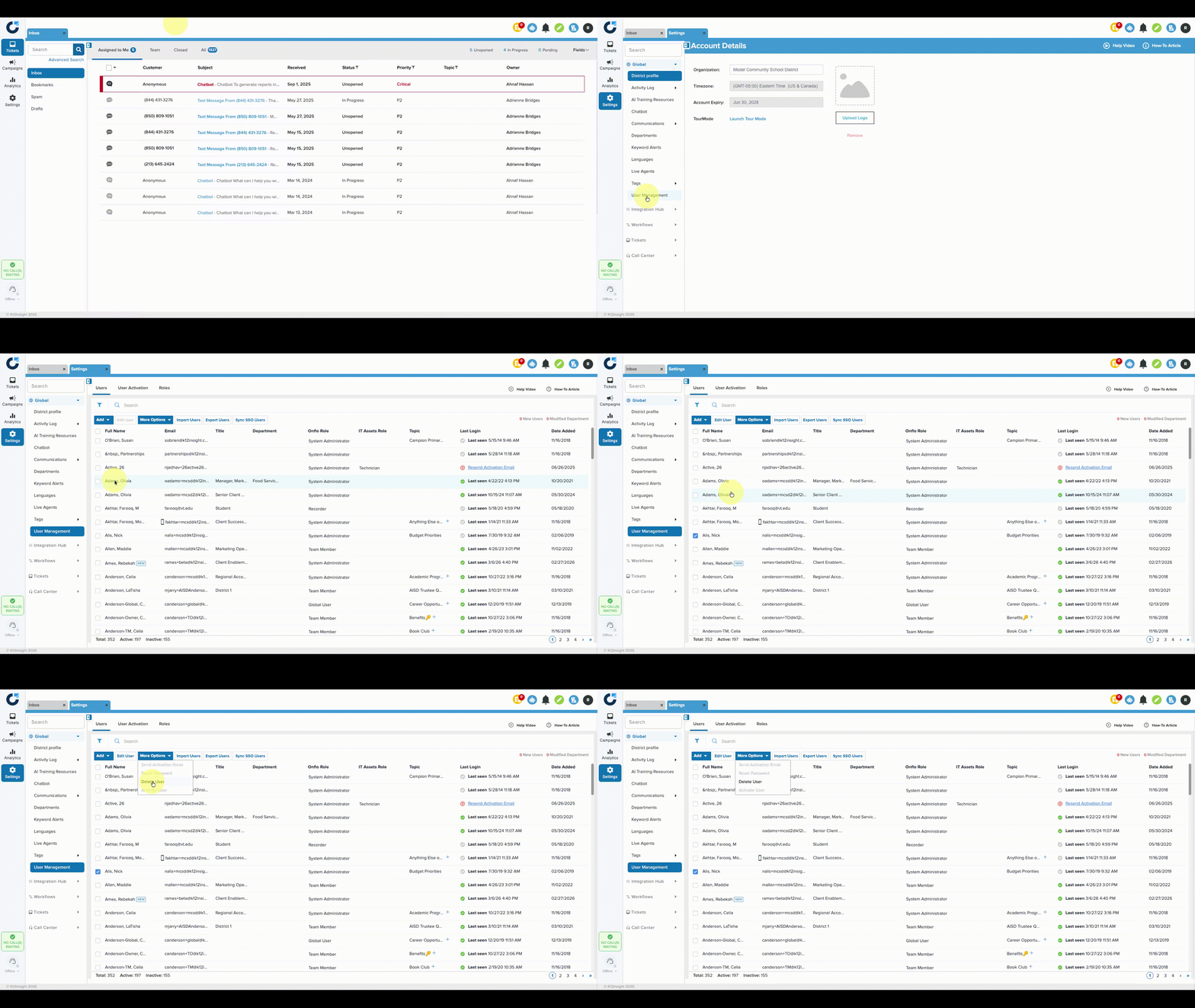
  • From the Settings page, click on User Management.
  • Click the Filter icon in the top left corner.  
  • Click the dropdown arrow by Status > then check the boxes for Unverified and/or Inactive.
  • Click Apply Filter at the bottom.

The filter will show only users who are either inactive or unverified, as designated by the red exclamation mark or gray check mark in the Last Login column.

Deleting Unverified and Inactive Users

  • Check the box next to the user's name then click More Options then Delete User.  
  • Because the action cannot be undone, users will be asked to confirm before the user is deleted.
 

Note: System Administrators can delete a user whether they own tickets or not. Once the user is deleted, ownership of their tickets will be transferred to the System Administrator who deleted the user. 

PreviousAnswer-Based Workflows in Forms
NextSharing a Ticket via Hyperlink

Related Post

Setting Up a Custom SAML for SSO

Overview Enable Single Sign-On with any SAML 2.0-compliant identity provider. This integration allows your staff and students to securely authenticate to Onflo using existing organizational credentials, reducing password fatigue and improving security posture. Features SAML 2.0 compliant authentication Attribute mapping

Read More ➜

Setting Up a Custom LDAP

Overview Connect to any LDAP-compatible directory service including Microsoft Active Directory, OpenLDAP, or other enterprise directories for user authentication and provisioning. Features LDAP authentication for secure user login Automated directory sync for user provisioning and updates Group membership mapping to

Read More ➜

Setting Up Microsoft Azure for SSO

About this integration Integrate Microsoft Azure Active Directory (Entra ID) to provide secure Single Sign-On and automated directory synchronization. Your district's Microsoft 365 users can access Onflo with their existing credentials while user data remains synchronized automatically. Features Single Sign-On

Read More ➜
onlo-full-color-splash-page

Need support?

Our Client Services Team is here to help between 7 a.m. – 7 p.m. ET. Get support here or call us at (703) 542-9601.

Mobile App

apple store
g play

Follow Us on

Linkedin Youtube

Quick links

  • Privacy
  • Security
  • Support
  • Training
  • Resources
  • Credits

Articles

  • How-to Articles
  • Product Updates
  • Get Started
  • Best Practices
  • FAQs

Get Newsletter

Sign up to get platform Tips & Tricks delivered directly to your inbox.

Scroll to top