
Enable Browser-based Notifications for Incoming Calls

More results...

Generic selectors
Exact matches only
Search in title
Search in content
Post Type Selectors

Have you ever been on a browser window or tab other than Onflo (formerly Let's Talk!) and missed seeing your incoming calls? Now you can enable browser notifications for incoming calls, allowing you to respond quickly.

How to enable browser-based notifications?
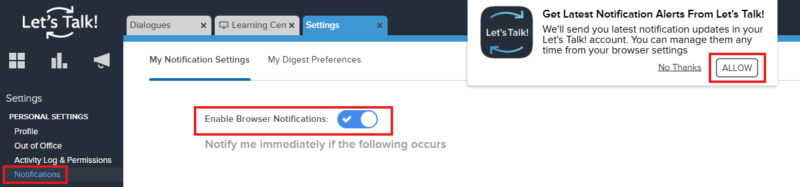
  1. Go to Settings > Notifications
  2. toggle on the "Enable Browser Notifications" option.
  3. Click "ALLOW" within the pop-up message to turn on these notifications. Don't forget to press the green Save button in the upper-right corner once you are done!

Related Post

Setting Up a Custom SAML for SSO

Overview Enable Single Sign-On with any SAML 2.0-compliant identity provider. This integration allows your staff and students to securely authenticate to Onflo using existing organizational credentials, reducing password fatigue and improving security posture. Features SAML 2.0 compliant authentication Attribute mapping

Read More ➜

Setting Up a Custom LDAP

Overview Connect to any LDAP-compatible directory service including Microsoft Active Directory, OpenLDAP, or other enterprise directories for user authentication and provisioning. Features LDAP authentication for secure user login Automated directory sync for user provisioning and updates Group membership mapping to

Read More ➜

Setting Up Microsoft Azure for SSO

About this integration Integrate Microsoft Azure Active Directory (Entra ID) to provide secure Single Sign-On and automated directory synchronization. Your district's Microsoft 365 users can access Onflo with their existing credentials while user data remains synchronized automatically. Features Single Sign-On

Read More ➜