
Onflo (formerly Let’s Talk) allows you to support multiple phone lines, each with their set of greetings, voicemail messages, and auto-text replies.
System Administrators can customize these settings in Settings > Phone and Text > Topic Phone Number Settings.
Adding Phone Lines
- Click on Request Phone Number at the top of the Topic Phone Number Settings page.
- The requested phone number will be displayed as pending until the phone number is successfully added to the account in about 2 business days.
Phone Number Settings
To begin creating custom settings for each phone line:
- Select an active phone number by clicking its checkbox
- Click on “Edit Number Settings” at the top of the Topic Phone Number Settings page
- A panel will appear on the right containing Voice Call Settings
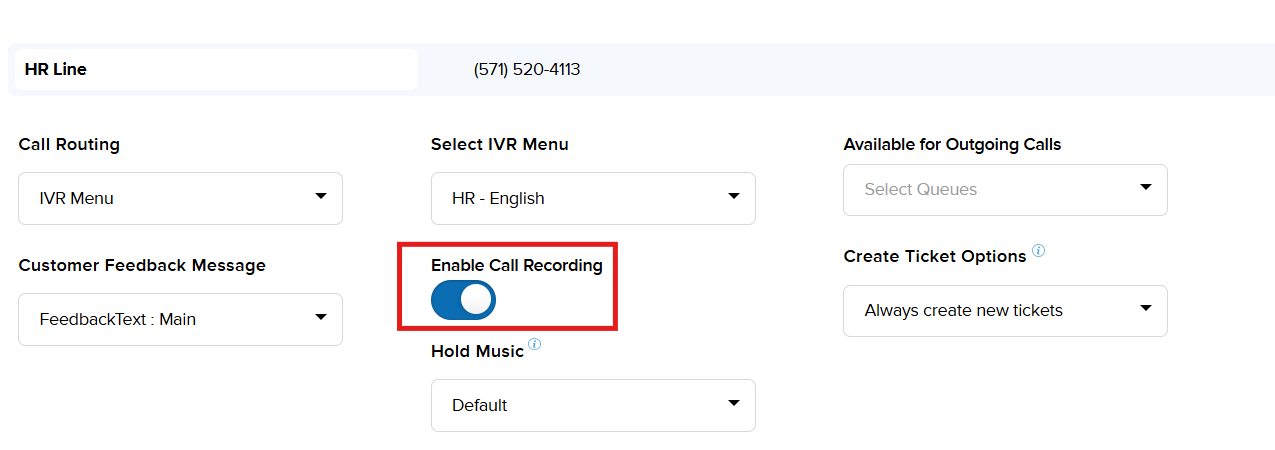
Enable Call Recording
To enable/disable Call Recording, click the toggle from grey to blue. Blue will indicate that the Call Recording feature is active for your phone number.
Incoming and Voicemail Messages
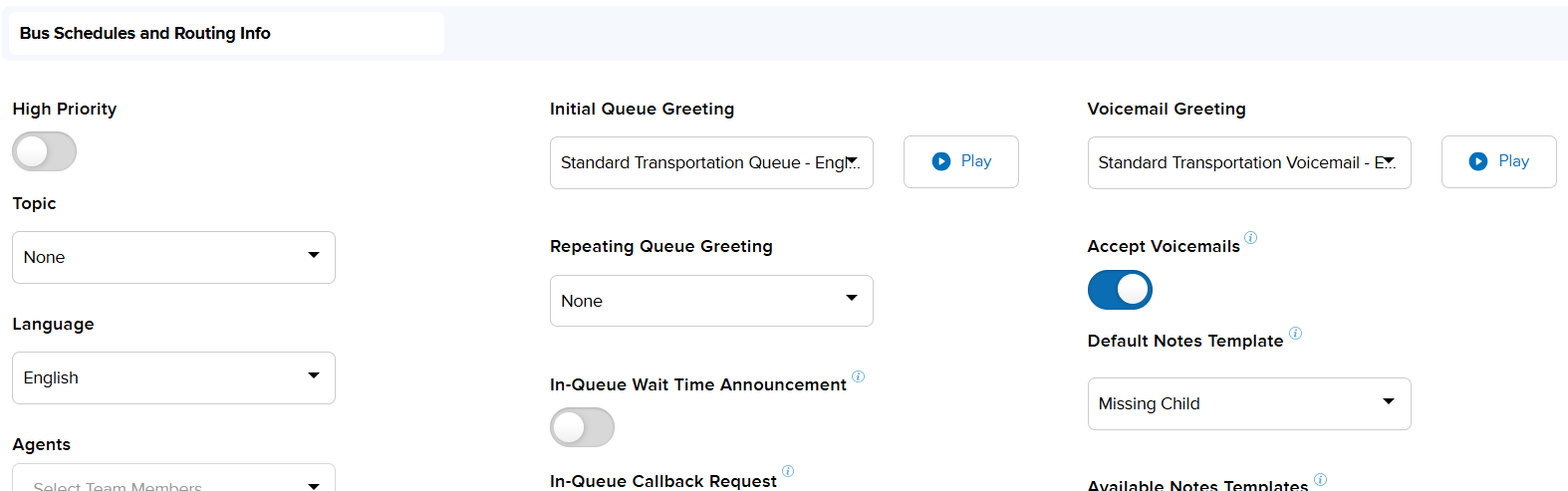
- To upload a new Incoming Message or Voicemail Message, click on the “Audio File” button located under each heading and select the desired file
- Click Save at the bottom of the panel to confirm your changes
Text Messages and Auto-Replies
- To enable/disable Text Messaging, toggle ON/OFF
- To enable/disable Auto-Reply Text Messages, toggle ON/OFF
- In the text box under the Auto Reply Text heading, type the message you would like your customers to receive after contacting you.
- Example: Thank you for contacting us! Your message has been received by the team and you can expect a response shortly.
- In the text box under CX Score Text Message, type the message you would like to send to customers when asking for CX score feedback.
- Example: How did we do? – We hope we were able to address your questions or concerns. Please take a moment to give your interaction a Cx score.
- Click save at the bottom of the panel to confirm your changes
Changing Phone Number Topic
You may wish to repurpose a phone line for multiple topics throughout the school year. To change the Topic where phone calls and text messages are directed to, for an existing phone line:
- Select an active phone number by clicking its checkbox
- Click on “Change Topic” at the top of the Topic Phone Number Settings page
- A pop up will appear prompting you to select the new Topic
- Select “Submit” to confirm the change.