
Setting up Phone to Ticket:
Calling all System Admins! With the Phone to Ticket feature, you can choose a team of Users to answer or manage Tickets that come in via phone. If you receive many phone calls throughout the day, you know that it's important to answer them and follow up accordingly in a timely fashion. Make your life easier by connecting your phone straight to Onflo (formerly Let's Talk).
To set up Phone to Ticket for your district, head on over to Settings, and then select Phone under Channels.
There are two sections where you can set up and customize the feature for your district’s Onflo account.
Basic Settings:
- Enable Phone: Turn on the Phone to Ticket feature for your district’s account here
- Account Number: The assigned number for your district’s account. Any call or voicemail to this number will be instantly documented as a Ticket.
- Pro Tip: You can also forward calls from other phone numbers to the assigned number to capture more phones calls in Onflo.
- Phone Users: Create a team of users who can access the Phone to Ticket feature from their accounts, allowing them to answer phone calls and view Tickets received through phone calls.
- Call Recording: Enable this feature to automatically record phone calls that come into Onflo. Voicemails will automatically be recorded without enabling this setting.
Message Settings:
- Incoming Call: Upload your own call greeting with an opening about the district, alternative contact information, or if you enable the Call Recording function, a message regarding the recording of the conversation.
- By default, Onflo will have the following call greeting in place: Thank you for calling. Your call is very important to us and you’ll be routed to the next available person. Please be advised that this call might be recorded for quality assurance and training purposes.
- Voicemail: Upload a message callers would hear if no one from the district was able to answer the call.
- By default, Onflo will have the following voicemail in place: You’ve reached the district’s voicemail box. Your call is very important to us, so please leave your name and a message and we will try our best to reach out with a response as quickly as possible.
Using Phone to Ticket:
Hi there, Phone Team! Once you’ve been added to the Phone Users group by your System Admin, you’ll notice a Red Phone Icon at the top of your account.
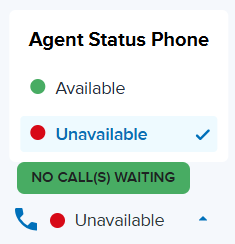
This icon allows you to set your status as Available (Green) and Unavailable (Red) for phone call notifications.
When your status is set to Available, you will be able to see how many calls are waiting in the queue you are assigned to. Any phone calls coming in will display as a pop-up on the screen including the caller’s number and the opportunity to decline or accept the call. Once a call is accepted, you will automatically be taken to a newly created Ticket page. As you speak with the Customer, you can fill in any Customer Information, change any Ticket Details, or add Team Members and Tags as needed
Under the description of the Ticket, you can edit to take notes, or leave internal comments in the timeline to update other Onflo Users you mention and add to the Ticket.
Once the conversation is done, you may leave the Ticket as Unopened, or submit it in the familiar states:
- Submit as Closed
- Submit as Pending Details
- Submit as In Progress
Hear from more of your community and track follow-up more easily with Phone to Ticket in Onflo
System and Browser Requirements
Click here for twilio troubleshooting article
Any questions? Just ask! We’re happy to help.