How to Set Up Call Center Business Hours

More results...

Generic selectors
Exact matches only
Search in title
Search in content
Post Type Selectors

Create business hour rules to indicate when phone queues are open and when calls will be routed to voicemail. 

Add Business Hours

  • From Settings, scroll down to Call Center and click on Business Hours.
  • Click the Add Business Hours button.
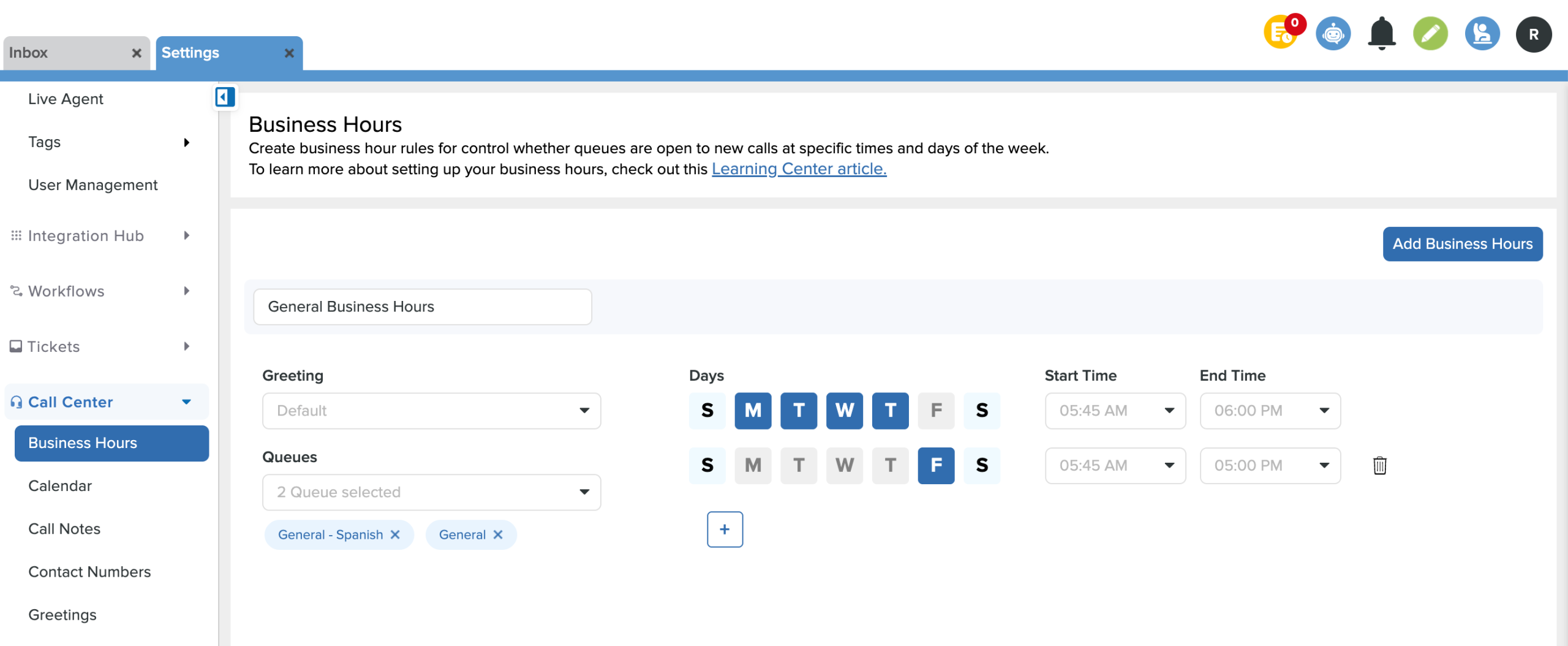
  • Name the entry and choose which greeting, queues, days, and times the business hours will be in effect.
  • Set up to seven configurations for each day within the same queue. (Ex: Transportation queue is open 8 am - 5 pm on M, T, W & 9 am - 3 pm on Th and F)
  • Click Save in the bottom right corner.
Remove Business Hours

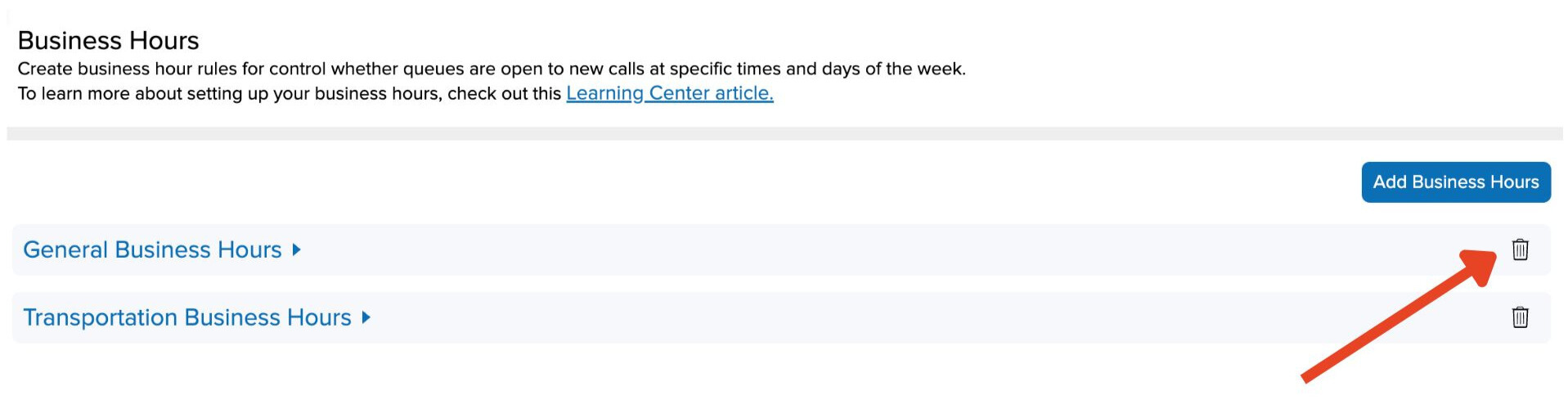
  •  Click the trash can icon next to the business hours & Save

Related Post

Topic Comparison Reports

You can audit your topics with the Topics Comparison Report to determine which topics are being used most frequently, and which topics are receiving few to no tickets.  From Analytics, click Comparison, then Topics.  The graph on the report shows

Read More ➜

Setting Up a Custom SAML for SSO

Overview Enable Single Sign-On with any SAML 2.0-compliant identity provider. This integration allows your staff and students to securely authenticate to Onflo using existing organizational credentials, reducing password fatigue and improving security posture. Features SAML 2.0 compliant authentication Attribute mapping

Read More ➜