
You can easily and efficiently import Topics and Categories using the new template available in the Topics Manager.
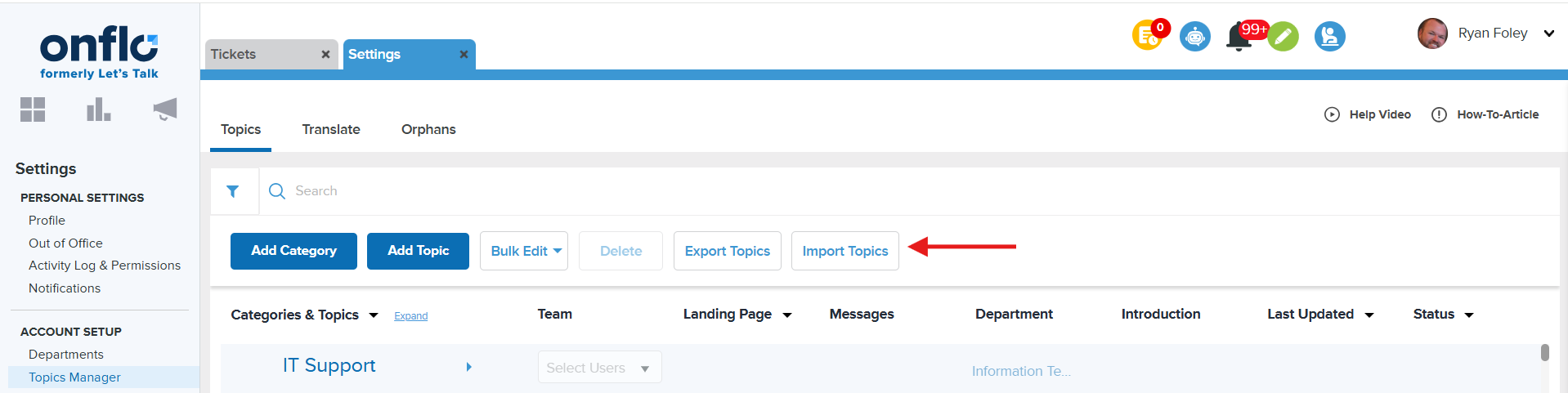
From the Topics Manager page, click on the Import Topics button under the Search bar.
You will see a pop-out window where you can download the template and upload the file once the template has been filled out.
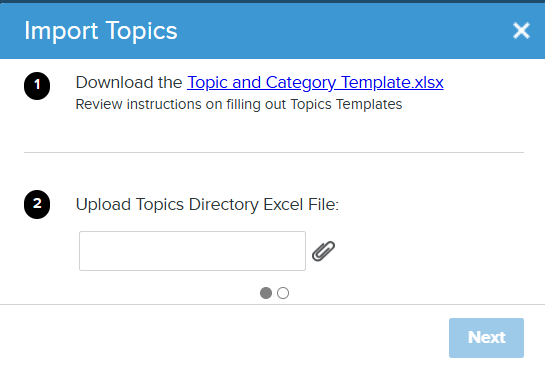
To simplify topic management, the templates for importing and exporting topics are aligned. This allows you to use the same file format for both operations, making it faster and easier to update, review, and manage topics across the platform.
Please review the Instructions tab within the template before filling out the Data Sheet tab. Fields marked with an asterisk (*) are mandatory to create Topics. Fields marked with double asterisks (**) indicate that the Topic Owner email should already exist in the system. In case of an email mismatch, the created Topic will not have any Topic Owner and the Topic will be offline.
You can also link Topics to new or existing Landing Pages within the template.
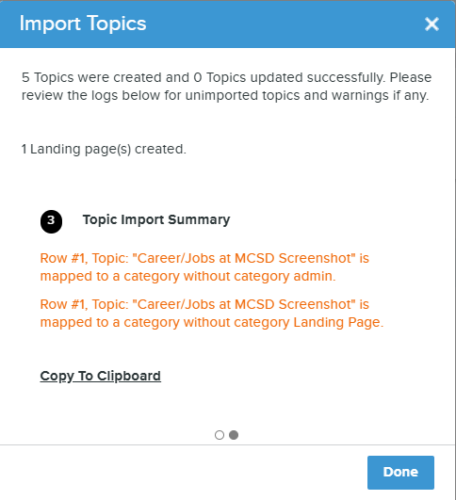
Once the file is uploaded successfully, you will see the Topic Import Summary, which details mapped data. It will also flag any errors if information is missing and not added to the file. Utilize the "Copy to Clipboard" feature below to copy the Topic Import Summary if needed.
Next, select "Done." You will now see the Topics and Categories added on the Topics Manager page.