
Organize your inbox for the way you like to work! You can now customize your inbox to view the fields most relevant to you and group tickets to help you prioritize your inbox.
How to Customize your Inbox
Table Settings
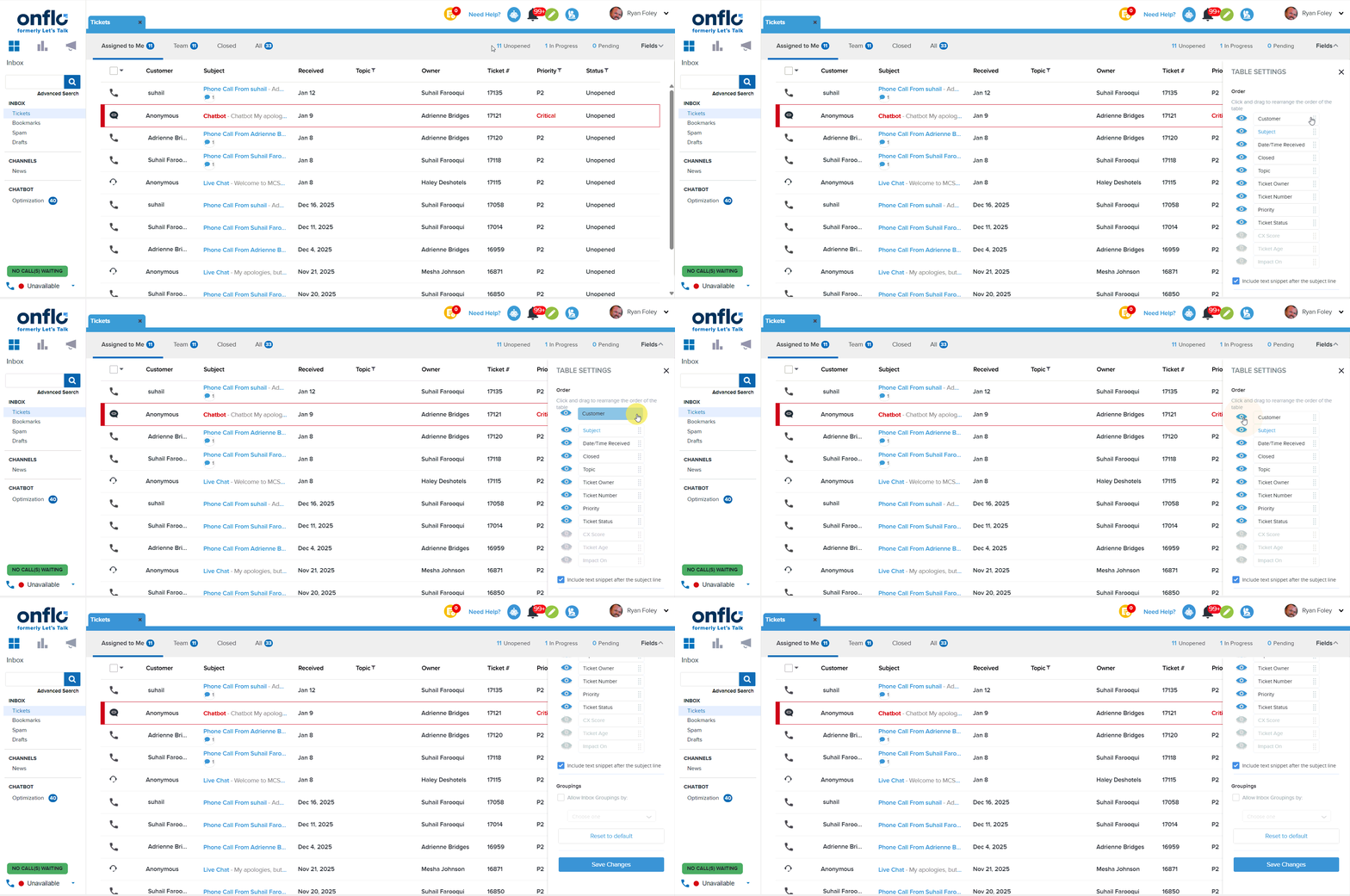
Click on the “Fields” drop-down menu located at the top right of the Inbox to edit Table Settings. By clicking the eye icon, you can choose which Ticket information you want to display such as Cx Score, Priority, Topic, Ticket Age, etc. Click and drag these elements to arrange the order in which they appear. Save your changes to see your updated Inbox view.
Group Tickets based on Status or Priority
To enable Inbox Groupings, click on the “Fields” drop-down menu located at the top right of the Inbox. Click on the checkbox labeled “Allow Inbox Groupings by:”, then select either the “Status” or “Priority” option.
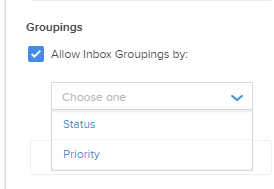
Selecting “Status” will allow you to view Unopened Tickets, In-Progress Tickets, and Tickets with Pending Details in separate groupings.
Selecting “Priority” will allow you to view Tickets in groups based on the Priority level.
Save your changes to see your updated inbox view.