How to Set Up Call Center Business Hours

More results...

Generic selectors
Exact matches only
Search in title
Search in content
Post Type Selectors

Create business hour rules to indicate when phone queues are open and when calls will be routed to voicemail. 

Add Business Hours

  • From Settings, scroll down to Call Center and click on Business Hours.
  • Click the Add Business Hours button.
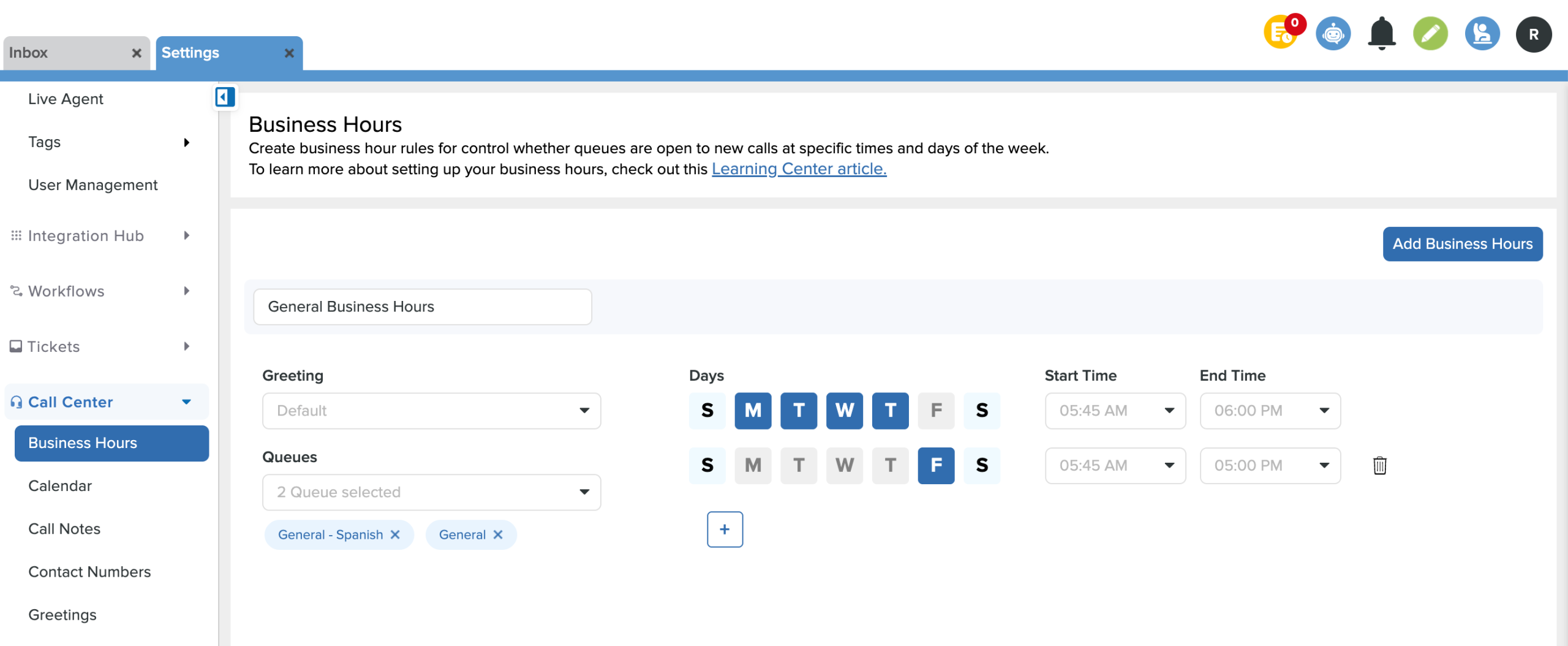
  • Name the entry and choose which greeting, queues, days, and times the business hours will be in effect.
  • Set up to seven configurations for each day within the same queue. (Ex: Transportation queue is open 8 am - 5 pm on M, T, W & 9 am - 3 pm on Th and F)
  • Click Save in the bottom right corner.
Remove Business Hours

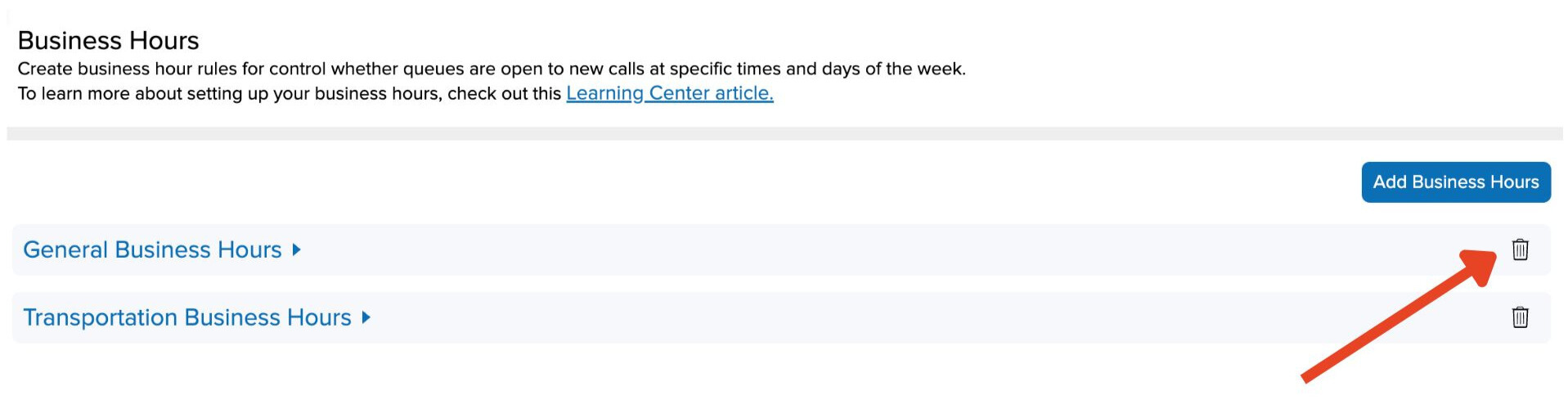
  •  Click the trash can icon next to the business hours & Save

Related Post

Twilio Troubleshooting

Table of Contents Mandatory Connectivity Test (Step 1) Firewall & Network Requirements (Mandatory) Required Ports & Protocols Required Domains (FQDNs) Next-Generation Firewall (App-ID) Configuration Common Misconfigurations to Check If Tests Still Fail Quick Validation Checklist (For IT Teams) Summary Twilio

Read More ➜

Tasks for Tickets in Onflo

Overview Onflo allows you to create and assign tasks in tickets. This helps teams collaborate across departments by keeping all related actions and approvals within a single ticket. Each task can include a name, description, and owner, allowing you to

Read More ➜

Departments for Topic Ownership

Aligning your Onflo (formerly Let's Talk!) topics with Departments that mirror your district's structure is important for user and topic management. To manage these settings, System Administrators can navigate to the Departments page within Settings. From these settings you can

Read More ➜