
Onflo (formerly Let's Talk!) Call Center Queue Management Dashboard allows System Administrators to manage call reporting and queue updates in real-time with ease! This article will review the information provided on the dashboard, as well as provide insight on some of the dashboard’s most useful tools, including call monitoring and sharing, call queue order updates, and agent status and order updates.
Real-Time Call Center Information
The Queue Management Dashboard displays the real time information of calls facilitated by your call center.
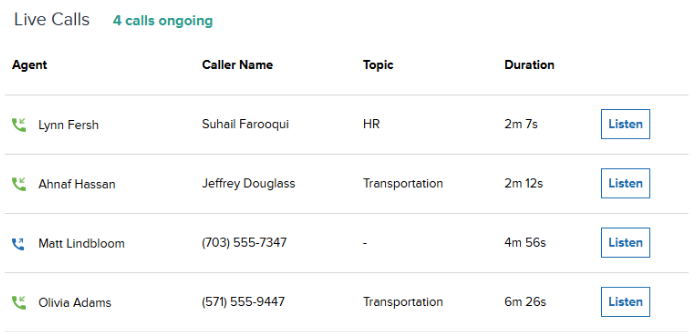
Live Calls
All ongoing calls will be visible in your “Live Calls” section. This includes both incoming and outgoing calls, and displays important information such as the agent, queue, and duration.
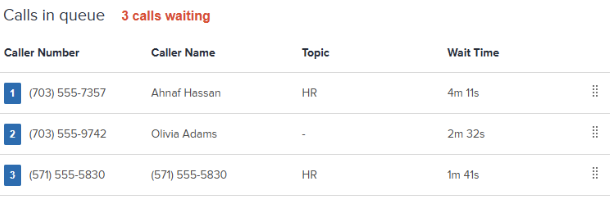
Calls in Queue
All waiting calls will be visible in your “Calls in queue” section. All incoming calls that are routed to a queue will be displayed here with important information such as the caller name, queue, and wait time. The calls are also shown in order, so the calls at the top of the queue will be taken first.
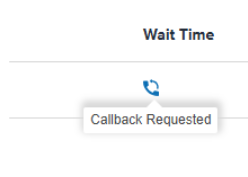
Callbacks
If your call center allows callbacks, they are shown slightly differently on the Queue Management dashboard. When a customer requests a callback, their place in the queue is held. However, they are now shown with a “Callback Requested” icon in the Call Queue. They will move in the queue the same as regular incoming calls, but when agents pick them up, they will be making an outgoing callback rather than immediately connecting with the customer.
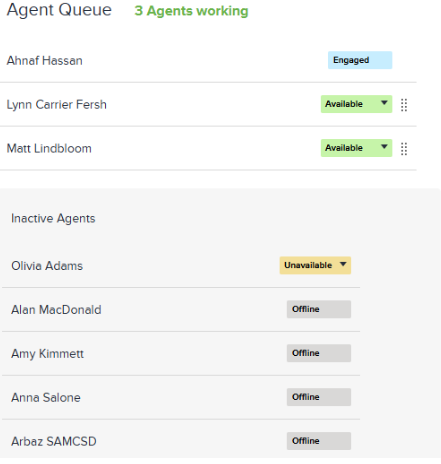
 Agent Queue
All agents are displayed in the Agents Queue section. Any agent that is working will be displayed on top, along with their specific status showing whether they are engaged in a call, wrapping up a call, or available. These agents are shown in order such that the agents on top will receive calls first. Any agents who finish a call will be placed at the bottom of the queue. Agents who are not working are shown below, either as Unavailable (meaning they’re logged in) or offline.
Admin Call Management
In addition to providing a real-time view of the call center, the queue management dashboard provides admin-level controls on calls in the queue.
Listen/Barge During a Live Call
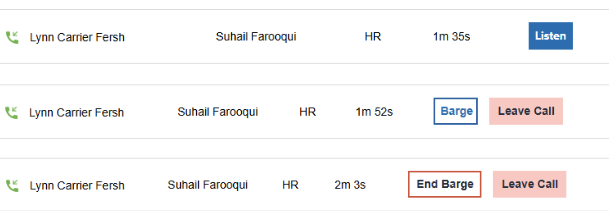
System Administrators will see a list on the dashboard of all live calls. To silently listen in on an existing call, simply click on the ‘Listen’ button. Once you’re listening to a live call, you’ll see another option to ‘Barge’ in on the call, which allows you to join the call as an audible participant.
Update Call Queue Order
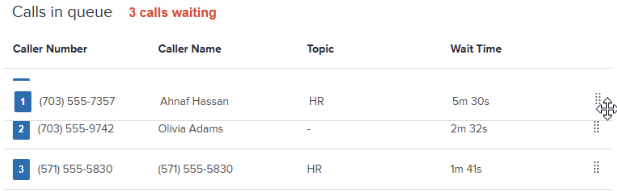
The Queue Management Dashboard gives supervisors control over call prioritization by allowing them to reorder calls in the queue. Simply drag and drop the call the the appropriate position, and the calls will be picked up according to the new order.
Update Agent Statuses and Order
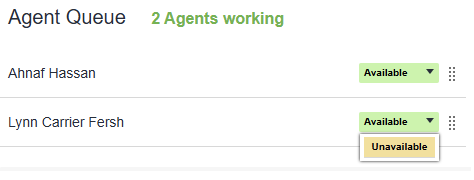
Supervisors also have controls over the agent queue. Similar to the call queue, they’re able to drag and drop to rearrange the order in which agents receive calls. Additionally, supervisors can adjust individual agents statuses to make Available or Unavailable from either status, or from the Wrapping Up status.