
Offer the convenience of Onflo (formerly Let's Talk!) Chatbot to more of your community by enabling Spanish in Settings > Chatbot. Once enabled by a System Administrator, customers will have the option to interact with multiple language options available in Onflo Chatbot via the embedded Onflo Tab.
How it works
For Customers
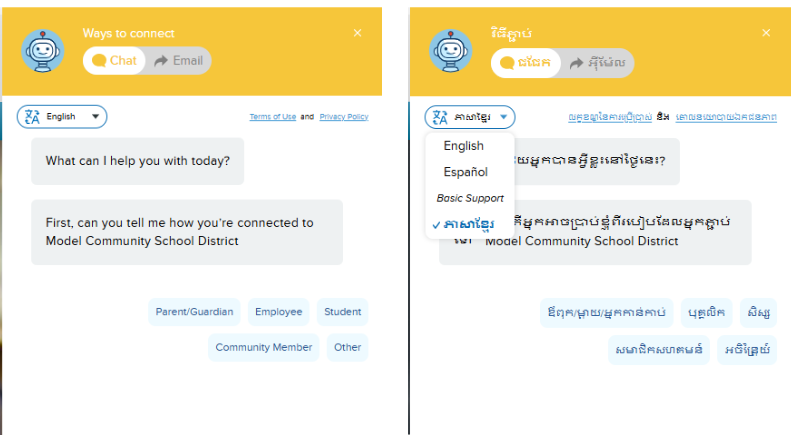
When opening the LT tab, customers will now see a language selection icon in the field where they will enter the message depending on the orientation of the tab.
Basic and High Support Languages
Onflo offers several language options that are considered high support and additional languages with basic support. High support languages have a high degree of accuracy and we are confident in providing to our customers. Basic languages have translations, but they perhaps don't have as much nuance in the translations as these high support languages do. All default languages in Onflo are supported by Onflo Chatbot. To learn more about which languages are offered, and which languages are both high and basic support please refer to our Learning Center article How to Set Up Translations
To enable these language options you will need to assign a translator for every language option you wish to enable in your district’s account.
To Enable Language Options
To enable any language option you will need to assign translators, and enable the languages within Onflo Chatbot. All languages do need to have a translator assigned whether they are a high support or basic language. Below are the directions for each step:
- Click on Languages
- Select the Language from the dropdown menu
- Select the Translator from the dropdown menu
Click Save
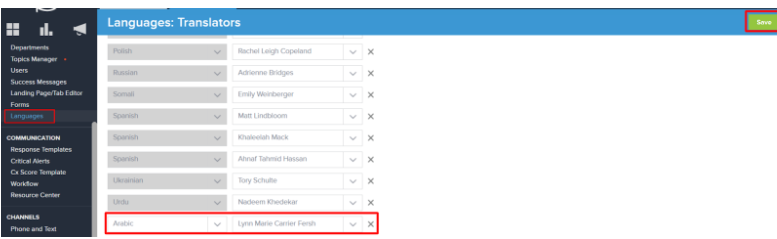
Now that you have assigned translators you will also need to enable languages in Onflo Chatbot
Enable Languages in Onflo Chatbot
- Click on Onflo Chatbot
- Click on the drop down menu for Enable Languages
- Click the check box next to the language(s) you want to enable
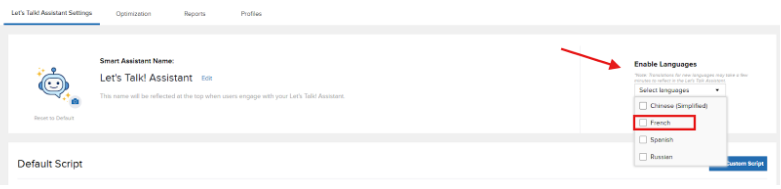
4. The selections will enable the languages automatically
Note: Your default and custom scripts will be automatically translated for your customers when engaging with Onflo Chatbot