
Your Onflo (formerly Let's Talk) account is capable of capturing both directly delivered and forwarded emails. While all Users will be able to take advantage of forwarding emails, only those you identify as members of the Email Team will have access to emails directly delivered from Customers.
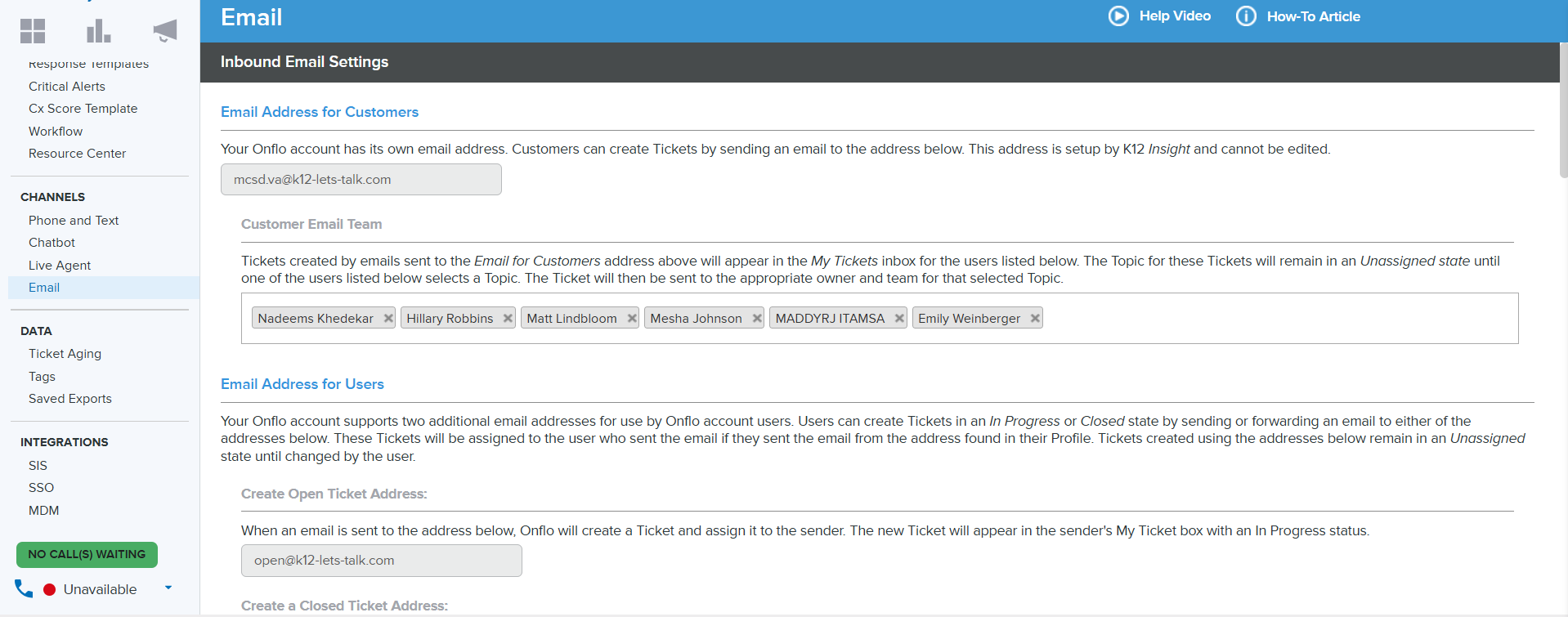
Accessing Email Settings
- On the Settings menu, click on Email under Channels.
Email address for users
- Under Email Address for Customers, you will see your customized email address for direct delivery to your Onflo account. This address is set up by K12 Insight and cannot be changed.
- Under Customer Email Team, list all Users who should have access to emails sent to this address.
- Email Team will always include system admin, but you can add non system admin as well
- No changes can or need to be made in the Email Address for Users section.
Outbound Email Settings
- Review the Outbound Email Settings section. Confirm whether replies to Customers should be sent from your district as a whole or from specific Users, as well as from whom notifications should be sent. Note: No changes can or need to be made to the email addresses in this section.
- To customize the appearance of the emails sent to Customers, click on Edit Customer Email Template. Here, you may customize the signature, change colors, and add or remove a logo. Click Save to confirm updates.
- To customize the appearance of the emails sent to Users, click on Edit User Email Template. Here, you may customize the signature and change colors. Click Save to confirm updates.
- Be sure to confirm all of your updates by clicking the green Save button in the top right corner.
Returning to the inboxes view, all members of the Email Team will see Email under Channels on the left-hand side of the screen. From here, they will be able to review and follow up with any emails sent directly from Customers.