
To share a Ticket with someone who is not a Onflo (formerly Let’s Talk) User:
- Click on the three dots icon in the top right-hand corner of the Ticket screen, just below the Ticket number.
- Select Forward, and a pop-up window will appear
- Enter the relevant email address(es). Multiple addresses should be separated by commas.
- Enter a message letting the recipient(s) know why this message is being shared and any requested actions.
- Below the text box, select the relevant checkboxes to choose the content to be shared: Customer Communications, Internal Comments, Feedback Score, Log.
- Click Send.
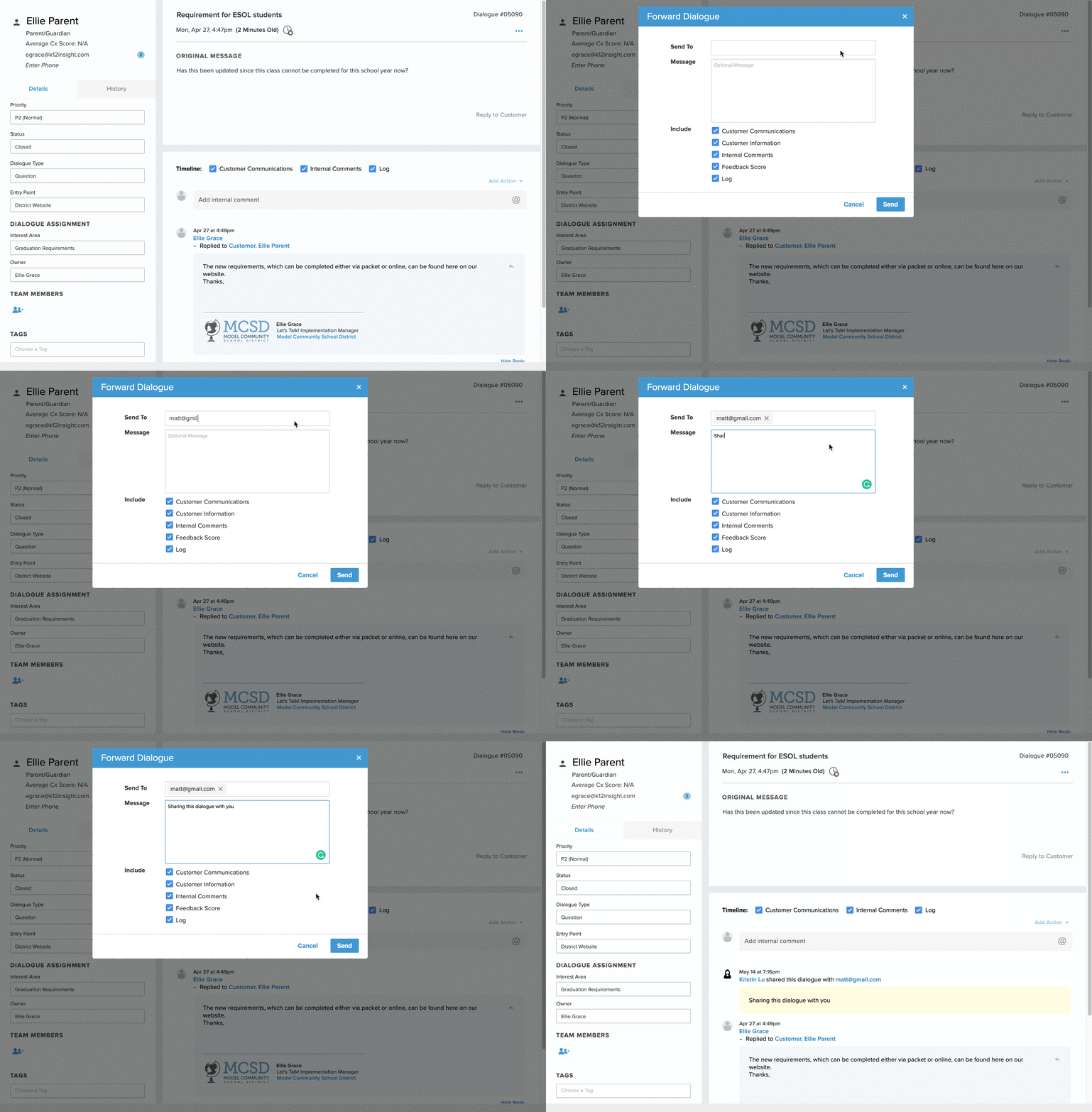
A record of the forwarded Ticket, including the email address and any included message, will appear in the Ticket timeline.
The forwarded Ticket will appear in each recipient’s email inbox. The sender’s email address will be that of the User who forwarded the Ticket. Any replies to this forwarded Ticket will be captured within the Ticket timeline.
Use Case 1: A compliment comes in for a specific teacher who is not currently a Onflo User. Forward the compliment so the teacher knows he’s appreciated!
Use Case 2: The Athletic Director needs help from a coach to answer a question that was received from a parent. The coach is not a User. Forward the Ticket to the coach and she can respond to the Athletic Director with the necessary information to discuss with the parent.