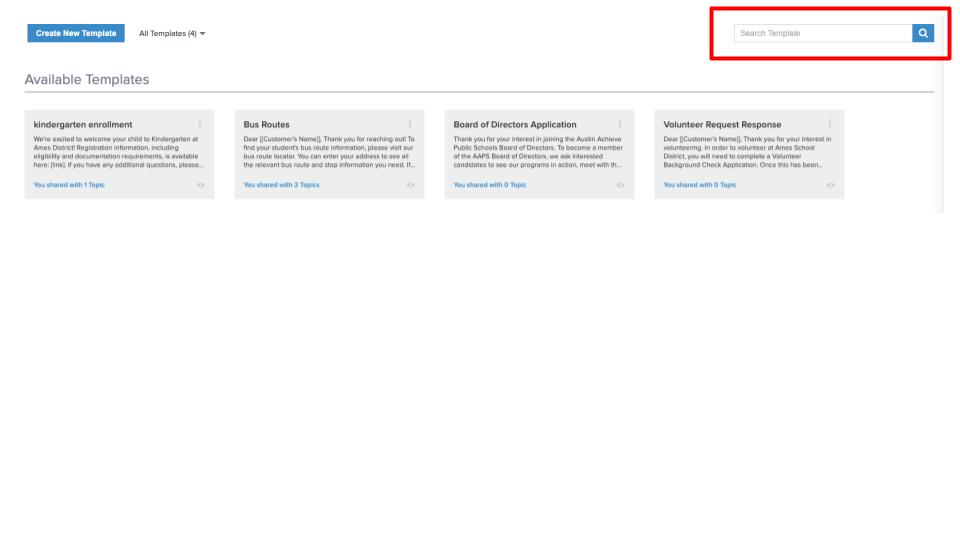
Response templates are customizable saved messages that Onflo (formerly Let's Talk!) users can access when replying to customers. System administrators and topic owners can create an unlimited number of standard replies, as well as choose who can access each template.
Create a New Template
To create a response template, follow the instructions outlined below:
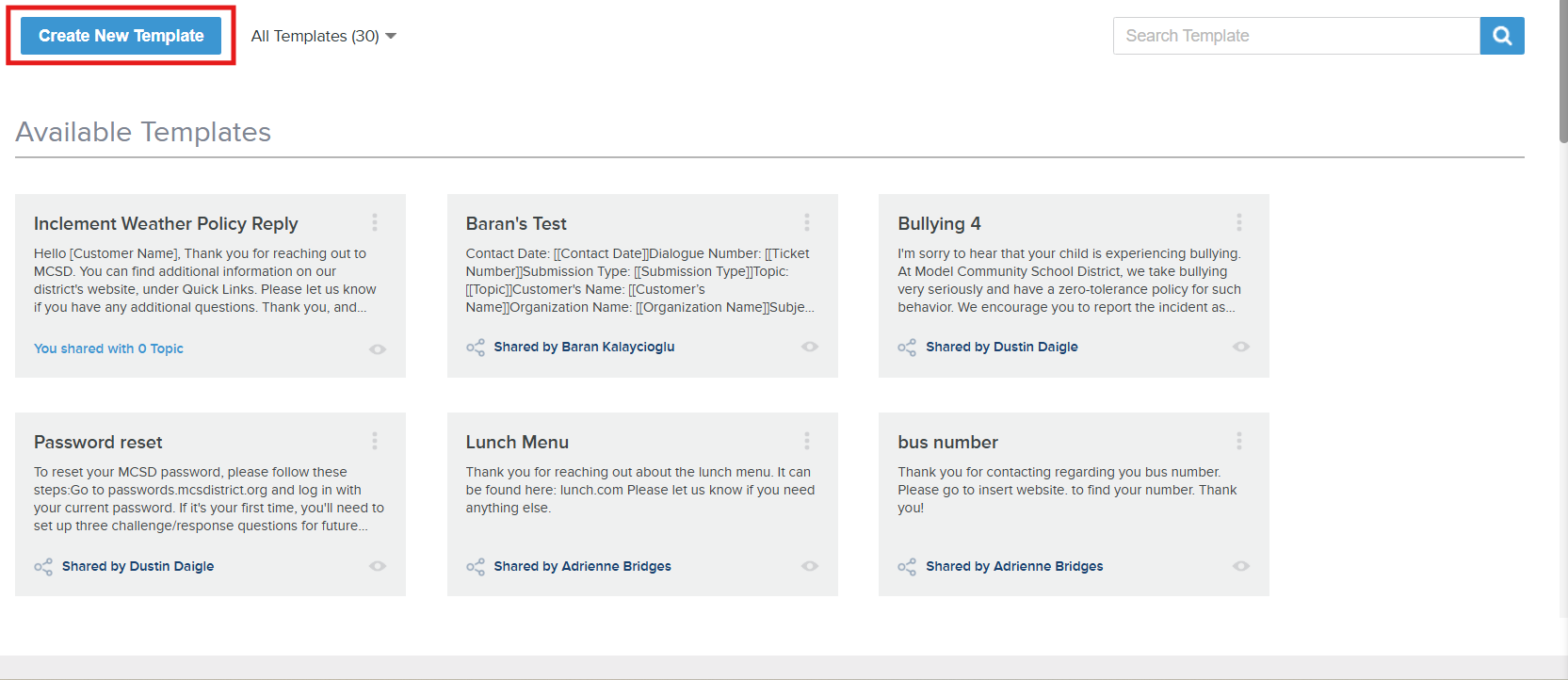
- In Settings, click Communications then Response Templates.
- Click on the Create New Template.
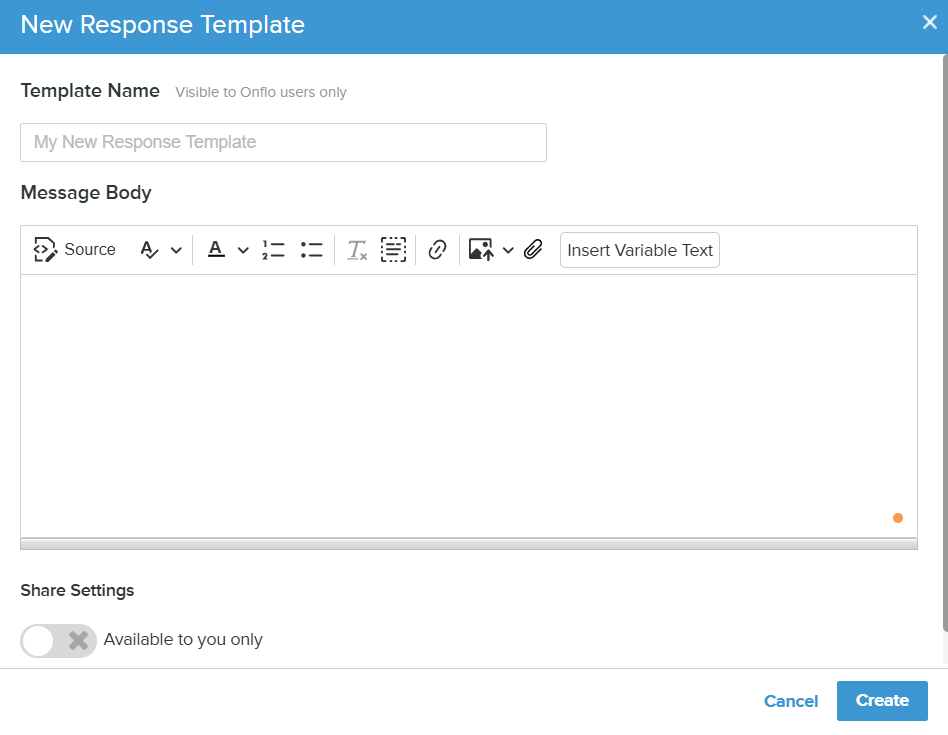
- Give your template a title in Template Name.
- Enter the template content in Message Body.
Sharing Options for Templates
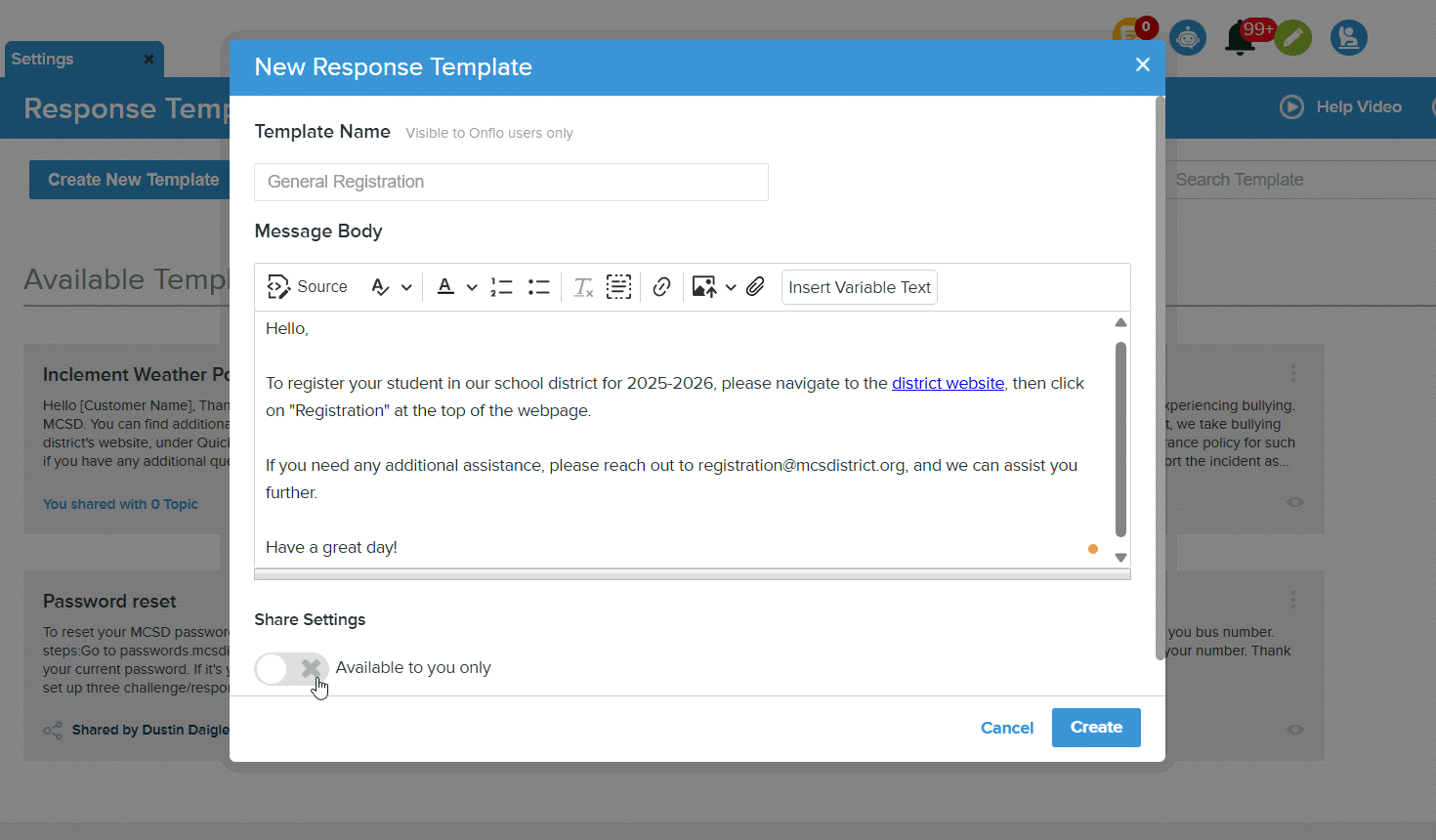
- In Share Settings, decide whether you want this template to be available only to you or shared with other topics.
- In the dropdown menu, select topics that can also use this template.
- When a template is shared with a topic, the topic owner is notified via email. You can include a message to the topic team.
Response Template Access and Options
Users can see templates shared with them. System administrators can view all templates within the account.
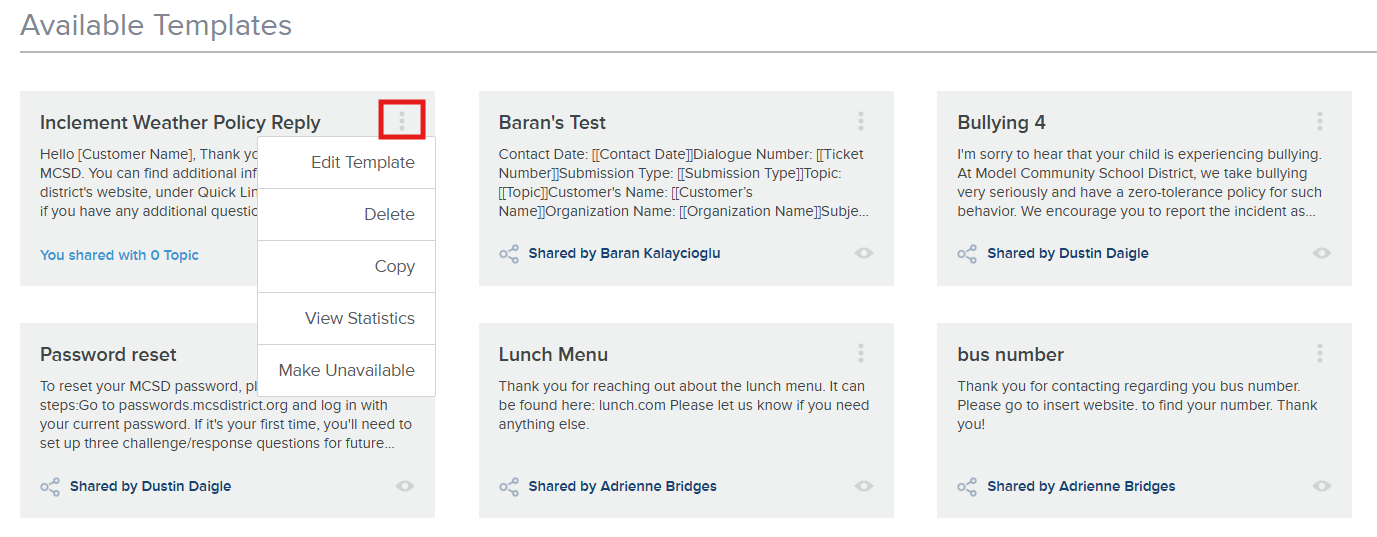
Each template is displayed as a card that includes information on how many topics can access the template.
Click on the three dots in the top right corner of the card to:
- Edit the template
- Delete the template
- Copy the template
- View Usage Statistics of the template (number of times used, average feedback score received, the last time this template was used)
- Make the template unavailable
Use the search function at the top right of the page to find templates.