
Need to tag and close multiple Tickets at once or send the same reply to several customers? Meet the Bulk Editor!
Performing Bulk Replies and Edits
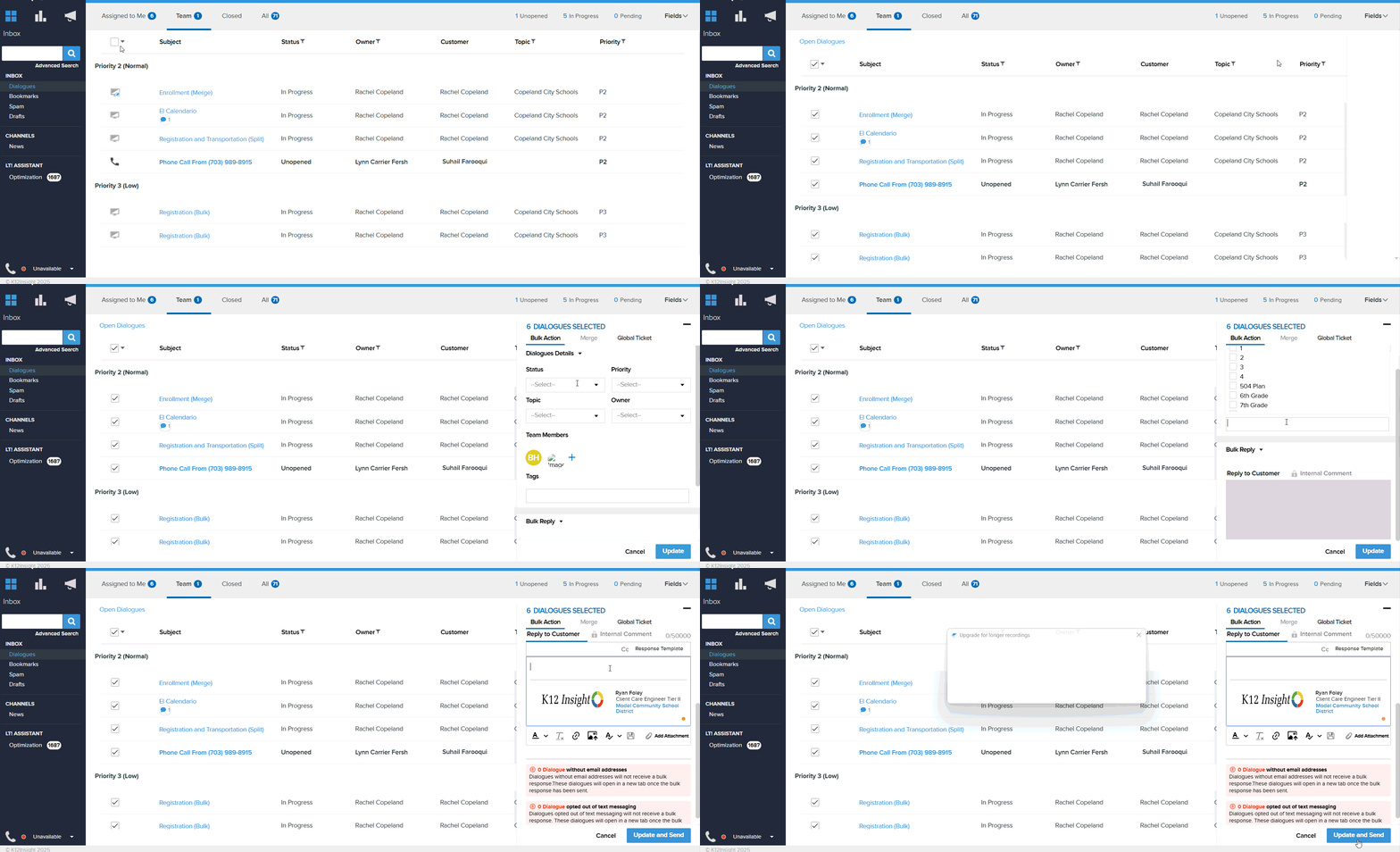
From the Inbox view, choose the Tickets you want to edit by selecting multiple checkboxes to the left of the Entry Point Icon.
When multiple Tickets are selected, the Bulk Editor panel will automatically pop out on the right side of the screen.
Use the Editor to send mass replies to Customers or to update Ticket details. Available functions include:
- Reply: Send the same reply message to all Customers in your selected Tickets.
- Select a response template, if available.
- Add up to two attachments to replies.
- If the reply tab is locked, it's because Tickets that cannot receive a reply — such as closed Tickets, anonymous Customers, or new Tickets — are selected. Deselect these Tickets to enable the reply tab.
- Any replies that can’t be delivered due to missing email addresses will be conveniently opened in new tabs for easy follow-up.
- Comment: Add an internal comment to the timeline of the selected Tickets.
- Status: Update the status of selected Tickets, including closing multiple Tickets at once.
- Priority: Update the priority of selected Tickets.
- Topic: Update the topic for the selected Tickets.
- Owner: Set the owner for selected Tickets. New owners must already be on the Ticket team.
- Team Members: Add team members to the selected Tickets.
- Tags: Add Tags to the selected Tickets.
Any fields that are not updated in Bulk Edits will maintain their current/existing status.
Once the desired bulk edits, replies, and comments are made, click the green Update button to perform the tasks.