
Loading...
Skip to content
Onflo formerly Lets talk_white
  • Home
  • Articles
    • How-to Articles
    • Getting Started
    • Integrations Marketplace
    • Best Practices
    • FAQs
  • Product Updates
  • Resources
  • Onflo Academy
    • New User Training
    • System Administrator Training
    • Beyond the Basics
  • Support
  • Home
  • Articles
    • How-to Articles
    • Getting Started
    • Integrations Marketplace
    • Best Practices
    • FAQs
  • Product Updates
  • Resources
  • Onflo Academy
    • New User Training
    • System Administrator Training
    • Beyond the Basics
  • Support
Log in

Adding Onflo to ClassLink Roster Server Applications

  • Category: How-to Articles
  • Tags: Account Setup, Integrations

More results...

Generic selectors
Exact matches only
Search in title
Search in content
Post Type Selectors

Add the Onflo (formerly Let’s Talk) App

Navigate to the Apps tab.

1. Navigate to the Apps tab.

2. Select + ADD
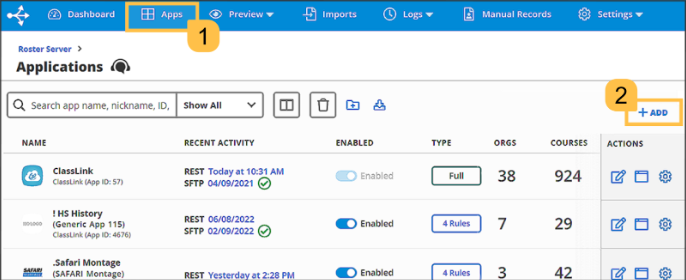
3. Toggle on Show Development Apps

4. Search for Onflo

5. Click the + Add button to add the Onflo Application.

Set Application Permissions

With the Onflo app added it's time to define vendor permissions. Permissions specify how much access the vendor can have to your data for app account provisioning. Roster Server offers three permission types: Rule-Based, Full, and Legacy.
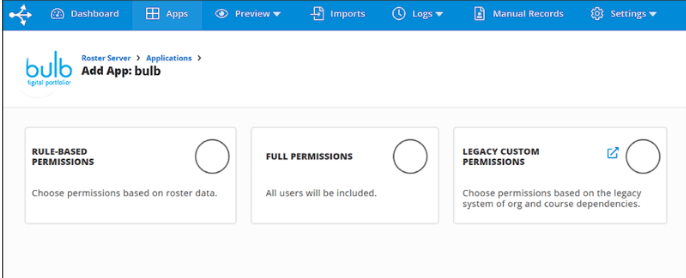
For additional support configuring rule-based permissions, visit the ClassLink help center.

Sharing Data with Onflo

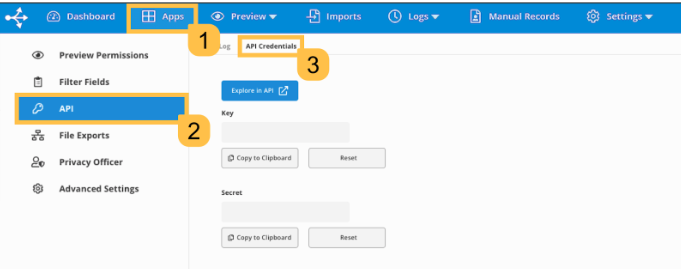
After you've added the Roster Server application and set the app's permissions in your console, the Onflo team will receive an email indicating your institution added our app in Roster Server. The email will contain your REST API URL and a unique API key and secret.

You can view your key and secret in the API Credentials tab on the Onflo app's API page.
PreviousHow to Create Custom Topics
NextForm Builder

Related Post

Setting Up a Custom SAML for SSO

Overview Enable Single Sign-On with any SAML 2.0-compliant identity provider. This integration allows your staff and students to securely authenticate to Onflo using existing organizational credentials, reducing password fatigue and improving security posture. Features SAML 2.0 compliant authentication Attribute mapping

Read More ➜

Setting Up a Custom LDAP

Overview Connect to any LDAP-compatible directory service including Microsoft Active Directory, OpenLDAP, or other enterprise directories for user authentication and provisioning. Features LDAP authentication for secure user login Automated directory sync for user provisioning and updates Group membership mapping to

Read More ➜

Setting Up Microsoft Azure for SSO

About this integration Integrate Microsoft Azure Active Directory (Entra ID) to provide secure Single Sign-On and automated directory synchronization. Your district's Microsoft 365 users can access Onflo with their existing credentials while user data remains synchronized automatically. Features Single Sign-On

Read More ➜
onlo-full-color-splash-page

Need support?

Our Client Services Team is here to help between 7 a.m. – 7 p.m. ET. Get support here or call us at (703) 542-9601.

Mobile App

apple store
g play

Follow Us on

Linkedin Youtube

Quick links

  • Privacy
  • Security
  • Support
  • Training
  • Resources
  • Credits

Articles

  • How-to Articles
  • Product Updates
  • Get Started
  • Best Practices
  • FAQs

Get Newsletter

Sign up to get platform Tips & Tricks delivered directly to your inbox.

Scroll to top