Create more opportunities for self-service throughout your website by embedding specific articles, sections of articles, or your entire knowledge base!
Note: Embed codes are dynamic: all changes you make to Knowledge Base within your Onflo (formerly Let’s Talk) account will automatically be reflected on your website page(s).
Embed Individual Resources
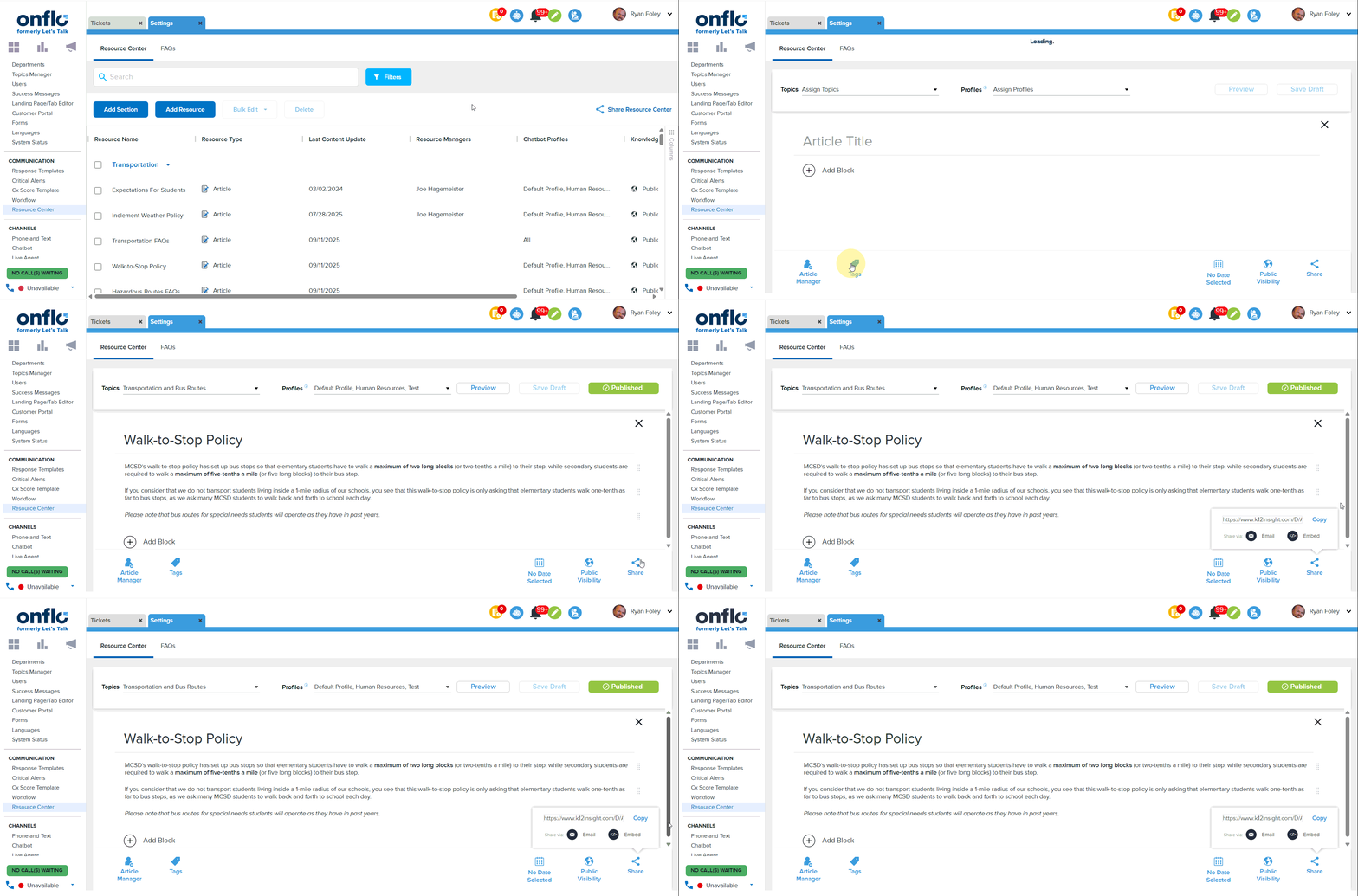
- Go to Settings, then click Resource Center in the left panel under the Communication Section.
- Click on the desired article to enter the Article Editor View.
- Click on Share at the bottom right of the page, then select Embed.
- Click Copy to save the embed code to your clipboard or click Email to email the embed code as an .xls file
Embed Individual or Entire Knowledge Base
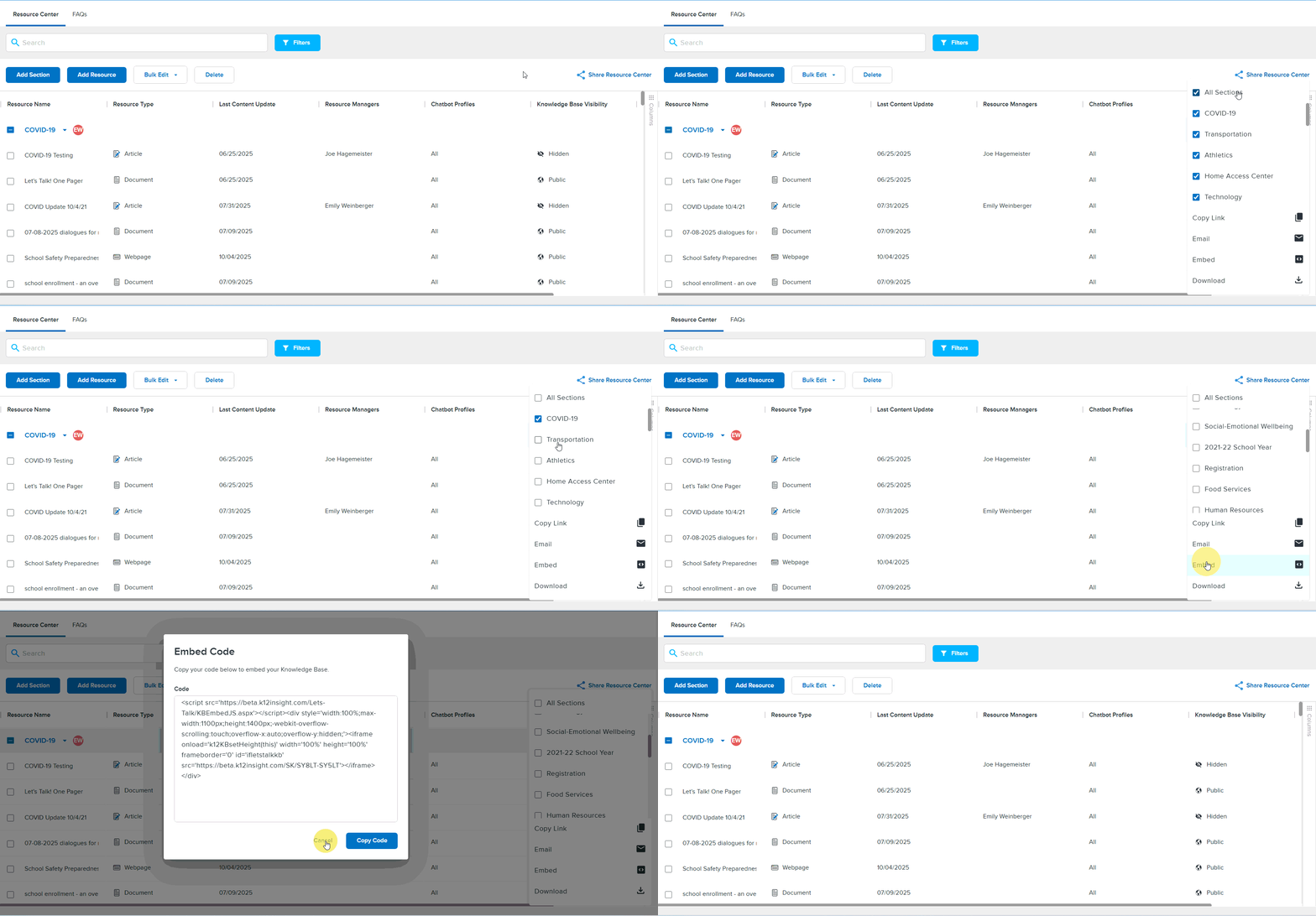
- Navigate to Settings, then click Resource Center in the left panel under the Communication Section.
- Click Share Resource Center at the top right of the page.
- Click the checkboxes next to each Knowledge Base, or click All Sections, then select Embed and click Copy Code
- Alternatively, you can select one of the following options:
- Copy Link
- Download
- Alternatively, you can select one of the following options: