
Onflo (formerly Let's Talk) provides options for both manual and automatic use of Keyword Alerts. When a ticket is marked as Critical using Keyword Alerts, a designated team is notified by email and added to the ticket as team members.
When Keyword Alerts are enabled, Onflo scans existing and incoming tickets for trigger words and phrases, based on a combination of system and user-defined keywords. Tickets containing these keywords and phrases will be marked as Critical. The customizable list of keywords allowing for greater visibility of important topics, and ensuring nothing slips through the cracks.
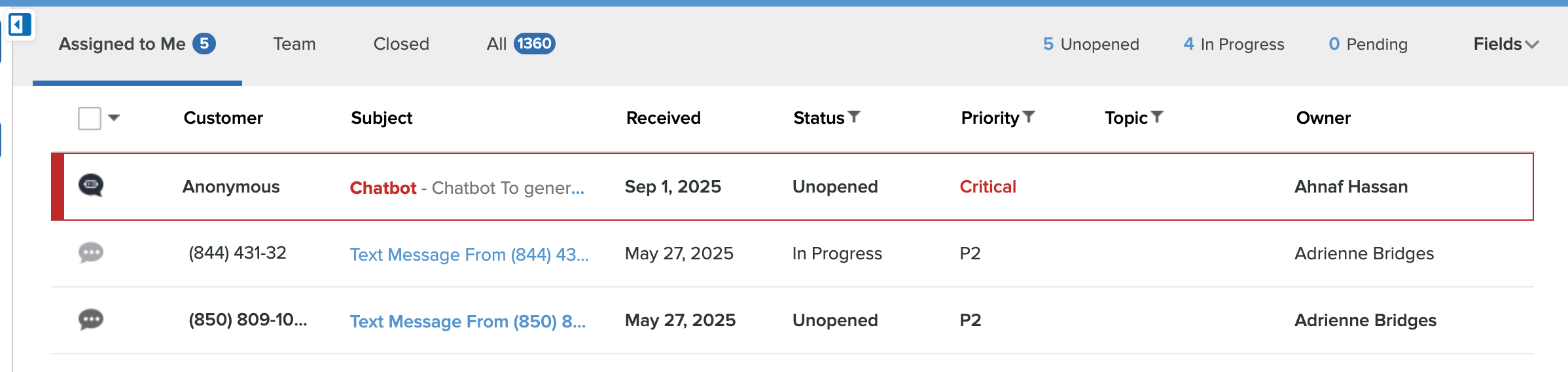
Critical tickets appear in red in all inbox views for easier viewing. Users can also manually mark any ticket in Onflo as Critical. If a system administrator has not yet identified the Alert Team, the ticket will simply be displayed as red and no additional users will be alerted. Any ticket marked as Critical can be switched back to a lower status at anytime.
Enabling Keyword Alerts
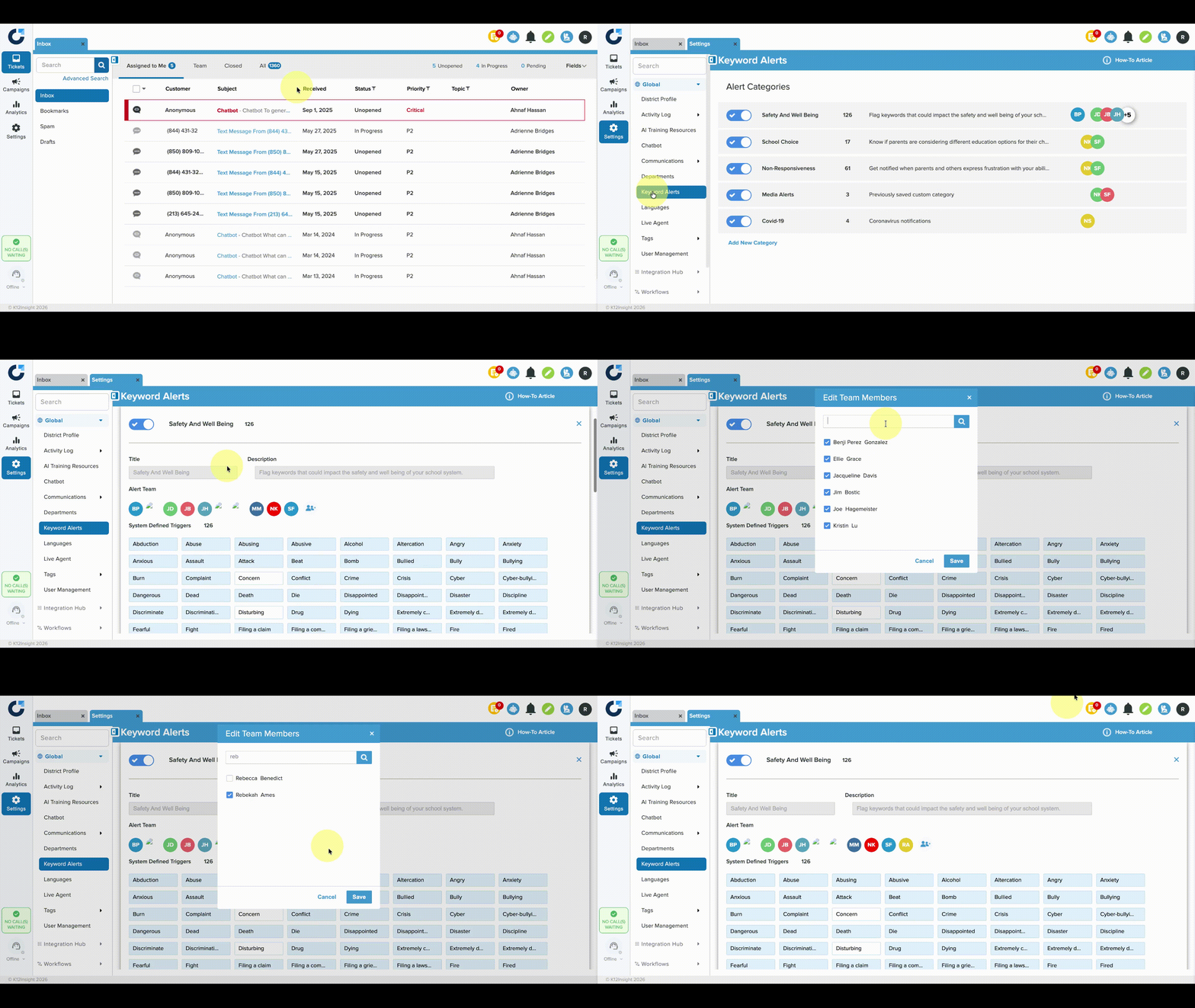
- From Settings, click on Keyword Alerts.
- Toggle on the desired Alert Categories, and click into the category to begin customizing options, or click Add New Category at the bottom to create a new fully customized category.
- Add team members to the correct categories by clicking on the Edit Team Members icon. When a ticket containing an identified keyword or phrase is received, the identified alert team is automatically added to the ticket and notified by email.
Customizing Keyword Alerts
- Default trigger words are identified by the blue box.
- Remove a trigger word by clicking on the bell icon inside the box.
- Add new words or phrases in the box at the bottom of the page, and click Add Trigger.
- Click Apply Changes at the bottom right to save.
Private Topics and Keyword Alerts
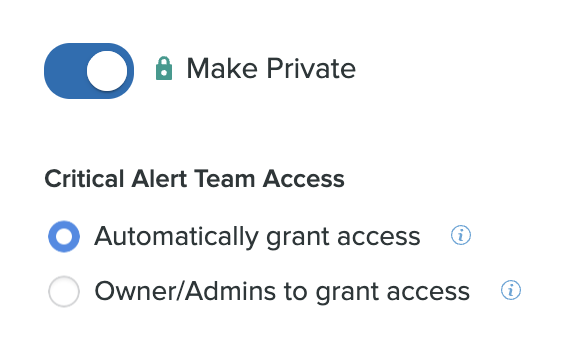
In order to maintain confidentiality and privacy, if an identified keyword or phrase is included within a private ticket, it WILL NOT be escalated to the Alerts Team. If a topic is set to private, districts can choose to automatically escalate tickets that are deemed critical by our keyword alert engine OR manually decide.
Messaging will appear in a ticket that is marked critical. Access can be granted to Alert Team members to view the ticket.
System default categories and additional layers of review
Keyword alert categories can be customized, but Onflo has three pre-set categories for which the title and description cannot be edited:
- Safety And Well Being
- School Choice
- Non-Responsiveness
When these three categories are enabled, the Onflo system runs the message through additional levels of review to ensure the content meets the definition of critical for the category before notifying the identified Alert Team.
Level 1: The Keyword Alert system will flag any ticket coming in that contains selected keywords.
Level 2: A K12 Insight content moderator will manually review the ticket.
- If the ticket is of critical nature, then it is marked as Critical and sent to Level 3.
- If it is not of critical nature, then the ticket is de-escalated to a normal priority.
Level 3: A second K12 Insight content moderator will manually review the ticket.
- If the ticket is of critical nature, then it is marked as Critical and the Alert Team for that category is notified.
- If it is not of critical nature, then the ticket is de-escalated to a normal priority.
These additional levels of monitoring occur 24 hours a day, 7 days a week. This feature does not affect the arrival of ticket notifications to topic teams. Team members and ticket owners are still notified immediately when a ticket is received. The keyword ticket notification will be delivered on a slight delay to allow for the multi-level review.