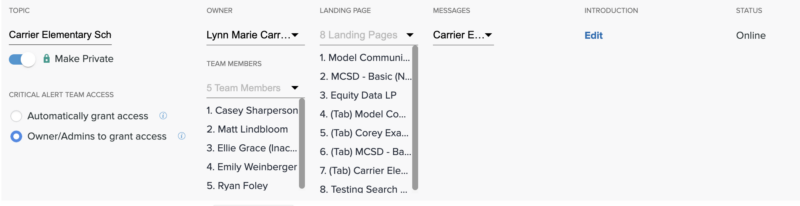
In the event that a Topic is created for sensitive information (think HR or other internal use cases), you might not want the System Admin to be able to peek into the tickets of that Topic.
Your district can set up Private Topics or Categories in these events. When set to private, only the Category Administrator and Respective Topic Owners have access to tickets within those Topics and the ability to add those Topics onto Landing Pages.
Who can set it to private?
- System Administrators
- Category Administrator
Who can unset it from private?
- Category Administrator
- Topic Owners
- System Administrators
Note: Tickets submitted to private Topics are only accessible to Team Members and Category Administrators.
Setting Categories to Private
To make any Topic or Category Private, both must have an Owner.
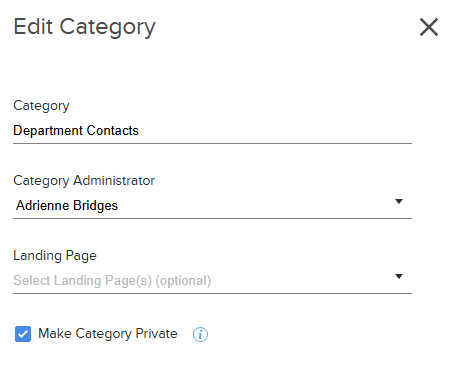
- Under Topics Manager, locate the category you want to make private and check the box.
- Assign a Category Administrator.
- Check the box that says Make Category Private and Save.
Setting Topics to Private
Make a Topic private while creating it or from the main Topics Manager screen.
Creating a new Topic: Toggle on the "Make Private" option.
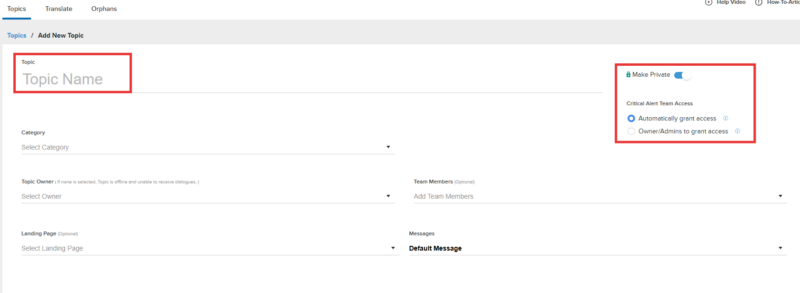
Editing an existing Topic: Click on the topic and toggle on the Private option. Automatically grant access to the critical alerts team based on the keywords set in the critical alert settings OR allow Topic Owners, Category Admins, and System Admins the option to grant access to the critical alerts team based on the keywords.