Has your district integrated Onflo (formerly Let’s Talk) with their Single Sign-On system? If so, then make sure to keep these tips in mind when you download the Onflo - Admin app to respond to tickets on the go!
- First, ensure that you’ve downloaded the Onflo - Admin app for users, rather than the Onflo app for stakeholders to submit tickets.
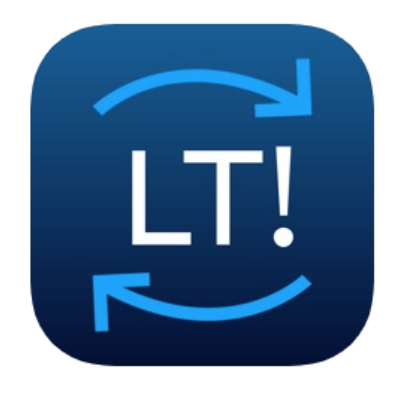
- Your Onflo - Admin app icon should match the one displayed here.
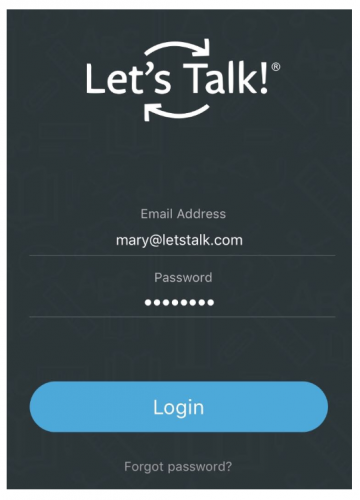
- Once downloaded, the app will prompt you for your login credentials. Instead of entering your SSO credentials, click the Forgot Password? link at the bottom of the login form.
- Because your SSO credentials are external to Onflo, it is necessary to create a unique password for the app only.
- Once the Reset Password email arrives in your inbox, follow the steps to set a new password that you will remember. This password will be used for the app ONLY. When logging into Onflo on the web, you will still use your SSO credentials.
- Now you may log into the Onflo - Admin app, using your district email address (e.g. mary@letstalk.com) and the new password that you just created!