
Mark Tickets and email addresses as spam!
The spam feature in Onflo (formerly Let's Talk) allows you to mark a ticket as spam using two methods. You can either mark individual tickets as spam or mark an entire email address as spam.
How-to: Mark the ticket as spam
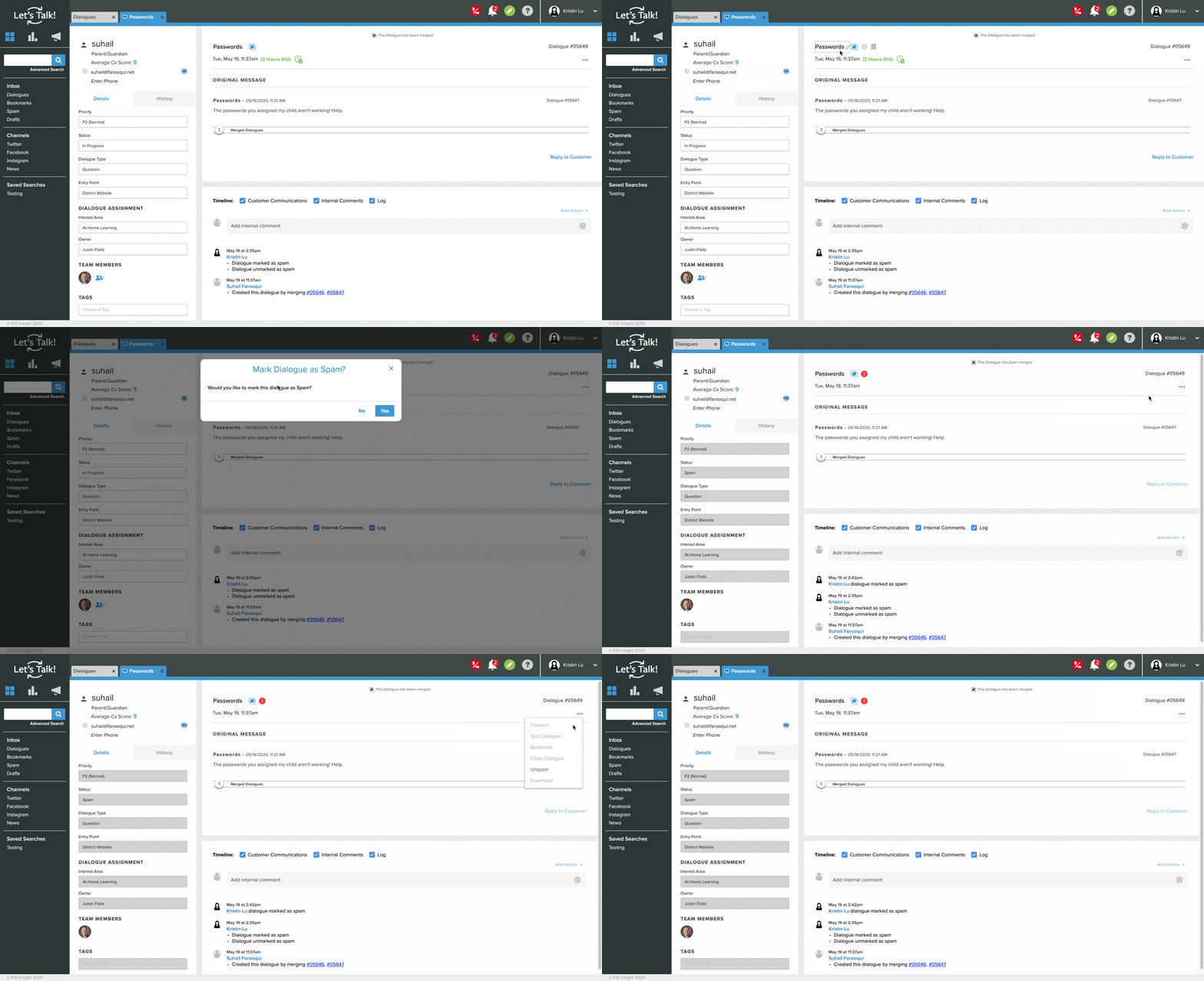
If your account received a specific ticket that is spam and you want to remove it from your inbox, this is how you want to mark it as spam. When you’re within a ticket, there are a couple of ways you can easily mark the ticket as spam.
- Hover over the ticket subject line and click on the spam icon (pentagon icon with a “!”). The icon will appear next to the subject line in red to represent you’ve successfully marked the ticket as spam.
- Alternatively, you can click on the ticket icon underneath of the ticket #. Then select Mark As Spam in the dropdown. The same spam icon will appear next to the subject line to represent you’ve successfully marked the ticket as spam.
How-to: Mark the email
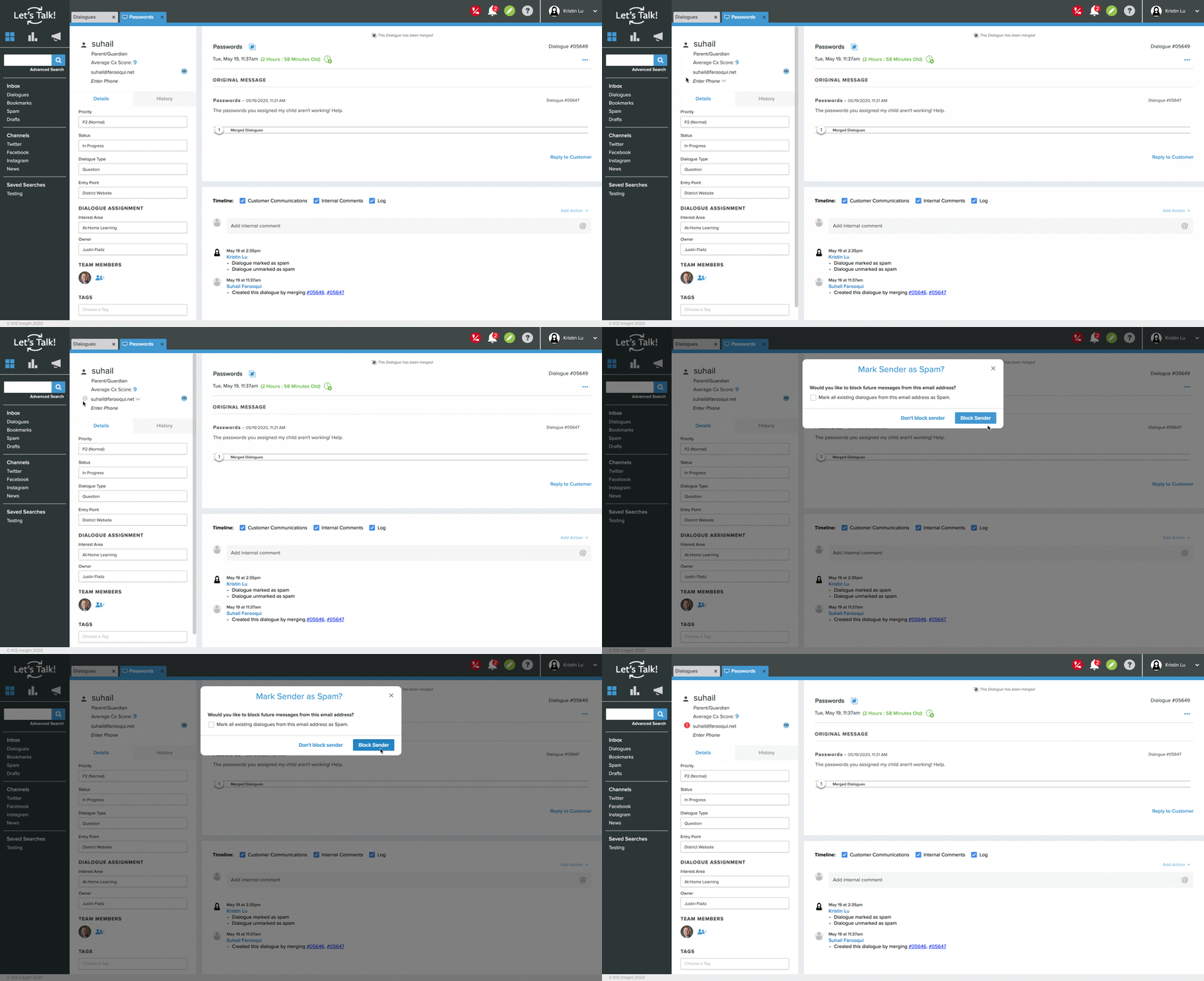
If your account often receives spam messages from a specified email, you can mark the entire email as spam. To mark an email address as spam, go into a ticket that came from the email. Hover over the email address under Customer Information and you’ll see the spam icon appear. Click on it to mark the sender as spam. You’ll then have the ability to enable two options:
- Mark all the existing tickets from this Email as Spam - Check this box to send all previous tickets from this email address into the spam inbox
- Block Sender - Select this option to automatically filter out all tickets moving forward from this sender directly into the spam inbox
The Spam Inbox
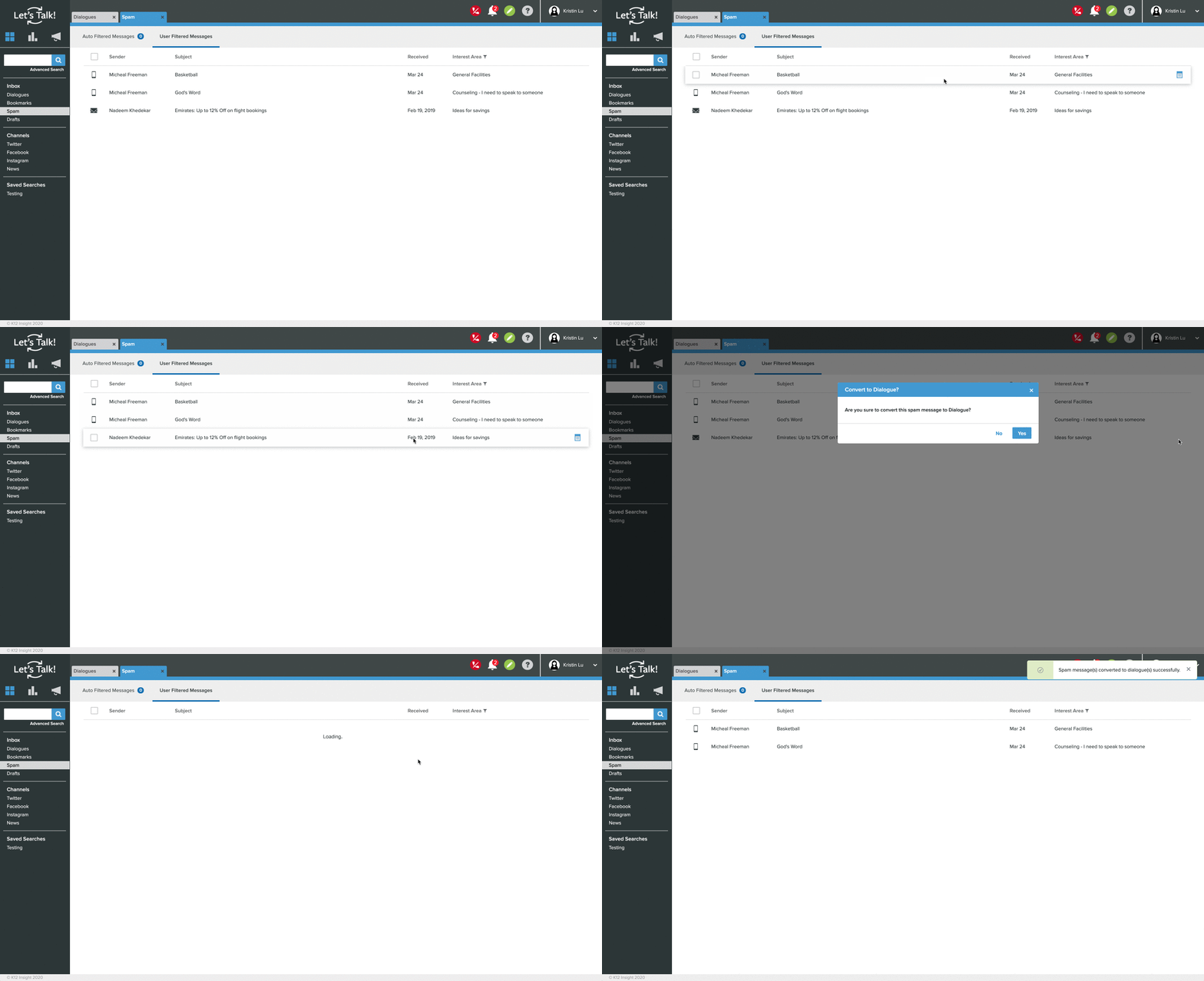
You can find all tickets marked as spam, both automatically and manually, in the Spam Inbox. This is located on the inbox navigation menu, under Spam.
What you’re able to do:
- Your spam is separated into Auto-Filtered Messages (tickets from emails marked as spam) and User Filter Messages (tickets that are manually marked as spam by users)
- You can sort through the spam inbox by Sender name, Subject line, Ticket received date, and Topic
- You can restore a ticket to your regular inbox by hovering over a ticket and clicking on the note icon that appears at the far right of the ticket.
Spam Ticket and Dashboard
Marking a ticket as spam will remove it from all dashboard reports. This means spam tickets will not go towards the overall count, ticket or trends within the dashboard.