
If you want to bring in someone else from your organization to join the Ticket and conversation:
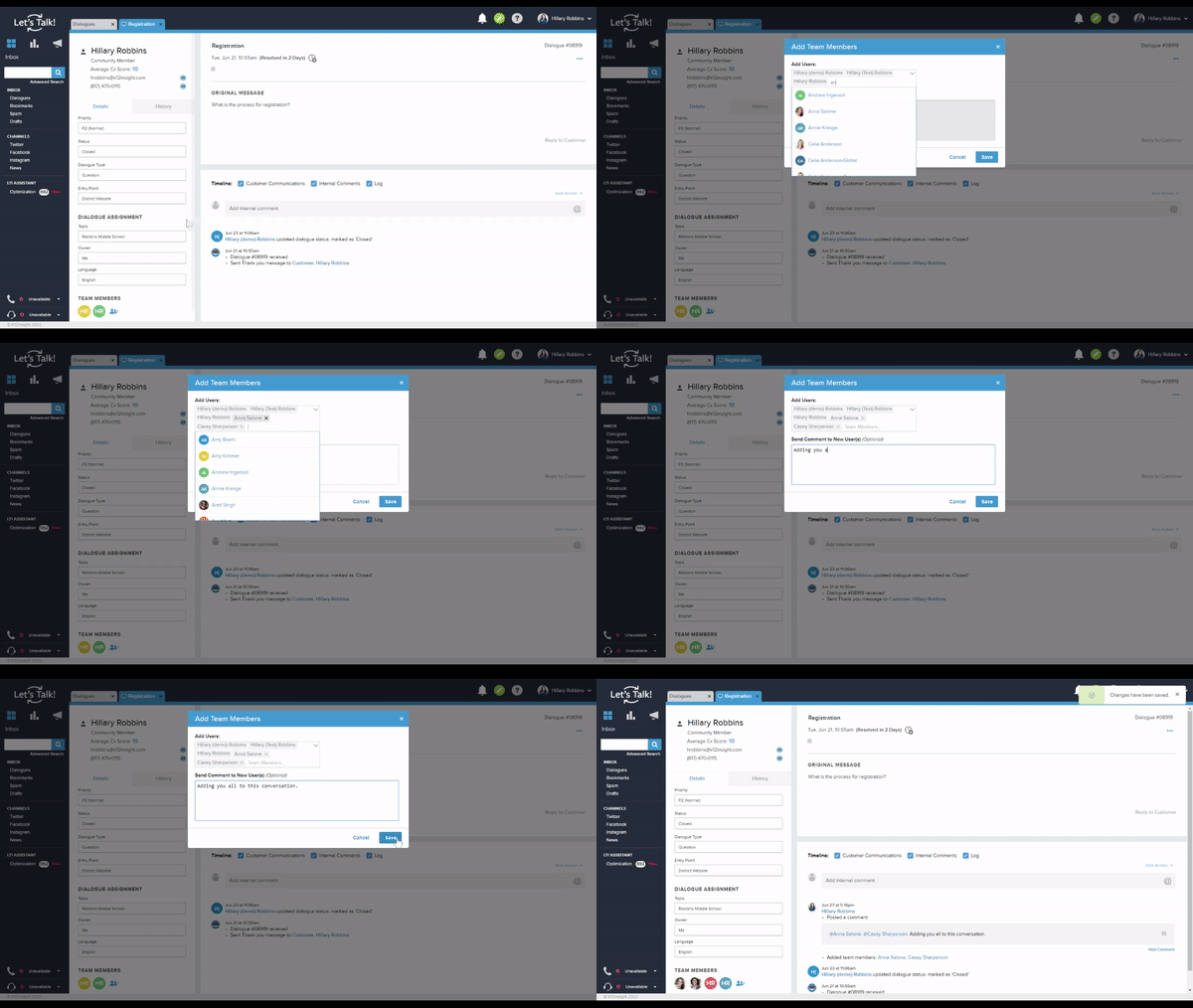
Option One - Add them under Team Members
-
- Under the Team Members section to the left of the Ticket, click on the Edit Team Members icon to bring up a new window.
- Type in the name of each colleague you'd like to add, then select the name to add this User. Remember that only Let's Talk! Users will appear here. To collaborate beyond Let's Talk!, see Share a Ticket.
- You may choose to add a comment for your new User(s), perhaps explaining why you are adding them to this Ticket.
- Click Save, and you'll see any new User(s) added to your team for this Ticket.
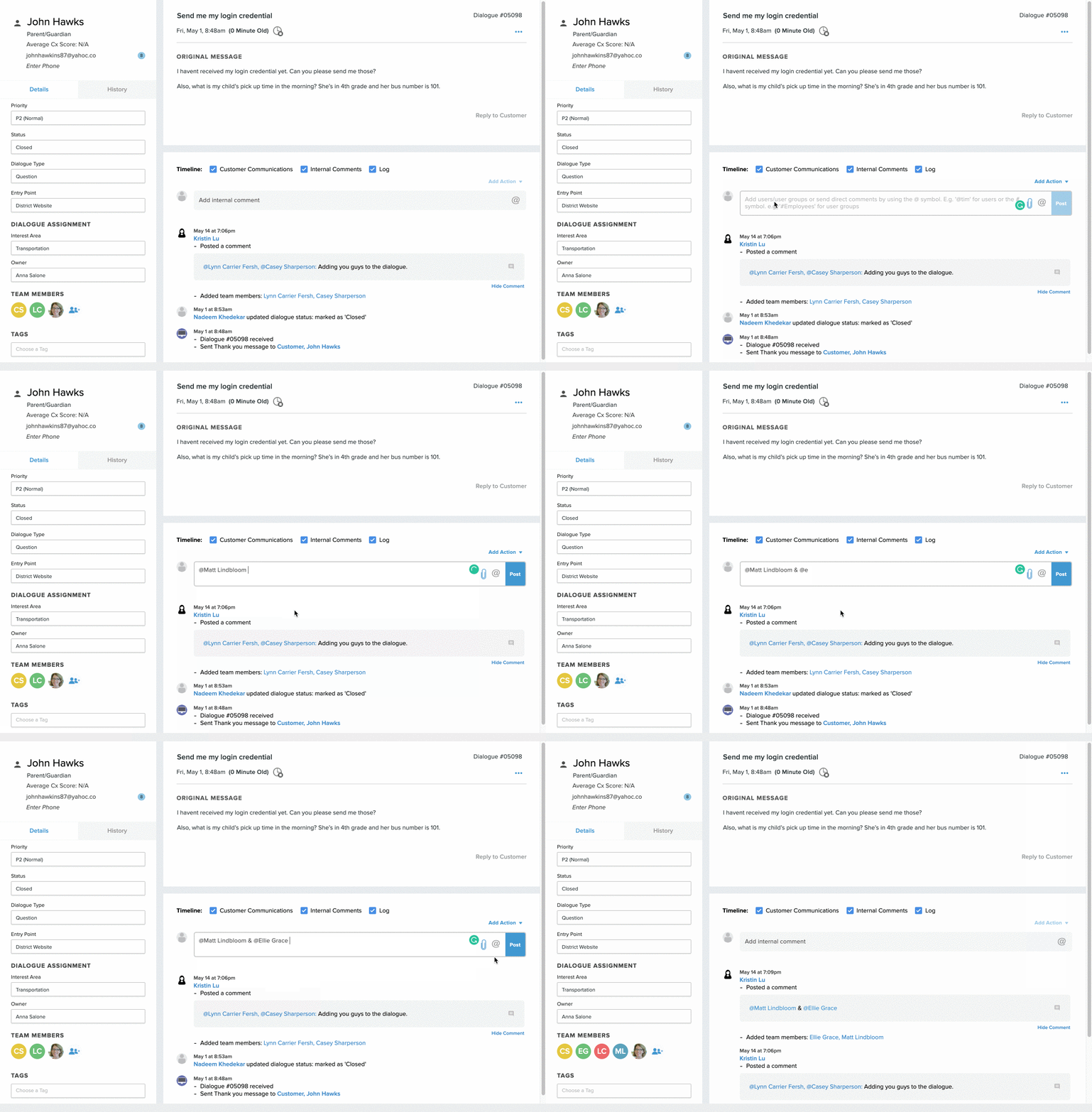
Option Two - Add them through Internal Comments
-
- Click the Internal Comments textbox
- In the text box, mention a specific user by typing @ followed by the person's name (for example @Melissa).
- When you type the name of a User who is not already part of this Ticket, his or her name will appear with 'Add Ticket' to the right.
- Click the person's name, then finish your comment and Save to add this User to the Ticket.
- If you want to transfer ownership to one of these colleagues, be sure to re-assign the User in the Owner field, as above.
- Remember that you may choose to provide additional context to your colleague through Internal Comments.
Note: Team members have been added for this Ticket only. System Administrators can add permanent team members under Settings.