Overview
Synchronize Chromebook and Chrome OS device inventory from Google Endpoint Management into Onflo. Maintain visibility over your district's Google-managed devices with automated inventory updates and device status tracking.
Features
- Automated asset inventory sync for Chromebook and Chrome OS devices
- Hardware details including model, serial number, and OS version
- Device enrollment and provisioning status
- Recent user and last sync tracking
- On-demand device details retrieval when viewing assets
Prerequisites
Make sure you have the following before connecting this integration:
- Google Workspace administrator account
- Admin SDK API enabled in Google Cloud Console
- Service account with domain-wide delegation
- Chrome Management API permissions
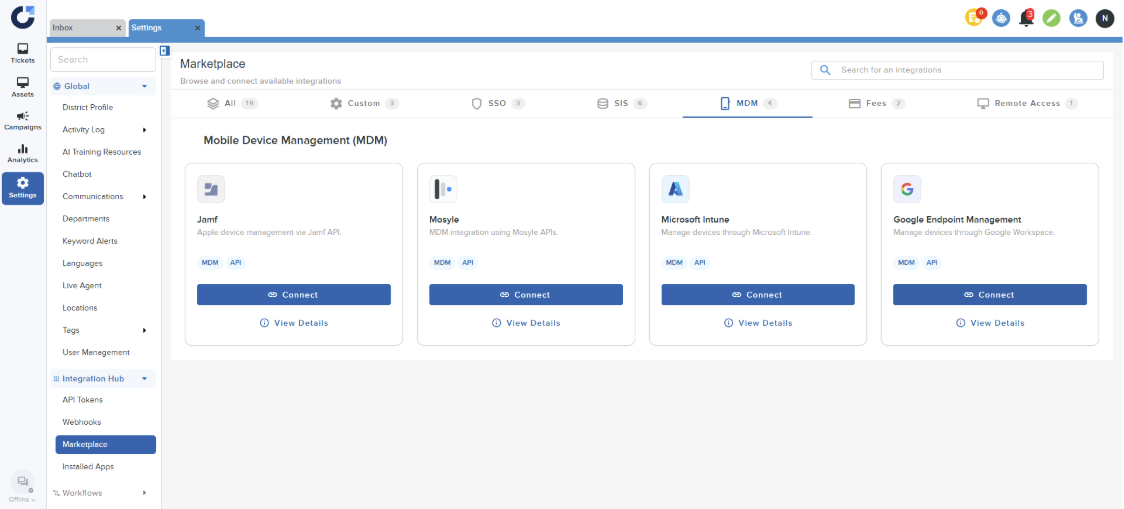
Step 1: Click on Connect on the Google Endpoint Management application in the MDM section of the Integration Marketplace.
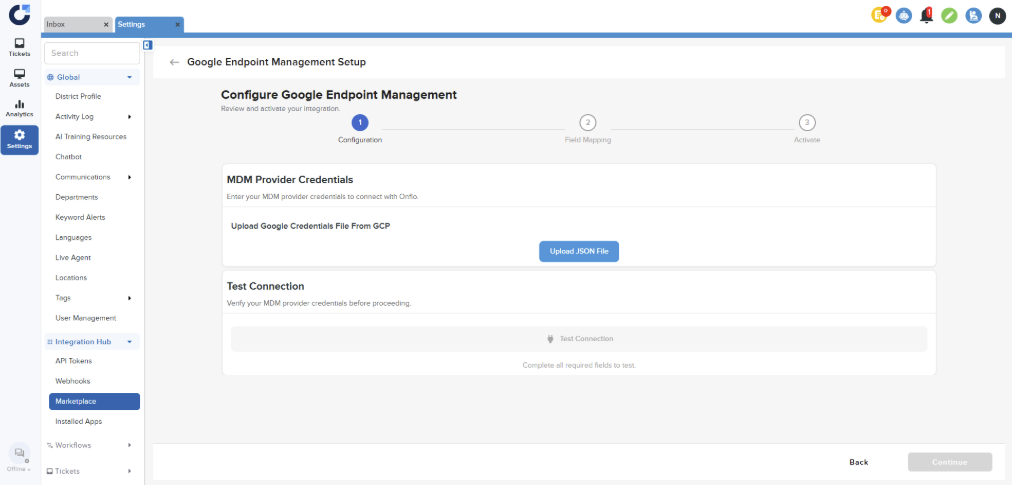
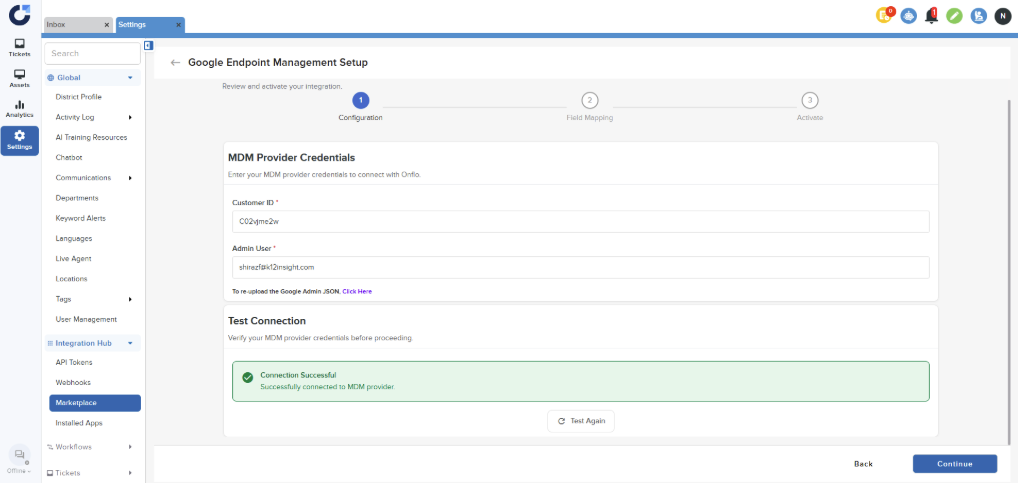
Step 2: Upload the JSON file and input the required details. For instructions on generating the JSON file and obtaining the customer ID, please refer to this article. Test the connection and click on Continue upon successful connection.
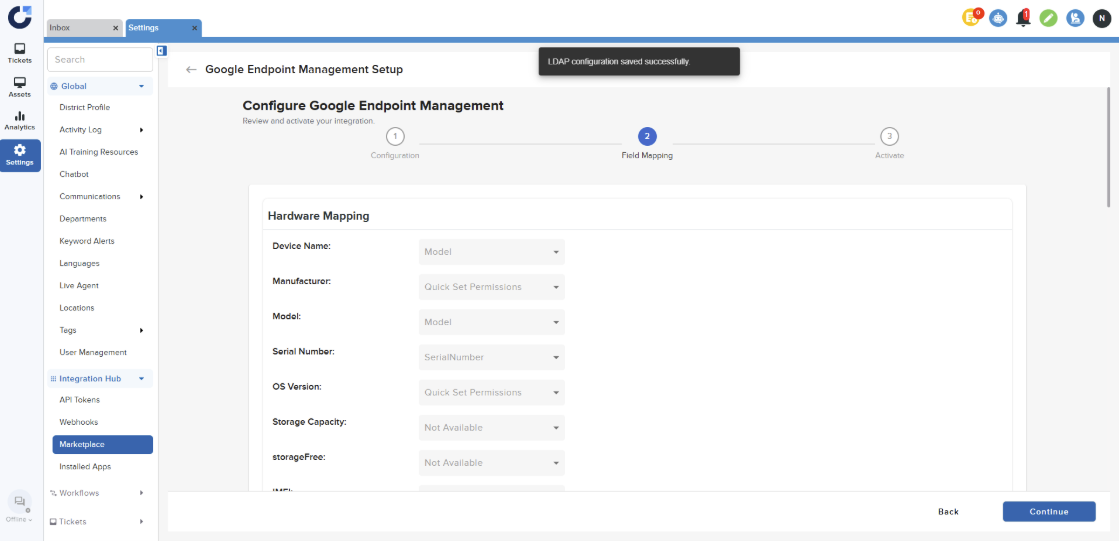
Step 3: Click Continue on the Field Mapping page.
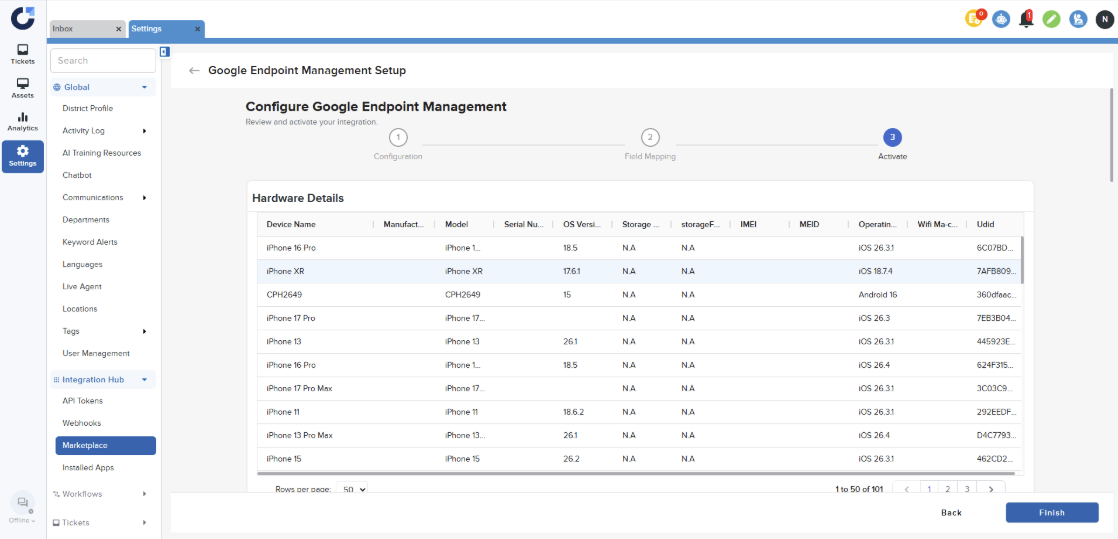
Step 4: Click Finish on the Activation page.
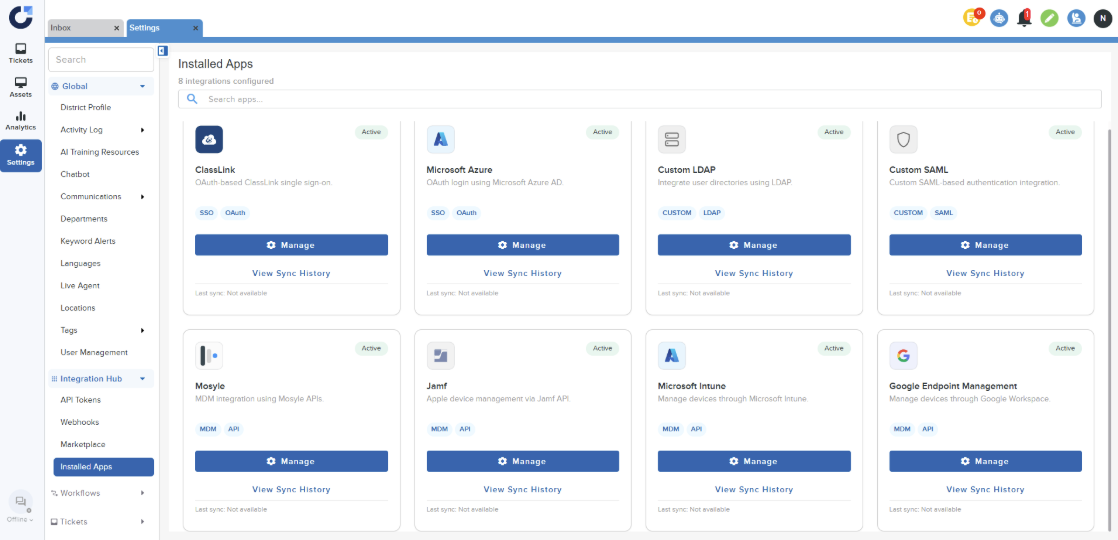
Step 5: Once the application is installed it will be shown in the Installed Apps section of the Integration Hub.