
Loading...
Skip to content
Onflo formerly Lets talk_white
  • Home
  • Articles
    • How-to Articles
    • Getting Started
    • Best Practices
    • FAQs
  • Product Updates
  • Resources
  • Onflo Academy
    • New User Training
    • System Administrator Training
  • Support
  • Home
  • Articles
    • How-to Articles
    • Getting Started
    • Best Practices
    • FAQs
  • Product Updates
  • Resources
  • Onflo Academy
    • New User Training
    • System Administrator Training
  • Support
Log in

Onflo Login Guide

  • Category: Getting Started
  • Tags: Account Setup

More results...

Generic selectors
Exact matches only
Search in title
Search in content
Post Type Selectors

Activation Emails

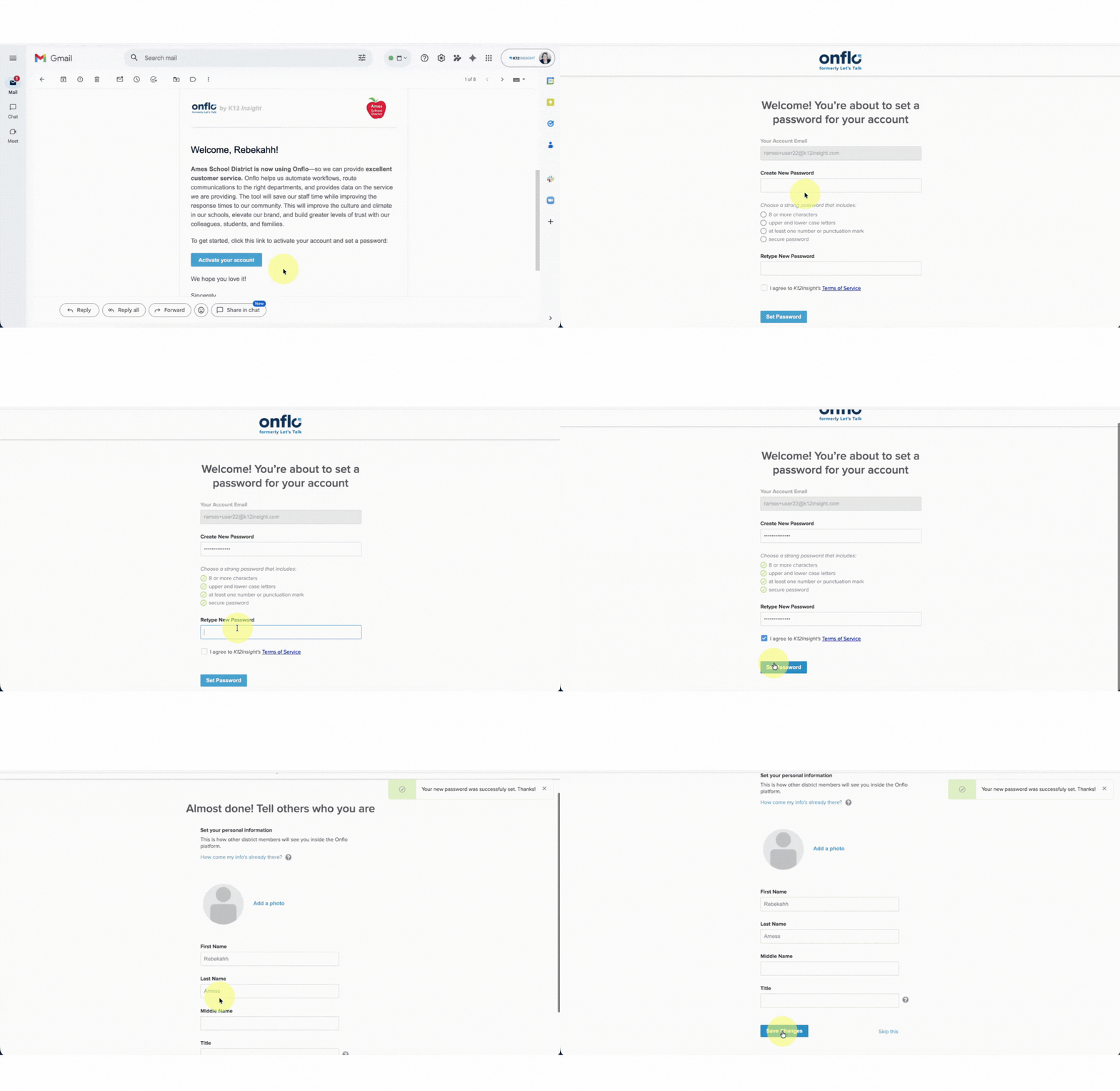
Onflo (formerly Let's Talk!) usernames and passwords are sent to new users via an activation email once the account has been set up by a System Administrator. 

First Time Login

  • Click the link found in the activation email or navigate to K12 Insight and click the Login button in the top-right corner.
  • Follow the prompt to create a new password. 
  • Optional: add a photo & title.

Note: Passwords should be a combination of letters and numbers with at least one symbol, and be at least eight characters.
Future Logins

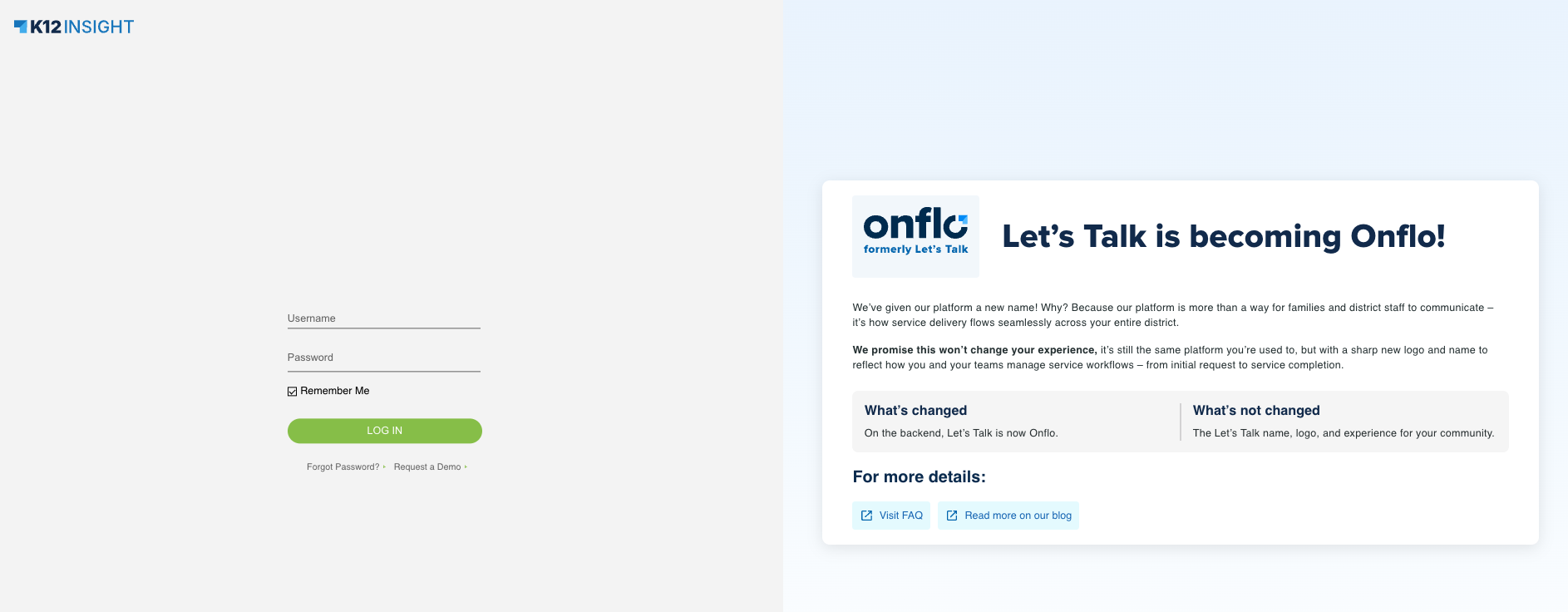
  • Navigate to K12 Insight and select Login in the upper-right corner.
    • Tip: Bookmark the login page for quicker access. 
  • Onflo usernames are created using the district email address. 
  • Single Sign-On Districts should reach out to their System Administrator to obtain login information.

Forgotten Password

  • Click the Forgot Password link on the login screen. Follow the steps, using your entire email address as the username, to retrieve your password.
  • Once you have changed your password, you must re-enter your email address and new password to log in.
Onflo Supported Browsers

To ensure optimal performance in Onflo, please use one of the supported browsers and versions listed below:

  • Microsoft Edge
  • Firefox version 20.0 and above
  • Safari version 5.0 and above
  • Google Chrome version 20.0 and above
Previous4 Best Practices for a Successful Onflo Implementation
NextAPI Integrations for Optimizing Onflo

Related Post

How to Allow Microphone Access for Onflo in Google Chrome

If you’re having trouble using your microphone with our application, follow these steps to ensure Chrome is set to allow microphone access: Step 1: Open Chrome Settings Click the three dots menu in the top-right corner of Chrome. Select Settings.

Read More ➜

Onflo Call Center Features: Advanced Routing Settings

Onflo (formerly Let's Talk!) Call Center feature provides many exciting upgrades to our Basic Telephony service. This article will review Call Center’s features including the following:  IVR Routing Business Hours Holiday Calendars Advanced Queue Settings Repeating Queue Greeting In-Queue Voicemails

Read More ➜

Streamlining Access with Single Sign-On for Onflo

Take your Onflo (formerly Let's Talk!) user experience to a new level with single sign-on (SSO). Setting up SSO for Let’s Talk allows users to access the platform using only one set of credentials. Better user experience Grant quick and

Read More ➜
onlo-full-color-splash-page

Need support?

Our Client Services Team is here to help between 7 a.m. – 7 p.m. ET. Get support here or call us at (703) 542-9601.

Mobile App

apple store
g play

Follow Us on

Linkedin Youtube

Quick links

  • Privacy
  • Security
  • Support
  • Training
  • Resources
  • Credits

Articles

  • How-to Articles
  • Product Updates
  • Get Started
  • Best Practices
  • FAQs

Get Newsletter

Sign up to get platform Tips & Tricks delivered directly to your inbox.

Scroll to top