
The generative AI-powered Chatbot is powered by the content uploaded to your district's Resource Center. To help you ensure your district has a comprehensive chatbot to provide your customers with accurate answers, we've introduced the Chatbot Completeness Report. This report helps you understand the content gaps you may have in your chatbot's ability to respond to common community questions.
How to Generate the Completeness Report
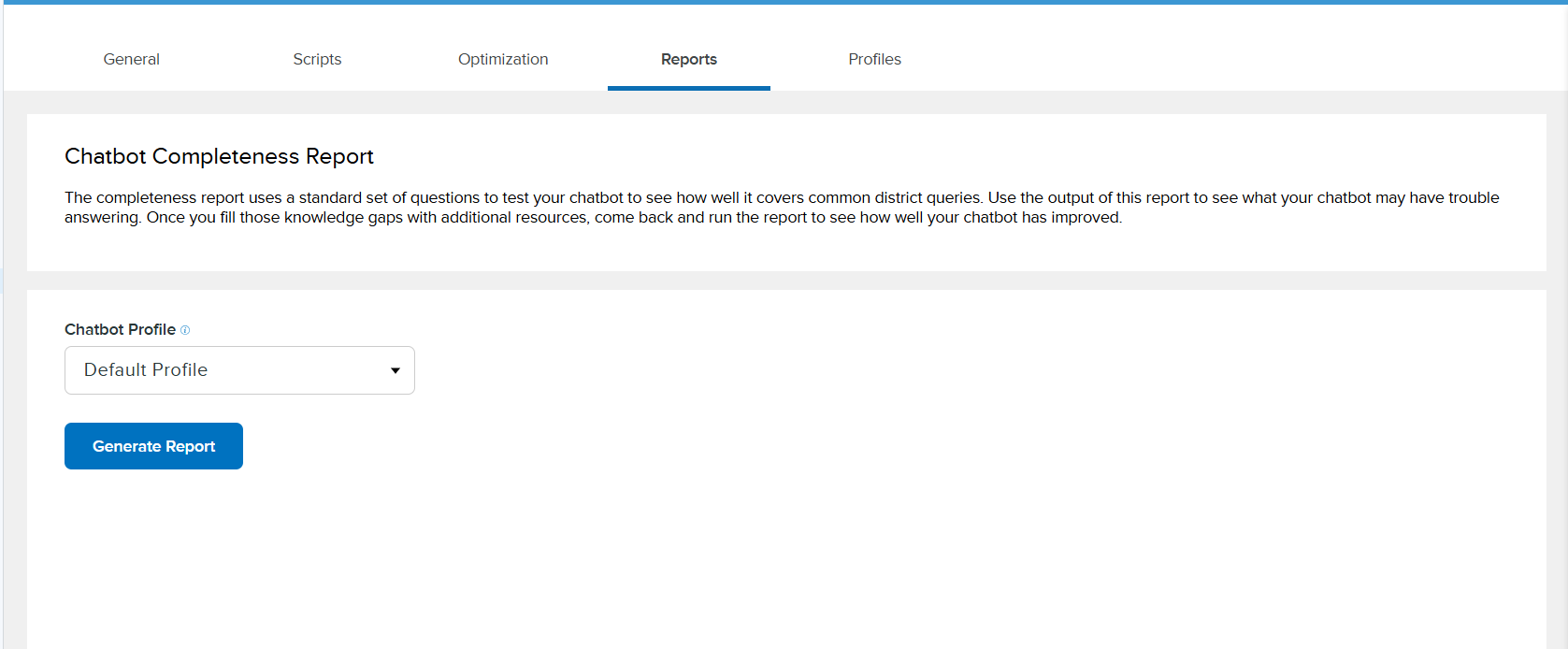
From Settings, click on Chatbot then select the Reports tab. Next, select the chatbot profile you would like to run the report for. Click the Generate Completeness Report button and another tab will open to prepare the report. Download the report once it is loaded to review the information.
What’s in the Completeness Report?
In this report, we will test your LTA by asking it a number of questions across a variety of categories. Our research team analyzed a decades worth of Onflo (formerly Let's Talk!) data to identify the most common questions across key areas of school district operations.The Full Report tab in the exported excel will contain a list of all the questions and their answers. This can help you assess the quality of the answers provided, and find specific opportunities for improvement.
The Summary tab will generalize how well each LTA handles different categories. This provides a higher level understanding of your comprehensiveness, and benchmarks for you to improve upon.
This is an easy tool to help move towards having an accurate and comprehensive chatbot. As you continue to improve your LTA by uploading to your Resource Center, we hope you run this report again to measure how you’ve improved.