Ensuring team members understand their roles in Onflo helps ensure a successful implementation and exceptional service for your community. In Onflo there are System roles and Category/Topic roles. System Permissions determine the level of access in Onflo a user is granted. Category and Topic roles determine your topic-specific responsibilities in Onflo.
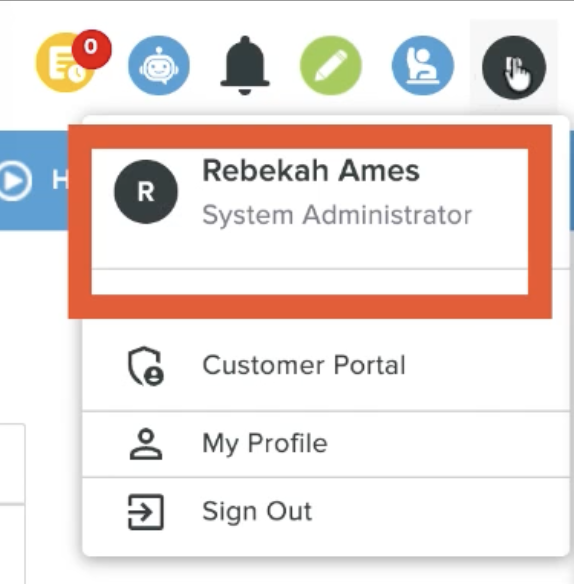
To view your role, hover on your name in the top right corner.
System Permissions
There are four roles in the Onflo system. These roles determine a user's permission level within the platform.
- System Administrator: This role has full access to the Onflo Account, overseeing all activity, and has the ability to customize all account settings, including the Topics, Users, and Roles for the district.
- Global User: This role serves as an overseer of all ticket activities within the district account. Global Users have access to all tickets and dashboards within the system, but limited access to account settings.
- Team Member: Most users in Onflo will be assigned this role. Team Members can access tickets submitted to the Topic(s) they belong to and any tickets they are added to.
- Recorder: This role allows a user to exclusively create tickets from in-bound inquiries, such as in-person visits, phone calls, or letter communications. Recorders are unable to respond to tickets.
| Role | Settings Access | Tickets Access | Dashboard Access | Reply to Customers? |
|---|---|---|---|---|
| System Administrator | All Features | All Tickets | Overview - All Data Comparison - All Data | Yes |
| Global User | Role-specific Features | All Tickets | Overview - All Data Comparison - All Data | Yes |
| Team Member | Role-specific Features | Topic Specific | Overview - Topic Data | Yes |
| Recorder | Role-specific Features | Topic or Ticket Specific | Overview - Topic Data | No |
Custom User Roles for Granular Permission Control
Define exactly what each user can view or manage
System Administrators can create custom roles allowing granular control over system settings, locations, asset types, inboxes, and more. This ensures roles match real district job functions—for example, giving school principals view-only access while granting IT managers full administrative control—and protecting sensitive areas, such as Campaign Manager, Global Tickets, Call Recordings.
Category and Topic Roles
Users can also be assigned category and topic specific roles. Users can hold multiple roles across different categories and topics they are assigned to. For instance: a user might be the owner of a Special Education topic, and a team member of a Transportation topic.
Category Administrator
Category Administrators are responsible for an entire Category (a group of related Topics). Even if a user is not a system administrator, they will have similar privileges for the Category they are made administrator over. Category Administrators have the ability to create Topics within that Category and assign users within each of those Topics, as well as see all data and metrics for the category.
Responsibilities
- Oversee Topics within the Category, including dashboard metrics.
- Create Topics within the Category.
- Assign users to Topics within the Category.
- Create Category-specific access points such as Landing Pages and Tabs.
- Customize Category-specific settings, including translations.
Category Administrators are assigned by System Administrators on the Categories page under Settings > Tickets >Topic Manager > Topics. This role is optional, and only one Category Administrator can be assigned per Category. Only users with Team Member system permissions can be made Category Administrator.
Topic Owner
Topic Owners are responsible for all tickets received from that Topic. Owners are notified when new tickets are received, but can delegate tickets to Team Members or reassign tickets to other Topics.
Responsibilities
- Oversee ticket activity within the Topic, including dashboard metrics.
- Ensure all tickets are closed out in a timely manner.
- Customize form messages for the Topic.
- Add users to the Topic.
Topic Owners are assigned by System Administrators or Category Administrator. This is a required role, and only one Topic Owner can be assigned per Topic.
Team Member
Team Members have access to all tickets within an assigned Topic. Team members may be assigned because they have been identified as a content expert for the topic of interest. Team members are responsible for ensuring any tickets assigned to them by the Topic Owner are handled within the agreed upon service level agreement.
Responsibilities
- Collaborate with the topic owner and other team members to ensure tickets are responded to within a timely manner.
- Oversee ticket activity within the Topic, including dashboard metrics.
Team Members are assigned by System Administrators, Category Administrator or Topic Owners. There is no limit to the number of team members per Topic.
Landing Page Manager
The Landing Page Manager designation can be used to provide a user with limited access to maintain and update specific landing pages. Landing page managers enable efficient delegation and management of landing page content across users.
Responsibilities & Capabilities:
- Edit landing page content, layout, and design features.
- Manage categories and featured topics.
- Preview and publish content.
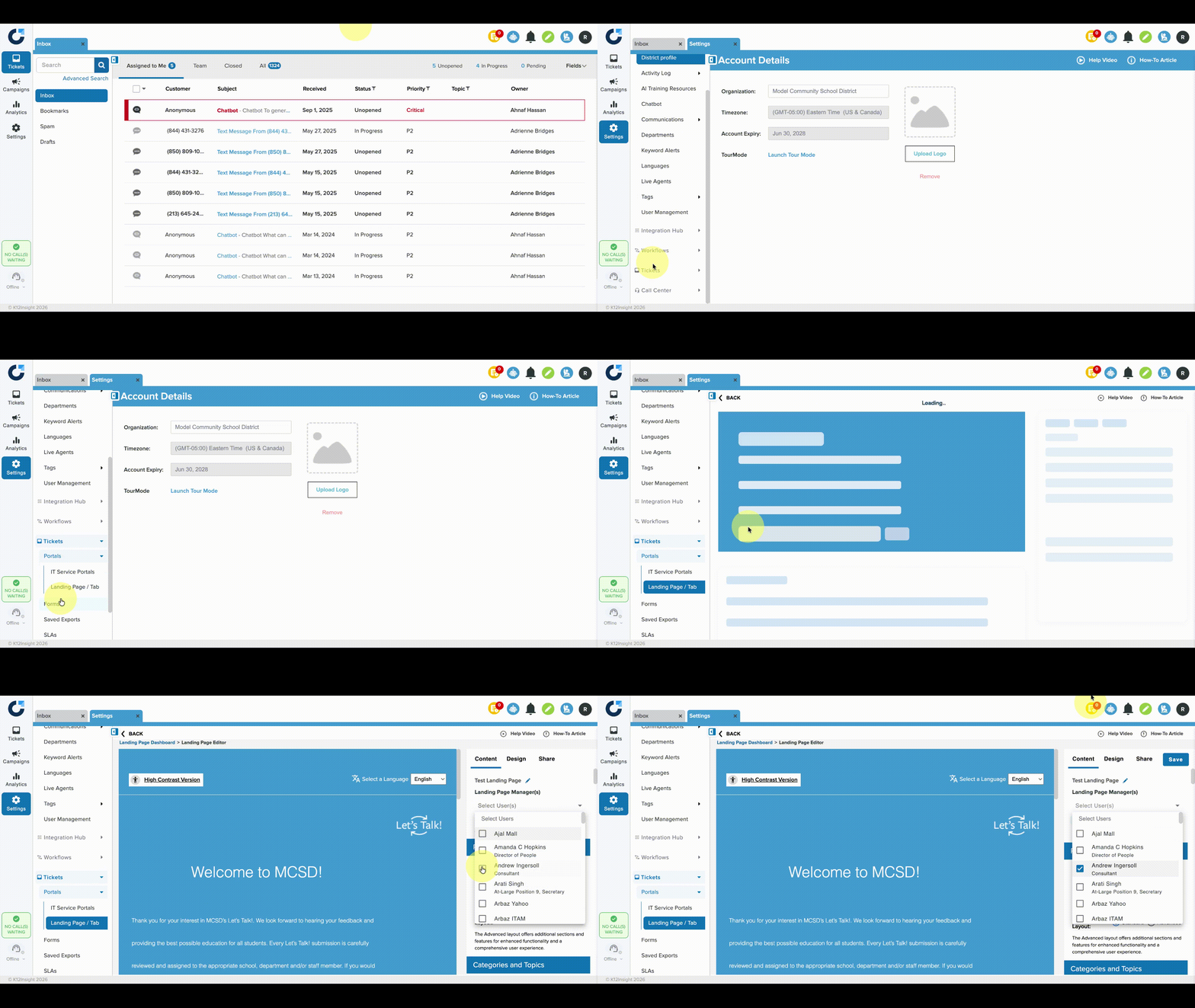
System Administrators can assign any user to be a Landing Page Manager by following these steps:
- Click Settings > Tickets > Portals > Landing Page / Tab.
- Click the name of the landing page, then select the correct user from the dropdown menu on the right side of the page.
- Click Save.