
To Access Your Profile
- Log into Onflo.
- Navigate to your name in the upper right hand corner of your screen, then click on My Profile.
Setting Up Your Profile
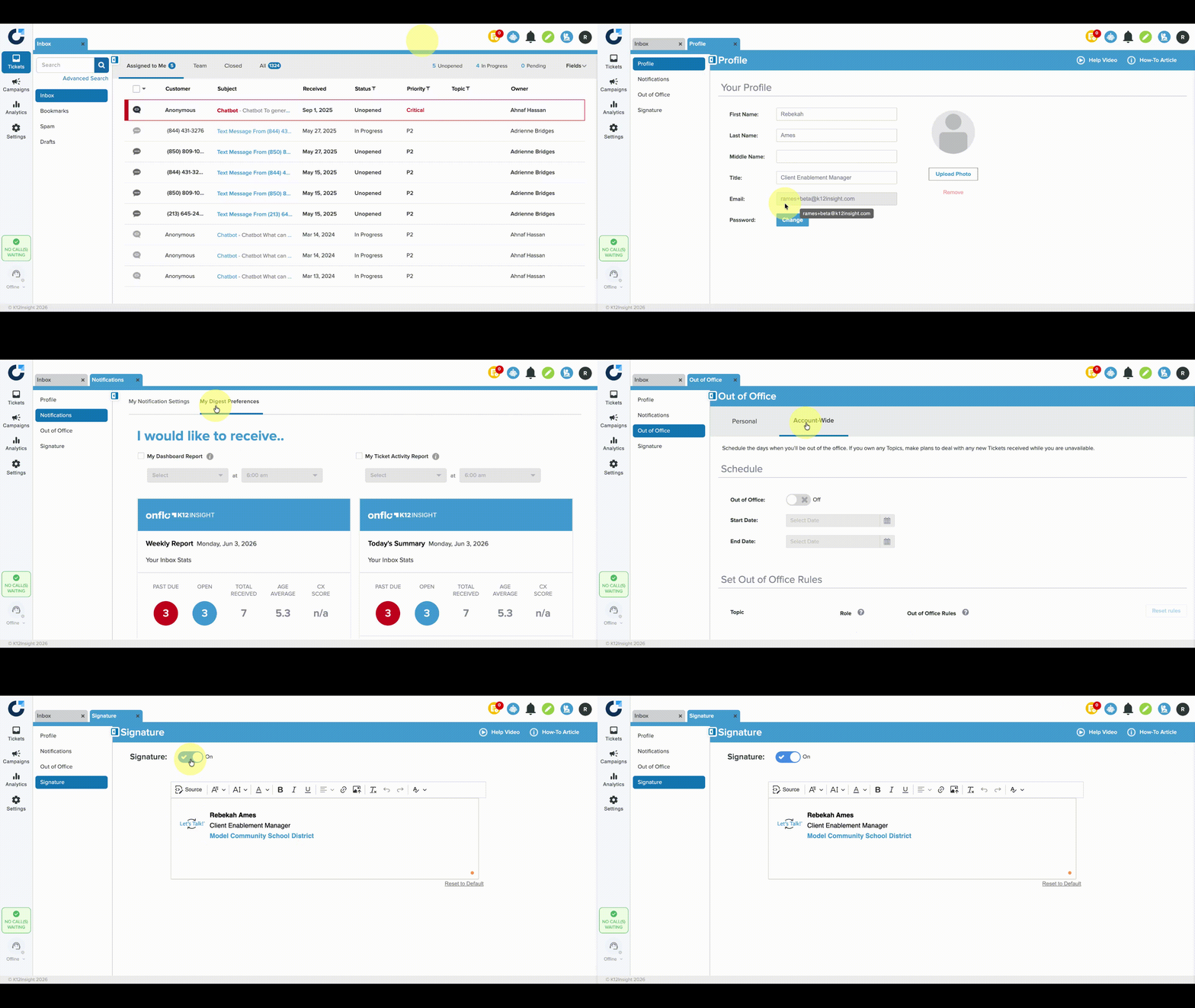
In the Profile section you will find the following information:
- First and last name
- Middle Name (Optional)
- Title (Optional)
Note: These fields have a 30 character maximum.
Notifications
Click Notifications to determine how you'd like to be alerted about the incoming tickets in Onflo where you are the owner or a team member. You can also set your preferences for receiving a digest of Onflo tickets.
Out of Office
Click Out of Office to set the rules for your personal account. System Admins can set account wide Out of Office rules here.
Signature
Create your email signature, including adding a photo or district logo.
Editing Your Profile
When you need to make a change to your profile information you will find that most fields are editable by clicking into them, and making any necessary updates. The fields you can edit include your First Name, Last Name, Middle Name, and Title.
Your Email cannot be edited in your profile. Please reach out to your organization's Onflo System Administrator if you need your email updated.
Saving Changes
Once you have edited fields in your profile, a green Save button will appear in the top-right hand corner of the page.